

Connect Xero
Prerequisites
- A Xero organisation, and a user who can authorize a connected app for it.
- A chart of accounts already set up in Xero. The connector references accounts by their code and does not create them, except where auto-create is explicitly available for journal entry accounts. Have ready: a sales or revenue account, a tax account, a discount account, a credit note account, and a payment account.
- For multi-currency billing, the currencies you bill in must already be enabled on the Xero organisation. Xero rejects a record in a currency the organisation has not enabled.
Steps
-
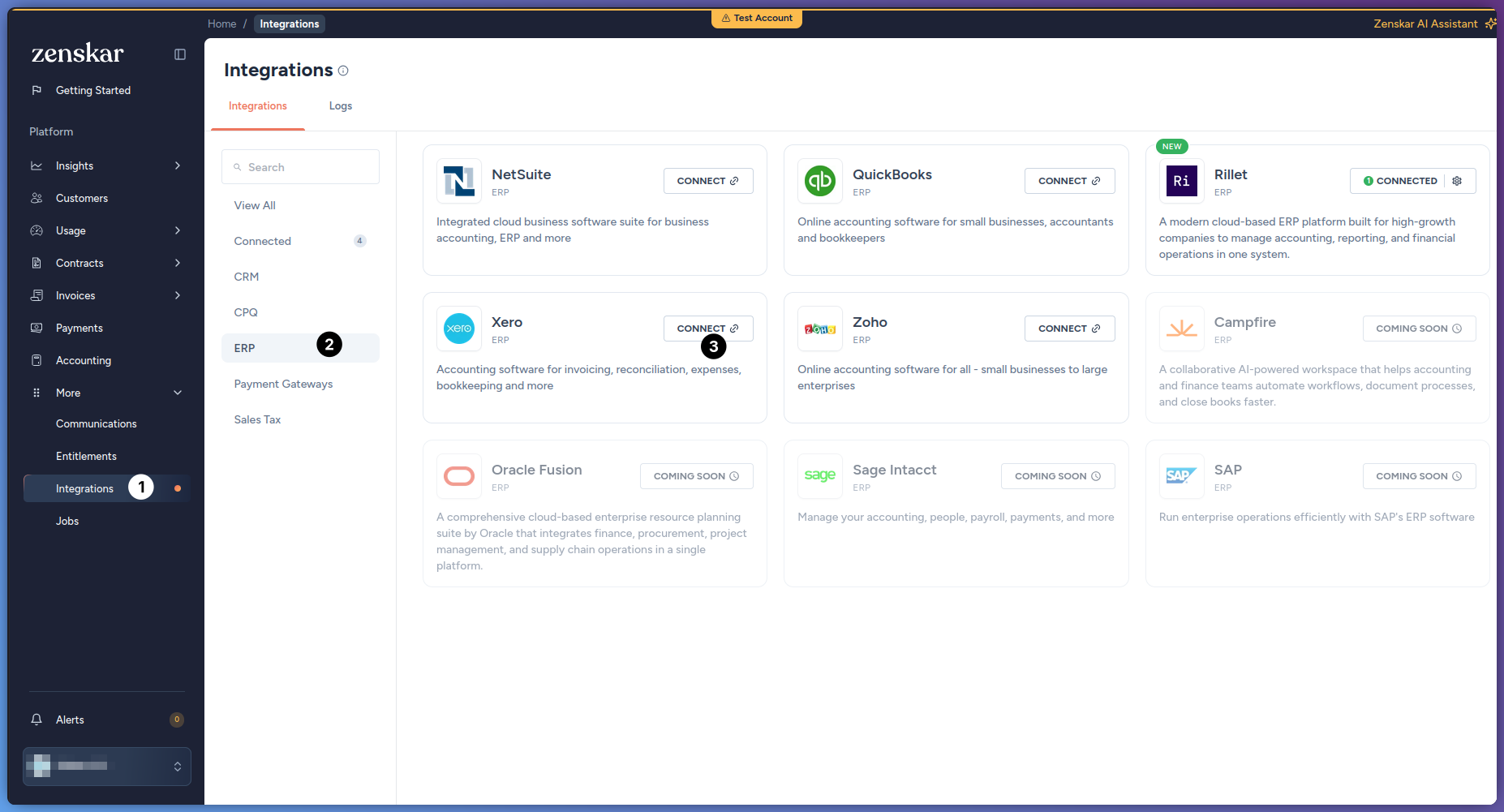
In Zenskar, go to More > Integrations > ERP, find the Xero card, and click Connect.
-
On the Xero page, click Connect to Xero, then click Connect in the confirmation dialog. You are redirected to Xero.
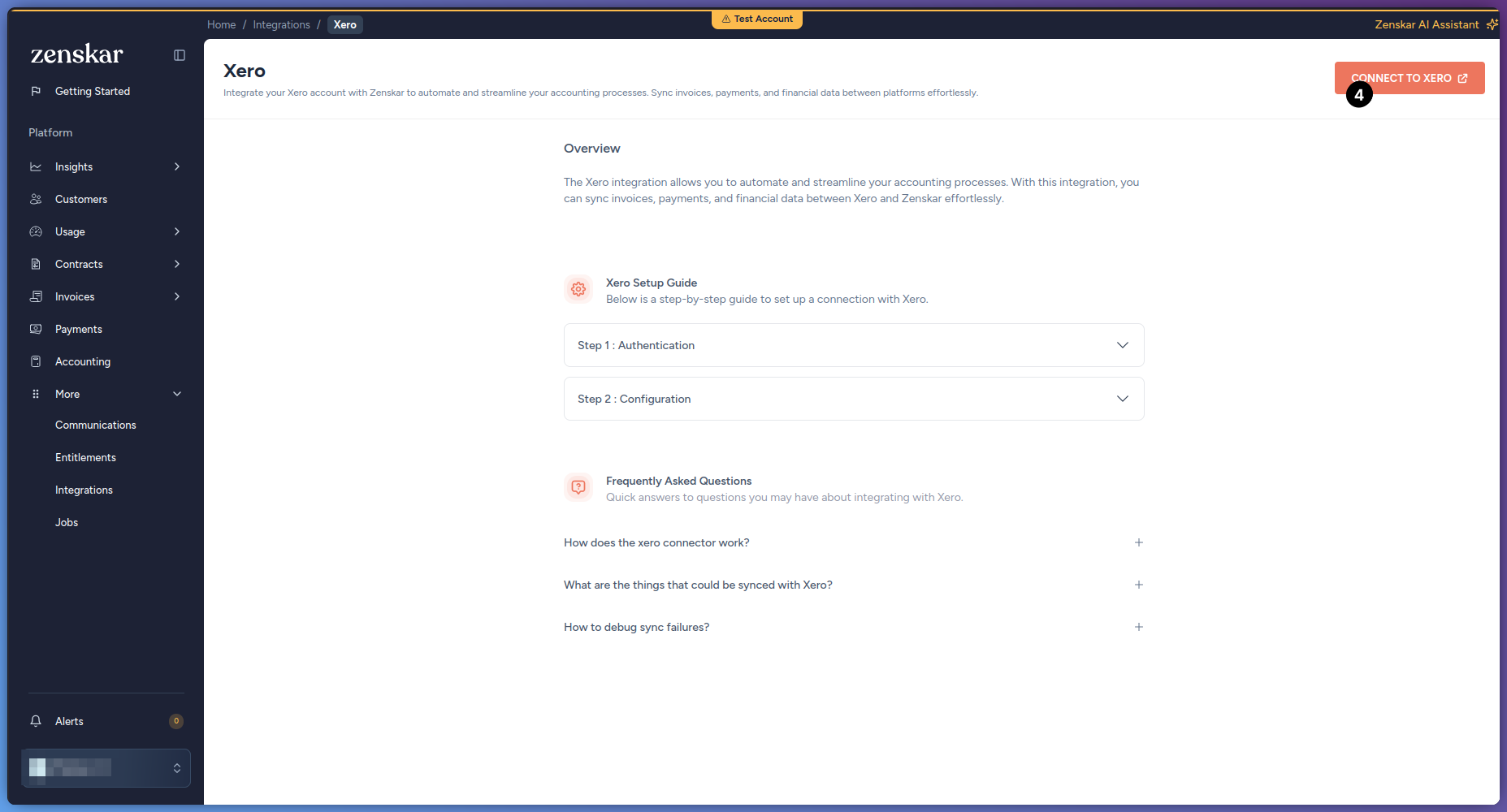
- Log in to Xero, and choose which Xero organisation to authorize.
- Zenskar redirects you back to the Configuration screen.
Configure the connection
- Under Select Zenskar Entity, select the entity this connection belongs to. This is required. Save Configuration stays disabled until you select one, and you cannot change it after saving.
-
Under Data Sync Setup, choose a sync mode. Only one mode can be active per connection:
Switching from one mode to the other clears the configuration already set under the mode you are leaving.
If you choose Object Sync
Enable the objects to sync:
For each module with account mapping, none of the accounts below have a default or recommended value, and each must already exist in Xero:
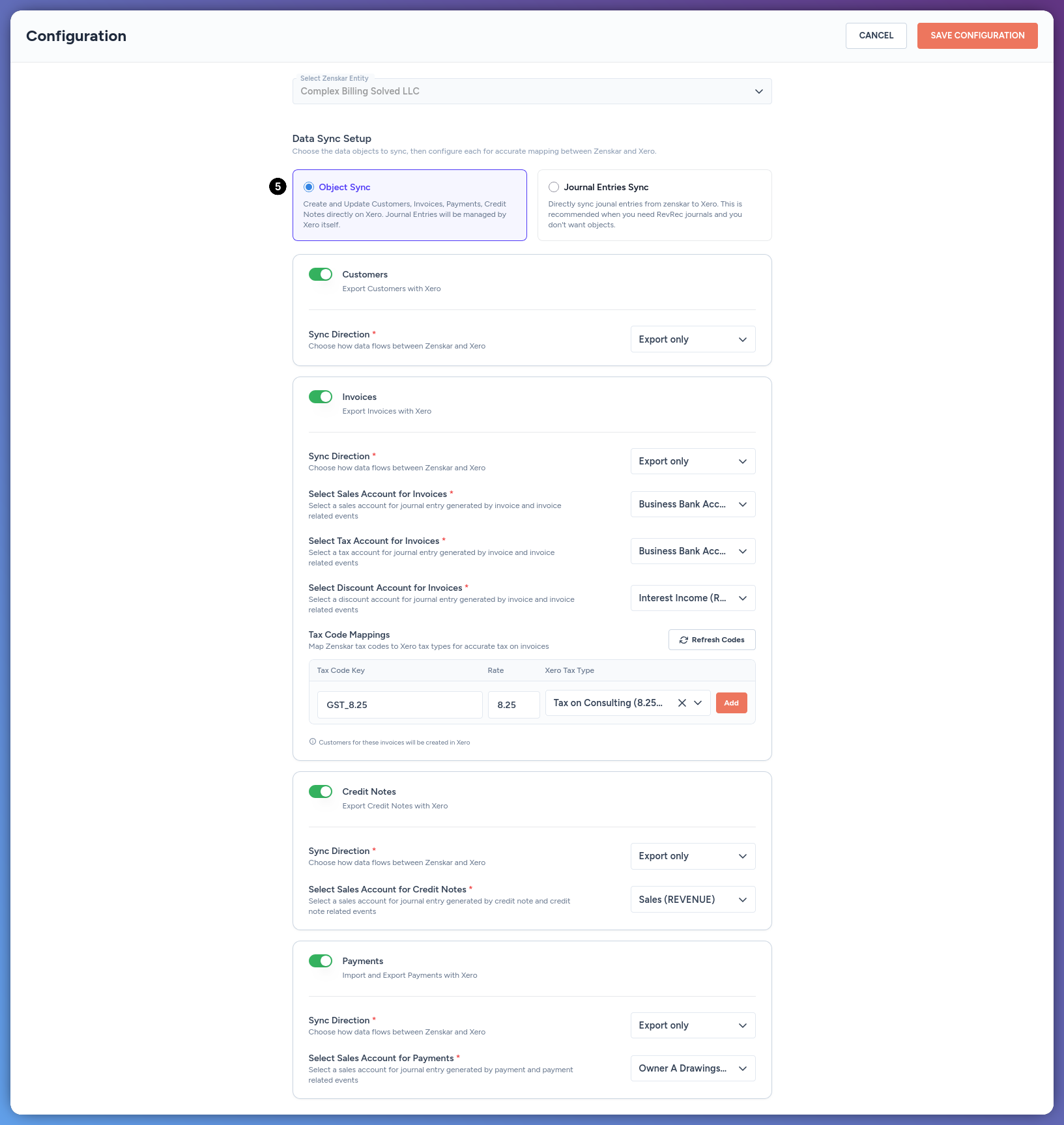
Customers referenced by an invoice sync to Xero during invoice sync, even if the Customers module is turned off.
If you choose Journal Entries Sync
Enable Journal Entries, then map each account under Journal Accounts Mapping to a Xero account.The accounts listed on the Zenskar side come from your own Settings > Accounting > Chart of Accounts, not from Xero. Add, rename, or remove an account there to change what appears here. None of these have a default Xero account mapped to them.
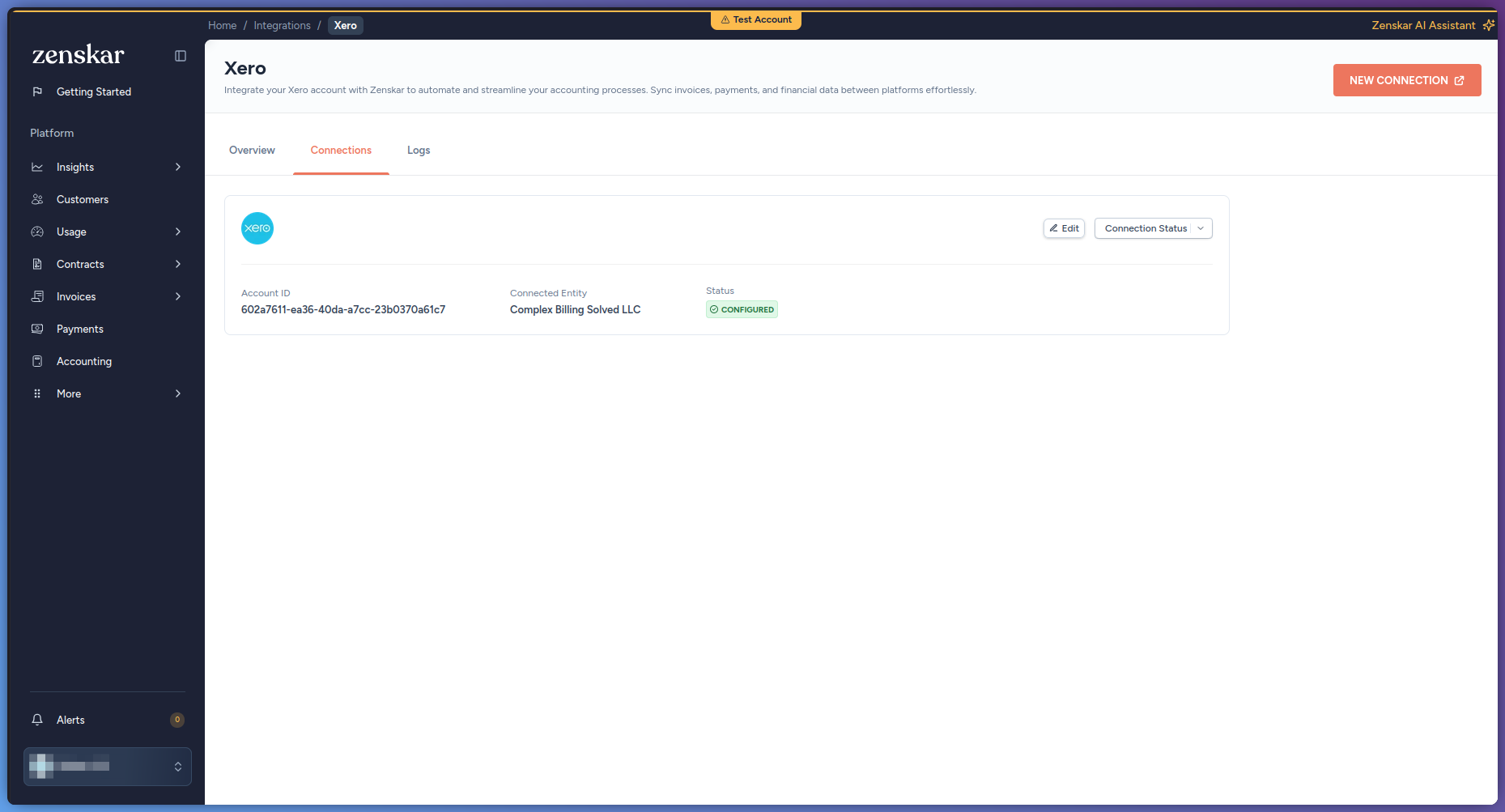
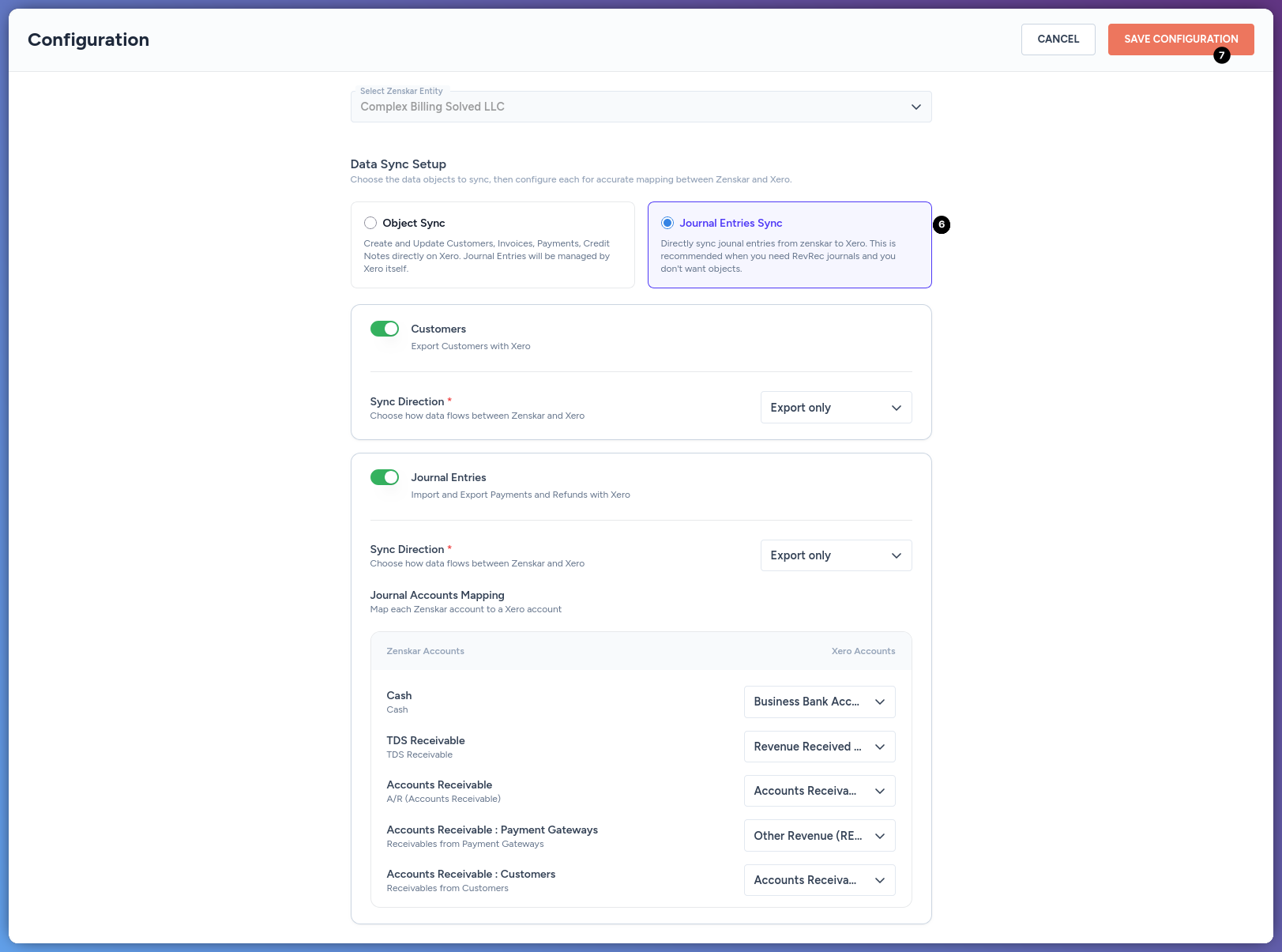 Click Save Configuration. The connection shows as Configured on the Xero Connections tab.
Features
Reference
Known limitations
- Xero rejects a journal entry with an account line amount of zero. A line with a zero amount is skipped. If every line in an entry is zero, the whole entry is rejected.
- Xero does not allow a journal entry to post against its own system or bank accounts, including the real Accounts Receivable account. Map the equivalent Zenskar account to a comparable account you create in Xero instead.
- A credit note syncs to Xero as a single line, with tax as a flat amount. It does not carry a per-line breakdown or per-line tax the way an invoice does.
- An invoice or credit note cannot be re-synced once it has posted to Xero. To correct it, edit it directly in Xero. Journal entries are the exception: Zenskar can update a journal entry it already posted.
- Xero customers are matched by exact name, not by email. Two Zenskar customers with the same name risk being treated as the same Xero contact.
- An invoice line with no resolvable sales account, or a taxed line with no resolvable tax rate, fails the sync rather than posting without the missing value.
- Xero tracking categories are limited to two active categories at a time. This is a Xero platform limit, not a Zenskar one.