

Overview
The QuickBooks connector exports billing and accounting data from Zenskar to QuickBooks Online. Zenskar is the source of truth for the records it sends. QuickBooks is always the destination, the connector does not import invoices, payments, or customers from QuickBooks into Zenskar. Each connection links one Zenskar business entity to one QuickBooks Online company (identified by its Intuit realm ID). Two sync modes are available, and they are mutually exclusive for a given connection:- Object sync: Zenskar creates and updates customers, invoices, payments, and credit notes directly in QuickBooks. Journal entries are left for QuickBooks to manage on its own.
- Journal entries sync: Zenskar sends double-entry journal entries (for example, revenue recognition postings) to QuickBooks instead of individual objects. Use this mode if you need Zenskar’s revenue recognition journals in QuickBooks and do not want individual objects created there.
Prerequisites
Connect QuickBooks to Zenskar
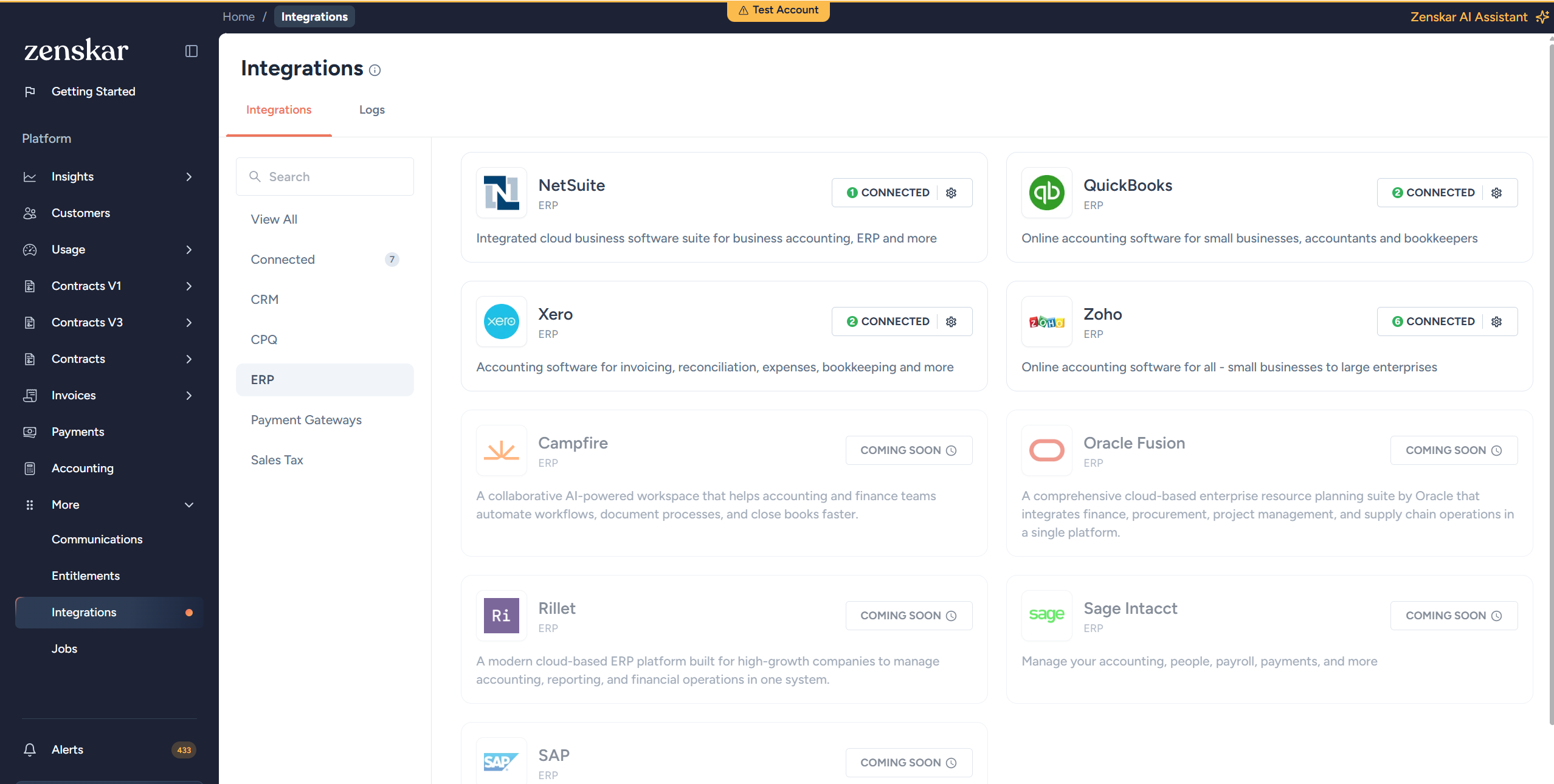
- Click More in the main navigation menu and go to Integrations → ERP → QuickBooks.
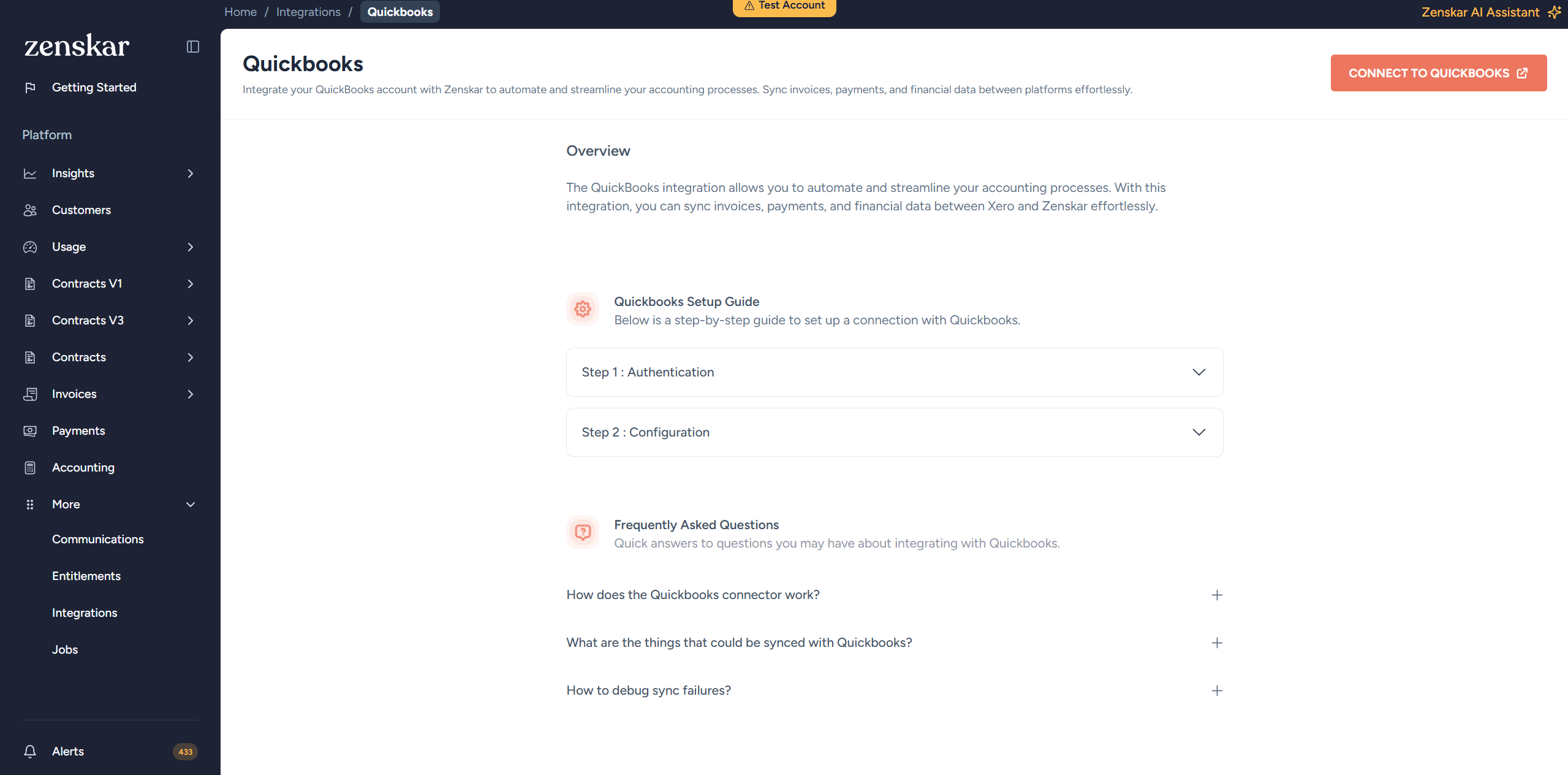
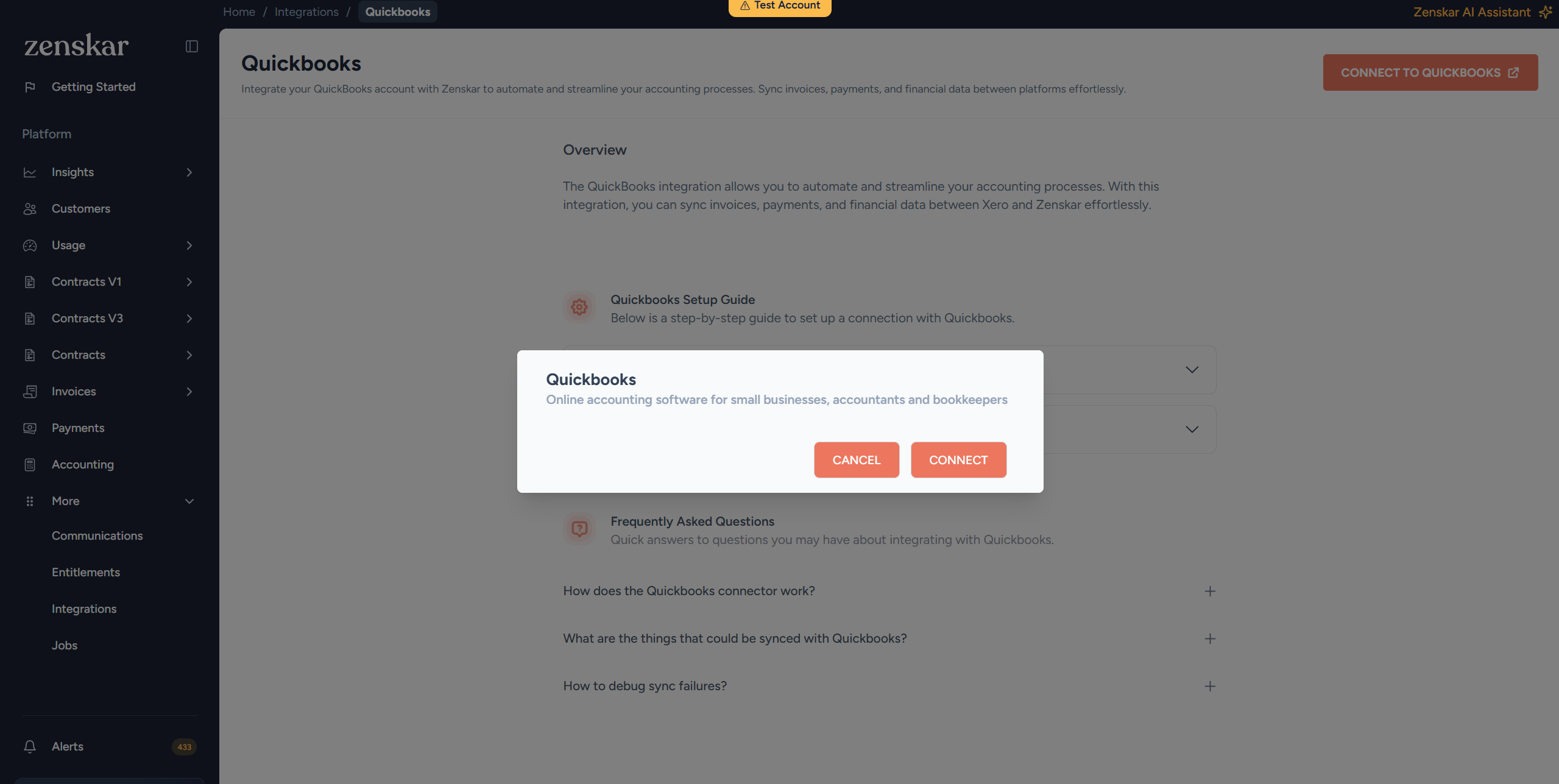
- Click Connect To Quickbooks, then click Connect. This redirects you to Intuit’s consent screen.
- Complete the authentication using your company’s QuickBooks credentials, and select the QuickBooks company you want to connect.
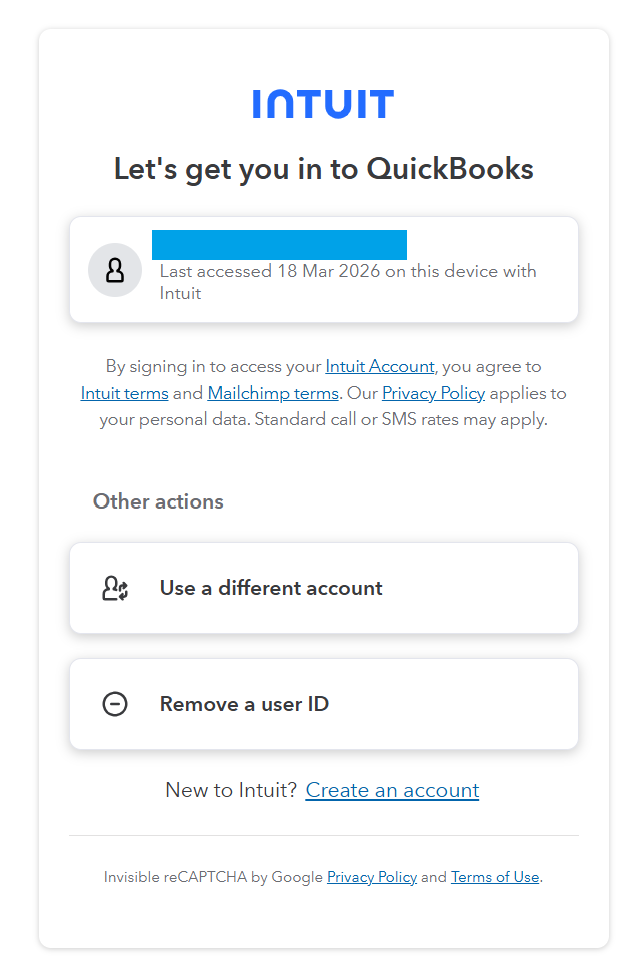
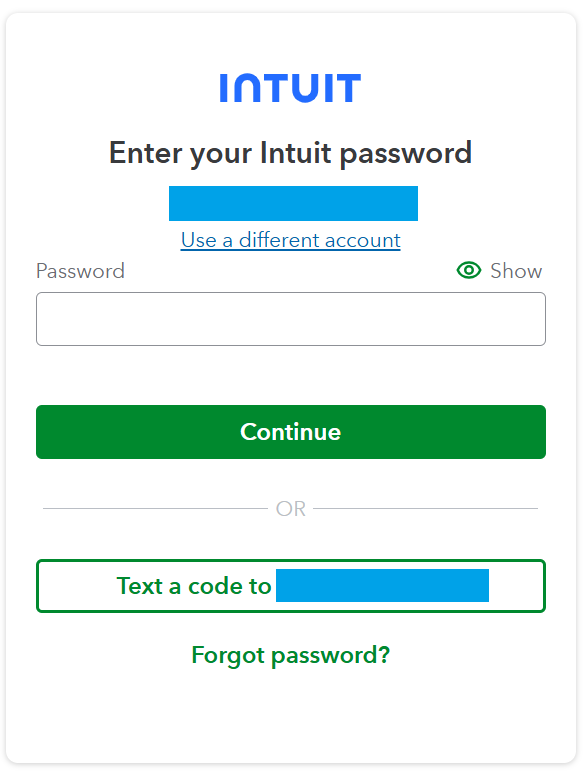
If you decline the connection on Intuit’s consent screen, Zenskar returns you to the Connections tab instead of completing the setup. No connection is created.
- Under Select Zenskar Entity, select the entity this connection belongs to, then continue to data sync setup.
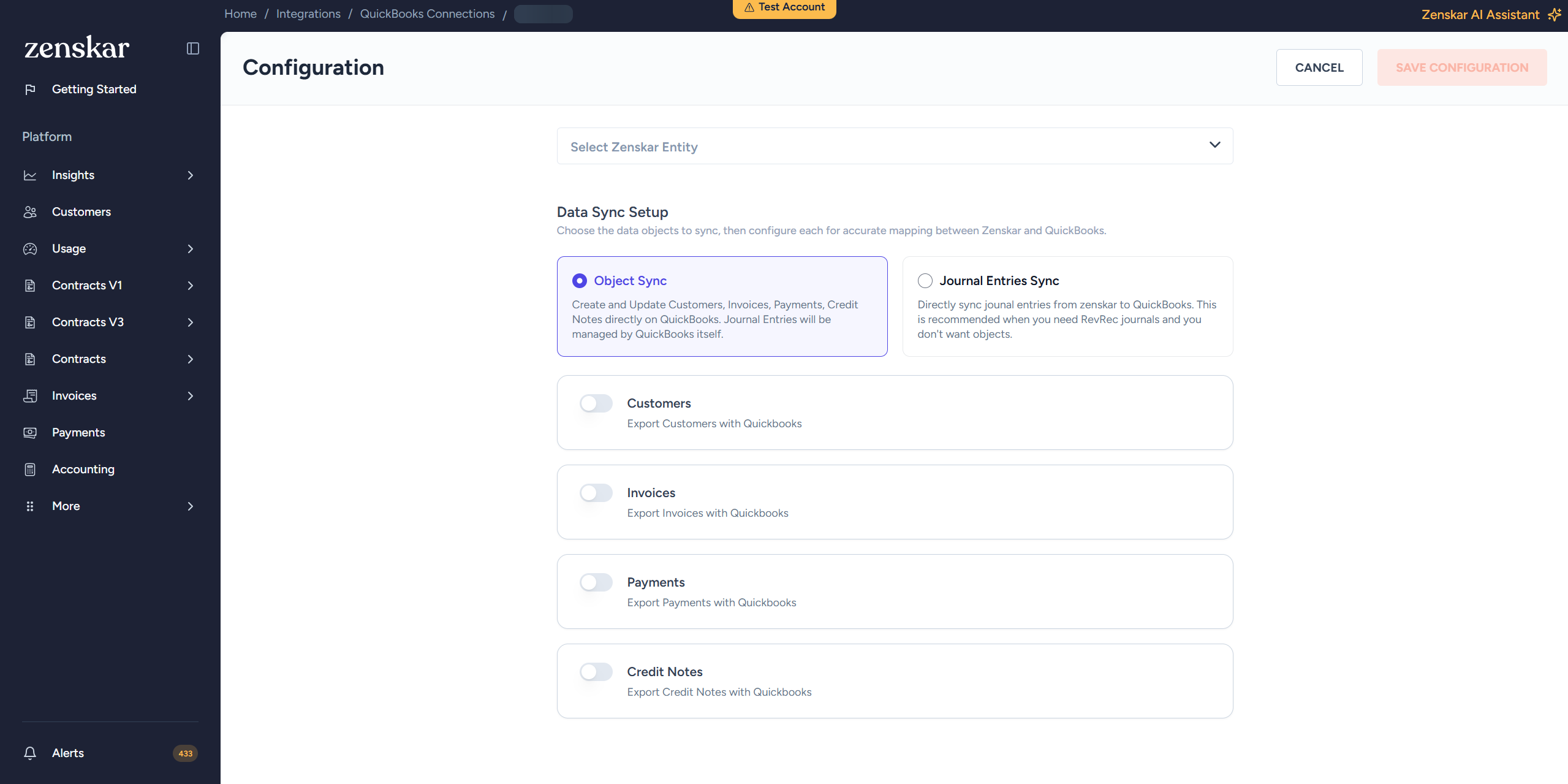
A connection without a business entity assigned shows a banner asking you to select one before you can add further connections. Each business entity can only be linked to one QuickBooks company at a time.
Choose a sync mode
On the data sync setup screen, select either Object Sync or Journal Entries Sync. Selecting one disables configuration for the other, since a single connection cannot run both modes at once.Configure object sync
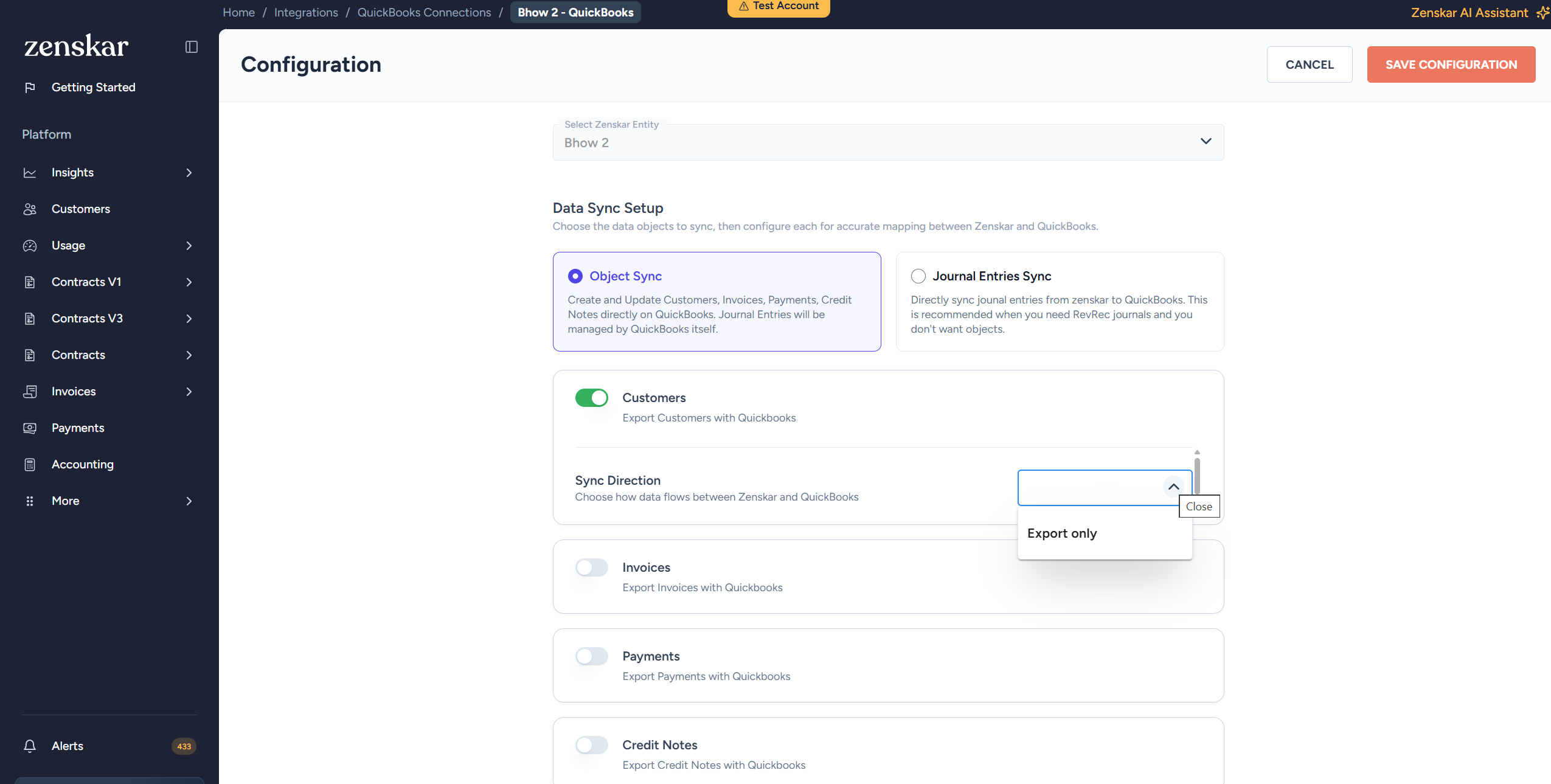
Customers
Customer sync is export only. Zenskar creates a Customer object in QuickBooks for each Zenskar customer and keeps it updated.- Select the sync direction (export only for QuickBooks).
Invoices
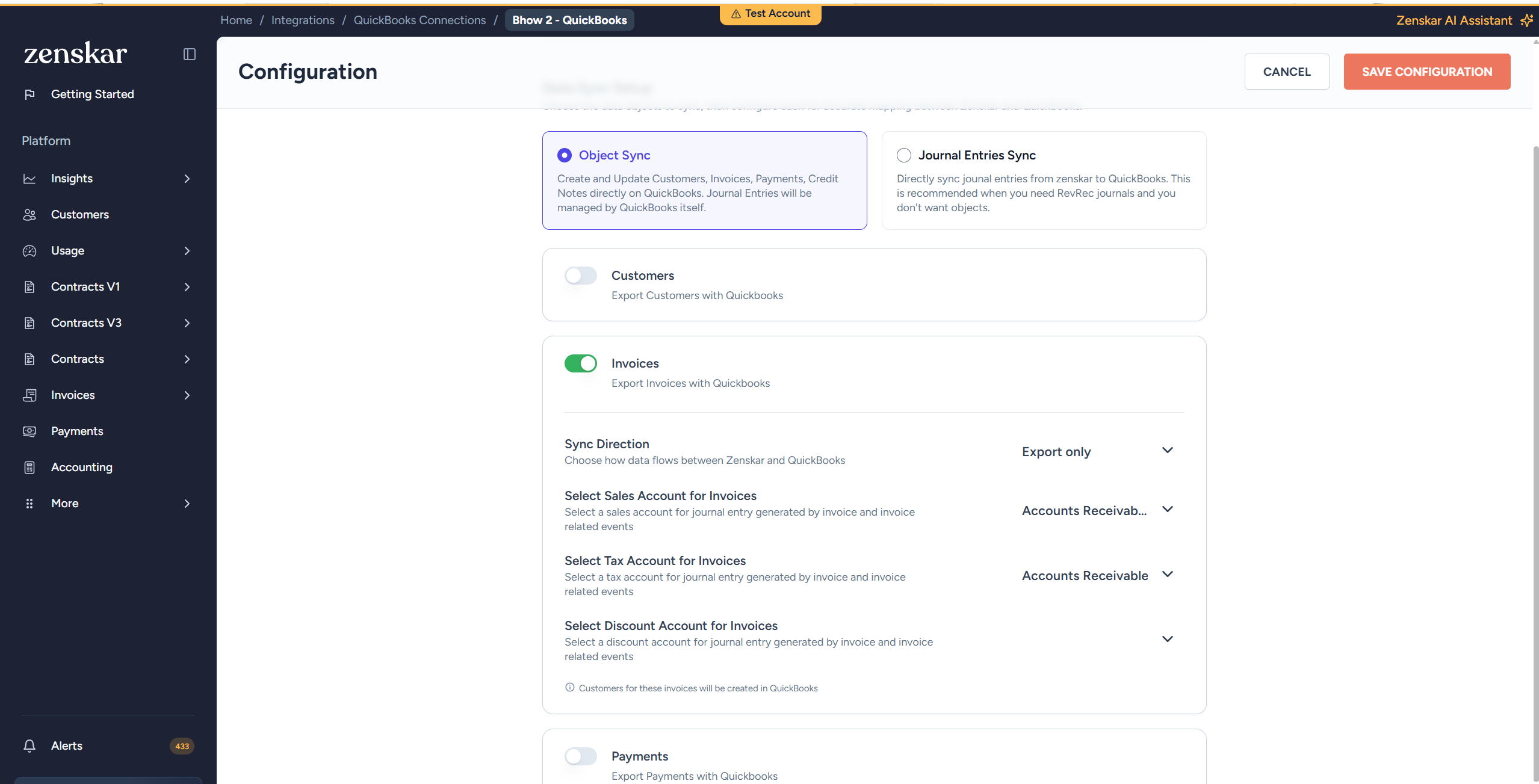
- Select the sync direction (export only). Zenskar exports invoices with line items, tax details, and due dates. A link back to the Zenskar invoice is written to the invoice’s private notes field, and the QuickBooks
DocNumberis set to the Zenskar invoice number rather than relying on QuickBooks’ own numbering. - Select a Sales Account for invoices. This is the QuickBooks GL account credited when an invoice is created. Zenskar recommends an account of QuickBooks type Income, not Accounts Receivable, since Accounts Receivable is a balance-sheet account and does not represent recognized sales. QuickBooks itself does not accept a non-Income account here.
- Select a Tax Account for invoices. This is the GL account where invoice tax amounts are posted. Zenskar recommends an account of QuickBooks type Other Current Liability, matching where QuickBooks’ own default Sales Tax Payable account lives. Tax is applied at the invoice level, not per line item.
- Select a Discount Account for invoices. This is the GL account where invoice discount amounts are recorded. Zenskar recommends an Income-type account here too, matching QuickBooks’ own “Discounts/Refunds Given” account if your company has one. If not configured, discounts fall back to the Sales Account.
Zenskar does not restrict which account type you can select for Sales, Tax, or Discount Account; the recommendations above reflect QuickBooks’ own requirements and defaults, not a validation Zenskar enforces. QuickBooks itself rejects a Sales or Discount Account that is not Income type when the invoice syncs.
When an invoice line references a product, Zenskar first checks whether the product already has a mapped QuickBooks item, then falls back to a live search for an existing QuickBooks item with a matching name. If either match succeeds, Zenskar reuses that item and its existing QuickBooks income account unchanged, it does not re-apply the Sales Account above. Only when no match is found does Zenskar create a new item in QuickBooks, using the Sales Account (or Discount Account, for a discount line) configured here.
- Sync Invoice Note: when enabled, the rendered Zenskar invoice note is written to the QuickBooks customer memo field. This is disabled by default.
- Custom fields: invoice, line item, and customer fields can be mapped to existing custom field definitions in QuickBooks. QuickBooks custom fields must already exist; the connector does not create them.
- Tax Code Mapping: maps each Zenskar tax code to a QuickBooks tax type. This mapping table is available for every connected company, but it is only applied to invoices for non-US QuickBooks companies. US companies use QuickBooks’ Automated Sales Tax instead. See tax handling.
- Tax Agency Mapping: maps each tax jurisdiction to a QuickBooks tax agency. See tax handling.
Once an invoice has been synced to QuickBooks, it cannot be edited and re-synced from Zenskar. Corrections to a posted invoice must be made directly in QuickBooks.
Payments
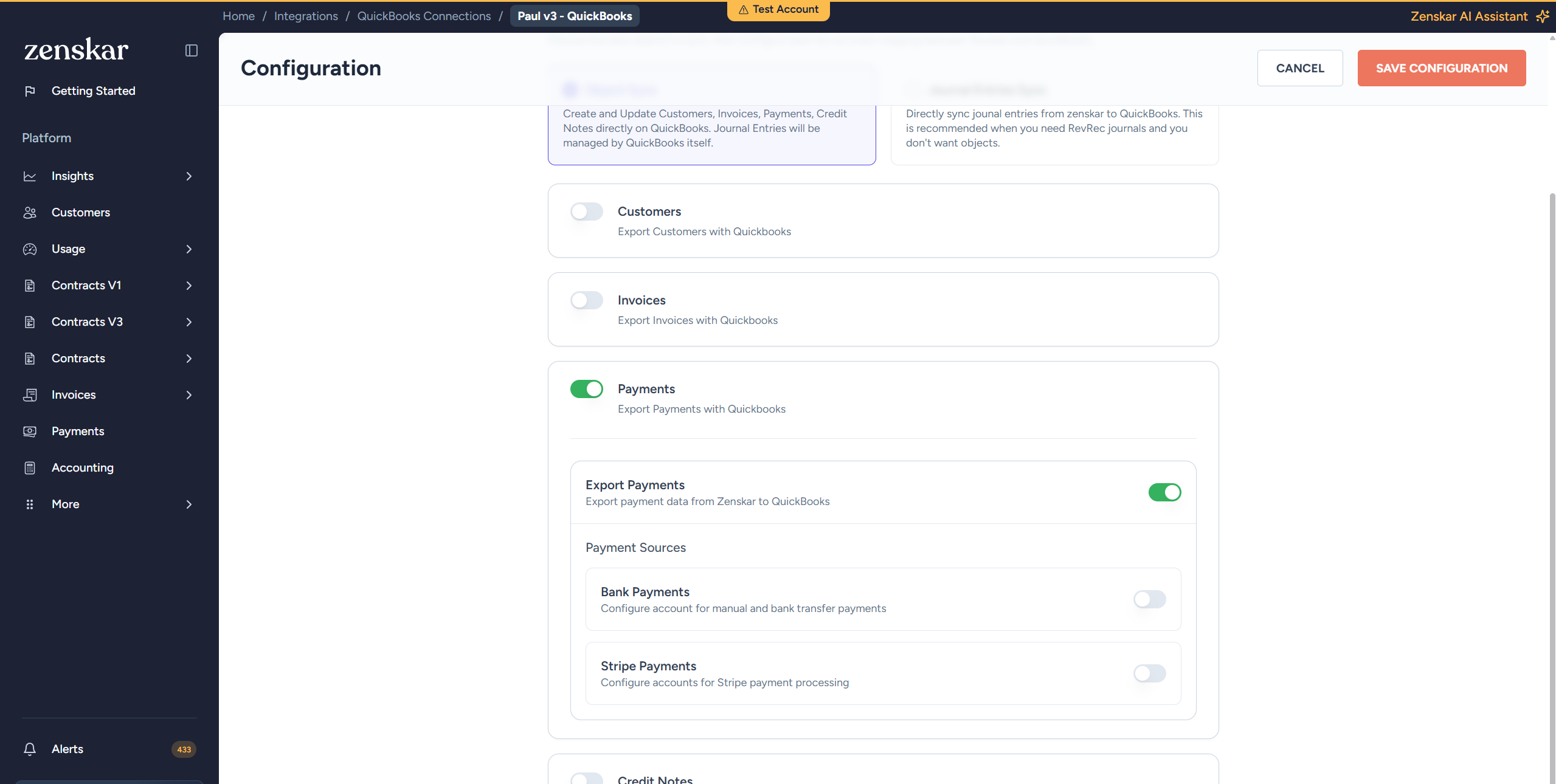
- Enable Export Payments. When enabled, payment records from Zenskar are created in QuickBooks and allocated against their corresponding invoices. A single payment can be split across multiple invoices.
- Configure the required payment sources:
- Bank Payments: covers manual and bank transfer payments. Select the QuickBooks account payments should be deposited to.
- Stripe Payments: select the QuickBooks account for the payment deposit and a separate account for Stripe processing fees. Optionally enable Payout Configuration and select an account for Stripe payouts.
QuickBooks does not have a native refund object. Refunds are recorded either as a reduction to an existing payment (for wallet credits) or as an expense against the accounts receivable account (for cash refunds).
Credit notes
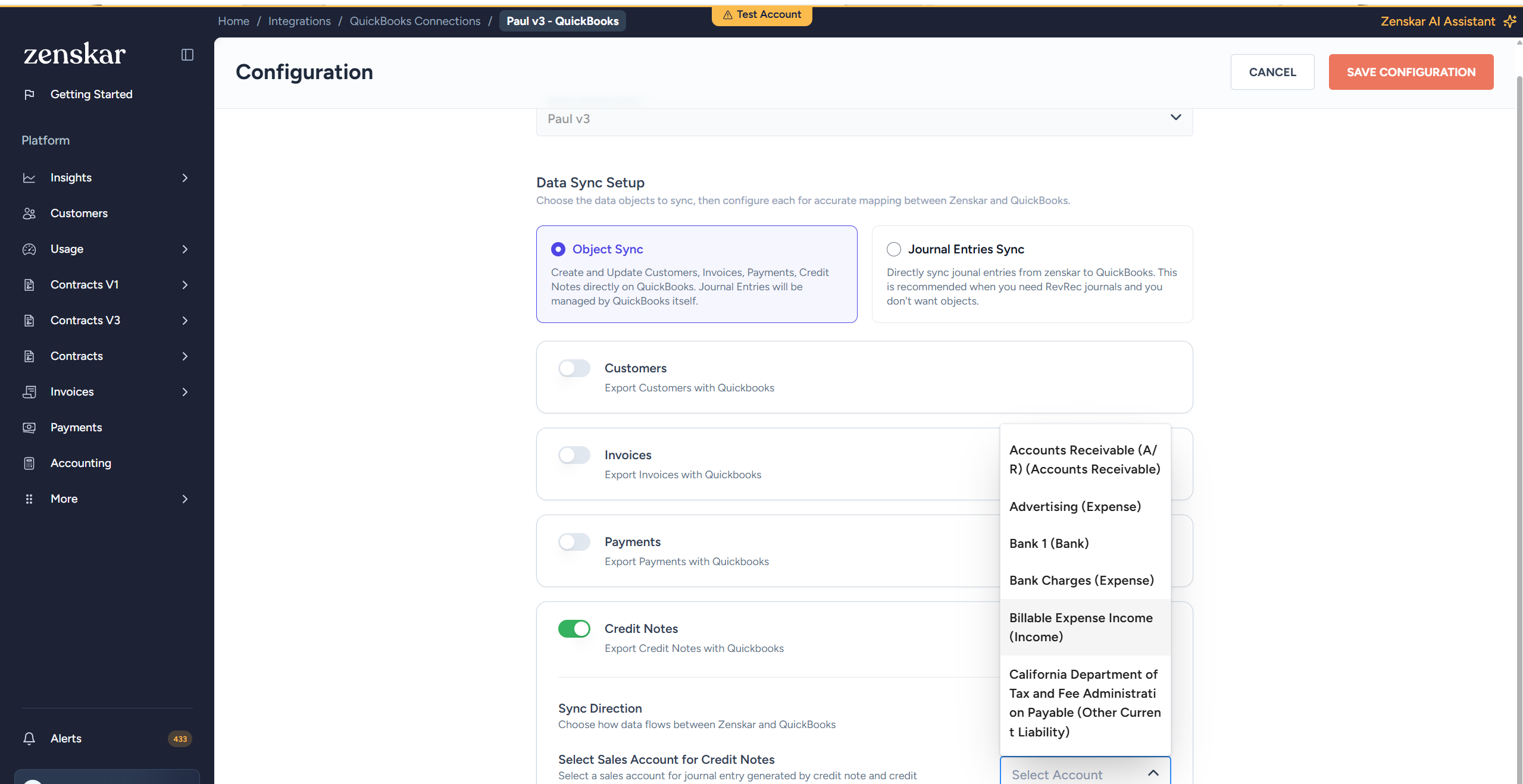
- Select the sync direction (export only). Zenskar exports credit notes as Credit Memos in QuickBooks. If the original invoice is still unpaid, the credit memo is automatically applied against it.
- Select the Sales Account for credit notes. This plays the same role as the Invoice Sales Account, Zenskar recommends an account of QuickBooks type Income, since QuickBooks uses this account on the same underlying field a credit memo and an invoice both use. A credit note always posts to QuickBooks as a single line against a shared “Credit Note (Zenskar)” item, not the original invoice’s product items.
A credit note cannot exceed the open balance of the invoice it is applied against. If the amount is too large, the sync fails rather than partially applying the credit.
Configure journal entries sync
Journal entries sync is an alternative to object sync, not an addition to it. When it is enabled, Zenskar sends double-entry journal entries (for example, revenue recognition and adjustment postings) to QuickBooks with debit and credit lines, instead of creating individual invoice, payment, or credit note records.- Select the sync direction for customers, if customer records are still needed alongside journal entries.
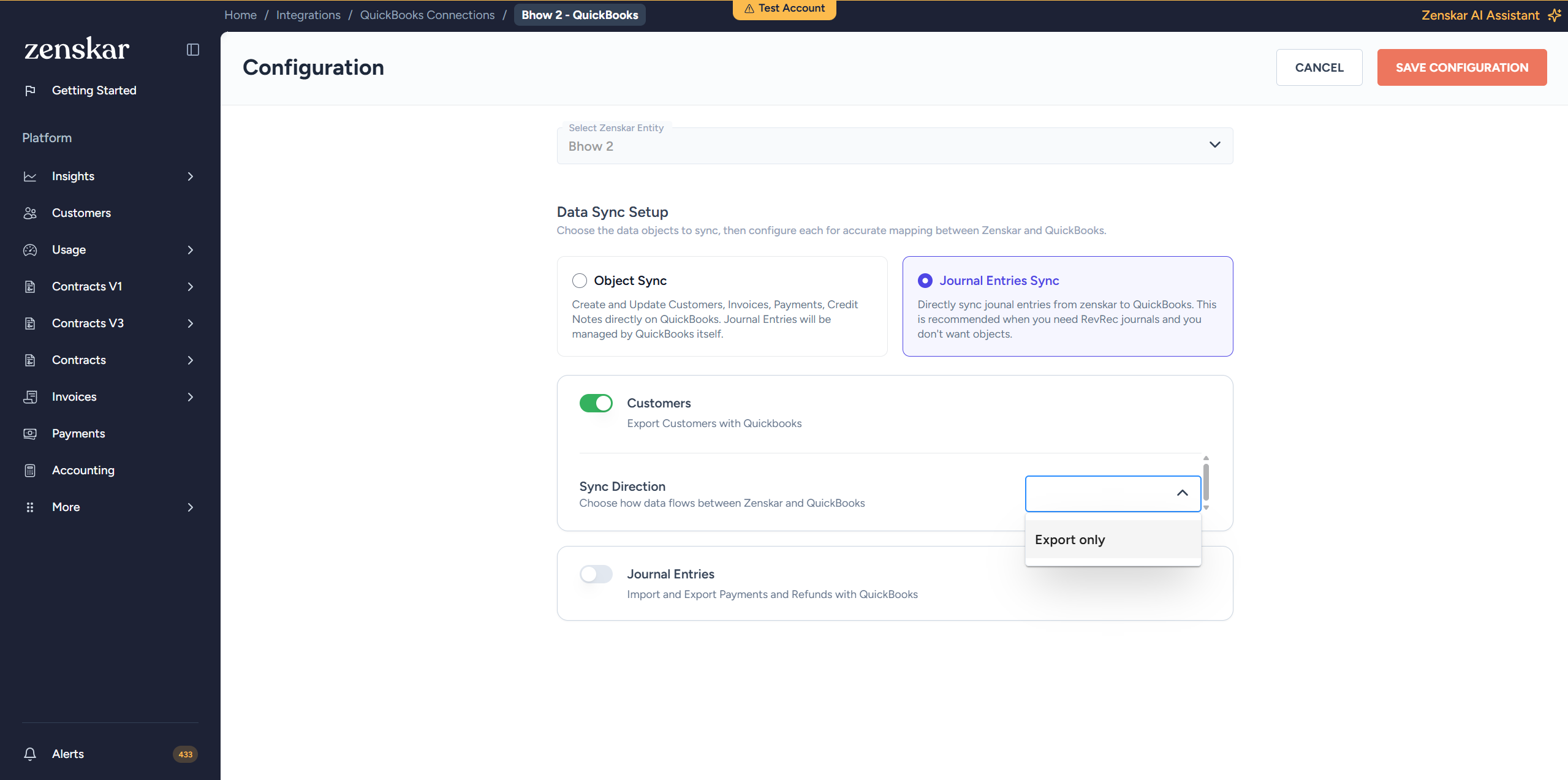
- Select the sync direction for journal entries.
- Configure Journal Accounts Mapping: map each Zenskar account (Accounts Receivable, Cash, Sales Returns and Allowances, Tax Withheld, Revenue, and Customer Wallet) to a corresponding QuickBooks GL account. This ensures journal entry lines post to the correct accounts in your chart of accounts. None of these have a default value in Zenskar; a new QuickBooks company typically already has a standard account named “Accounts Receivable (A/R)” that is a reasonable match for Zenskar’s Accounts Receivable, but confirm this against the company’s actual chart of accounts rather than assuming it. If a mapped account does not yet exist in QuickBooks, Zenskar can create it, limited to the QuickBooks account types the connector supports (for example Bank, Accounts Receivable, Income, Expense, and similar standard types).
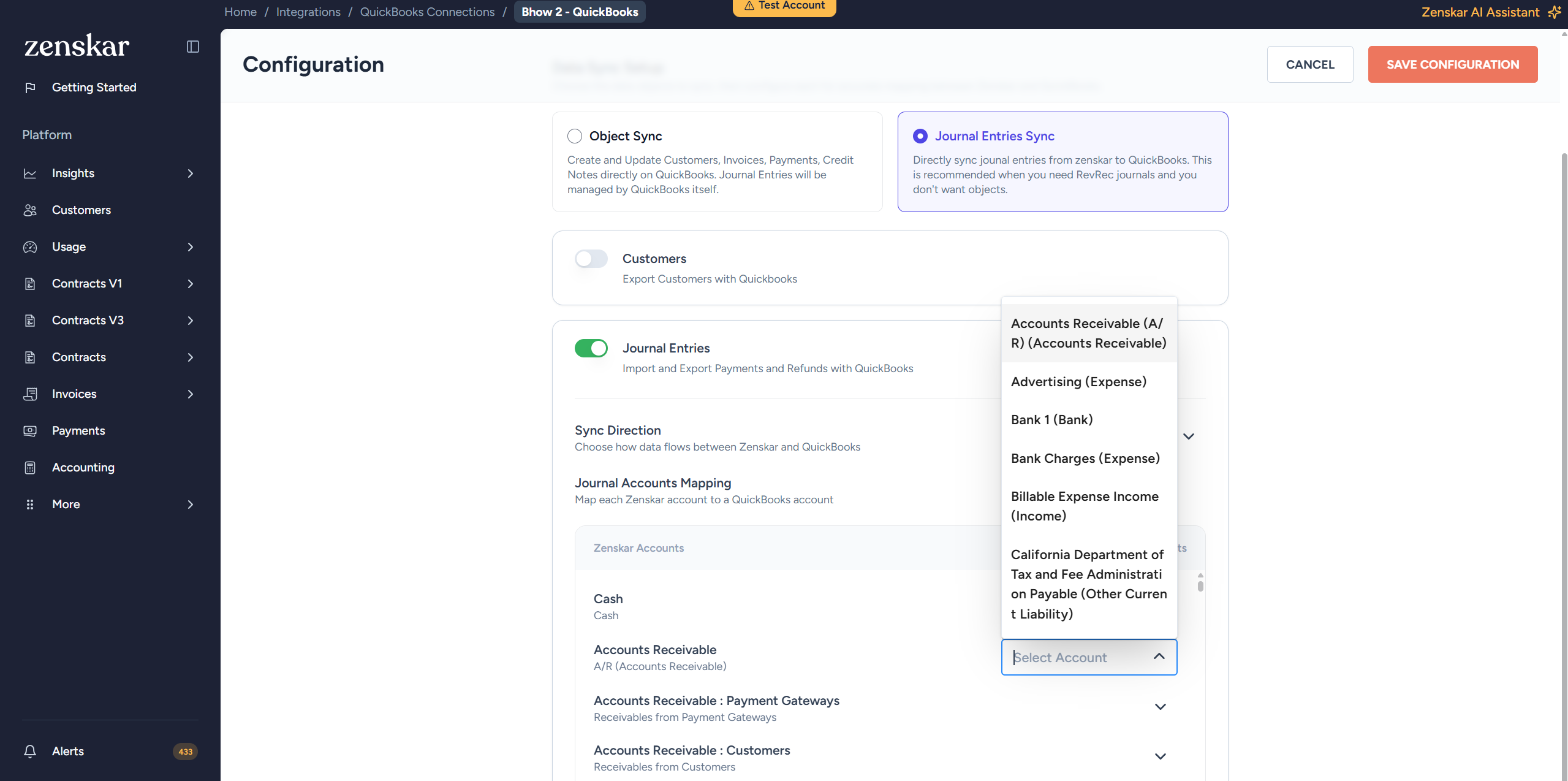
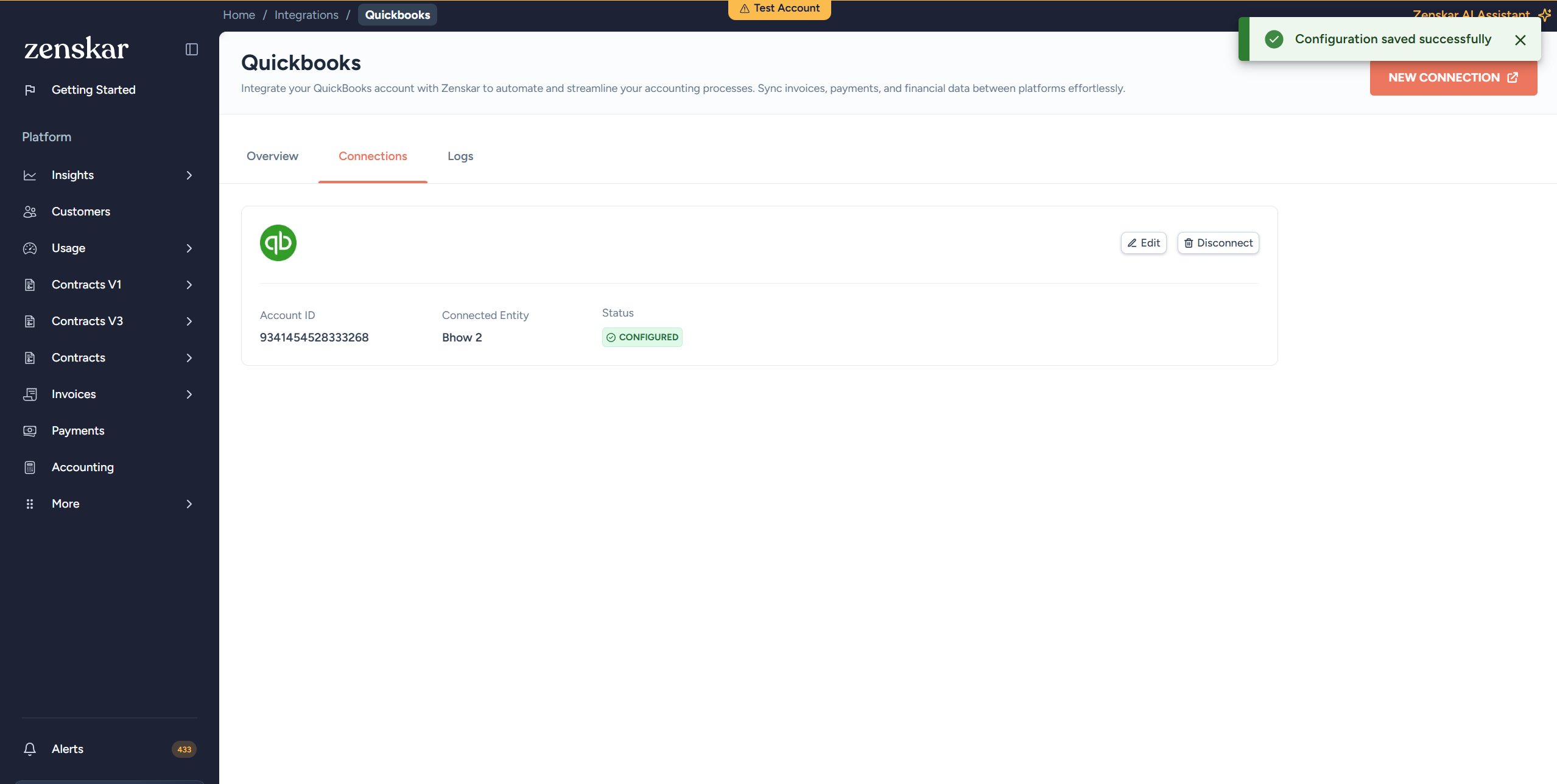
- Click Save Configuration to complete the setup.
Unlike invoices, a journal entry that has already been synced can be updated and re-synced.
Tax handling
How tax is posted to QuickBooks depends on the country of the connected QuickBooks company:- US companies: Zenskar relies on QuickBooks’ Automated Sales Tax (AST). The connector marks invoice lines as taxable or non-taxable and lets QuickBooks calculate the tax amount and jurisdiction breakdown from the customer’s address. Sales tax must already be enabled in the QuickBooks company for this to work.
- Non-US companies: Zenskar applies the tax code selected for each line through the Tax Code Mapping table, and posts the exact tax amount calculated in Zenskar.
A jurisdiction-level Avalara tax breakdown is not available on US companies (QuickBooks’ Automated Sales Tax owns the breakdown there) or on credit notes. An invoice or credit note that mixes per-line tax with invoice-level tax on the same document is also not supported.
Manage the connection
From the connection’s status menu:- Pause Sync: temporarily stops syncing. The configuration and mappings are kept, and syncing can be resumed at any time.
- Resume Sync: resumes a paused connection.
- Disconnect: removes the connection and all its settings. All resource mappings are deleted, and reconnecting requires setting the connector up again from scratch.
- Re-authenticate: refreshes the connection’s credentials without losing mappings or configuration. The new credentials must point to the same QuickBooks company as the original connection. If they point to a different company, or the correct QuickBooks company was not selected on Intuit’s screen, re-authentication is rejected.
Monitor syncs
The Logs tab on the connector page lists sync events with their status, direction, timestamp, and the Zenskar and QuickBooks record identifiers involved. Filter by status (success, failed, or skipped) or by resource type. Selecting an event opens the underlying request and response payloads sent to QuickBooks, which is useful when investigating a failed sync. To resync an individual record, open the invoice, customer, credit note, or payment in Zenskar and use the Linked Integration Objects panel to trigger a sync to QuickBooks directly. Common sync errors and their cause:Limitations
- The connector is export only. QuickBooks is never a source of billing data for Zenskar through this connector.
- There is no native refund object in QuickBooks. Refunds post as a reduced payment or as an expense, depending on the refund type.
- Invoices and journal entries cannot be voided from Zenskar.
- Invoices cannot be edited and re-synced once they are posted to QuickBooks.
- An invoice or credit note cannot mix per-line tax and invoice-level tax on the same document.
- There is no support for QuickBooks class, location, or department tracking.
- Exchange rates are not pushed from Zenskar. The transaction currency is set on each record, but currency conversion is handled by QuickBooks.