Steps to create a contract
Preliminary steps
- Navigate to the Contracts section in the side panel.
- Select the Contracts option to open the Contracts page.
- Click on the + ADD NEW CONTRACT button to open the Create Contract form.
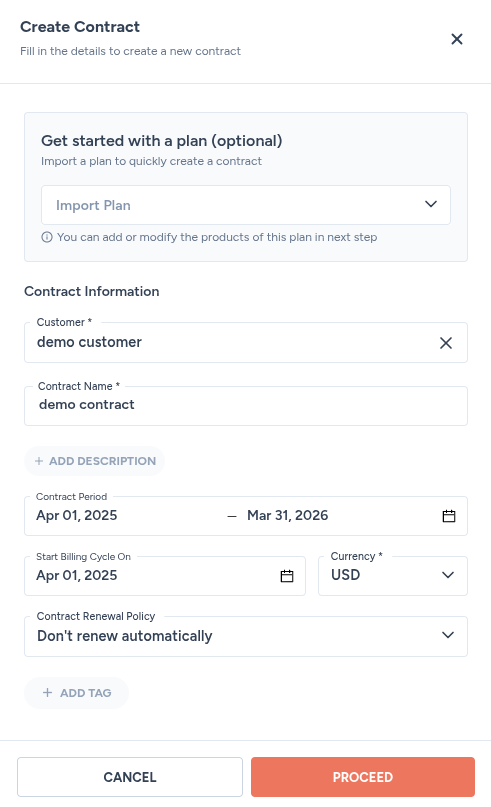
- Fill in the following details:
This form doesn’t have a renewal policy field. Every contract is fixed to Don’t renew automatically. If you want a different renewal behavior, set it as your organization’s default under Settings → Contracts & Invoices. See contract renewal: concepts for how that works.
- Click on the PROCEED button, and you will be taken to the Summary tab of the Contract Details page. Zenskar copies the plan’s phases, products, and pricing into the new contract automatically.
Add features
- Click on the Configure Features button.
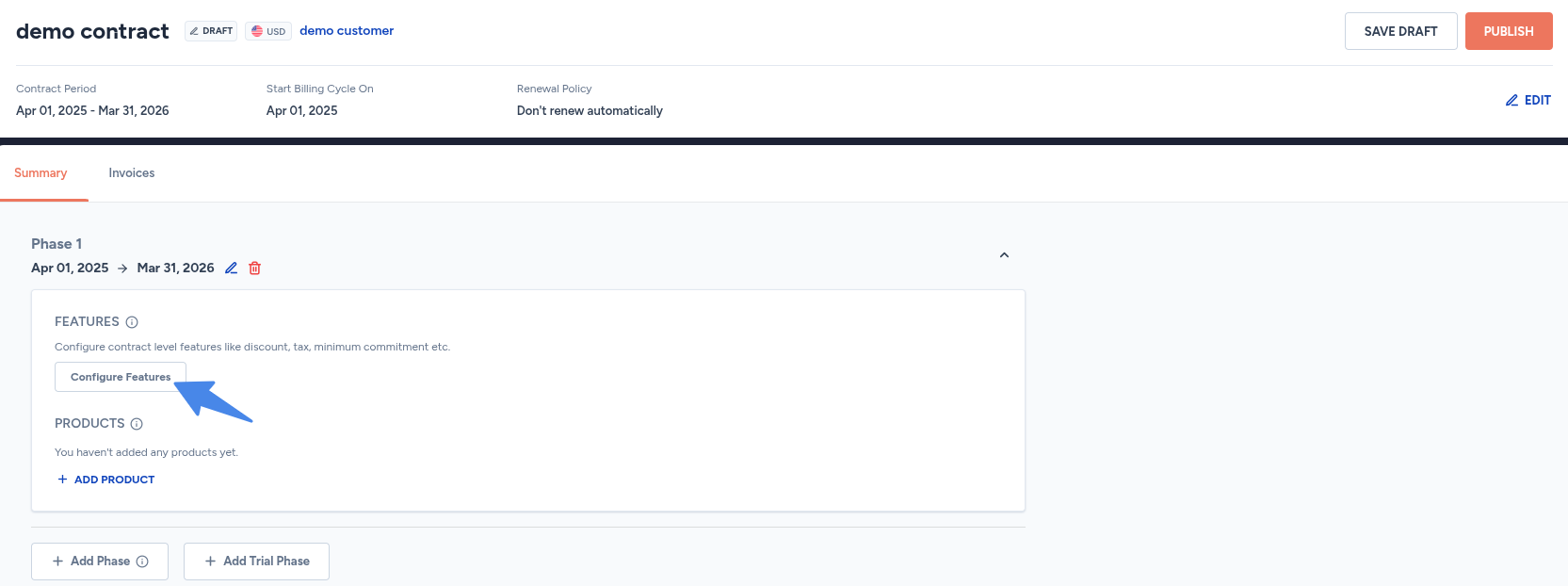
A plan-based contract starts with whatever features the plan’s phases already had configured. Anything you add or change here only affects this contract, not the original plan.
Add products
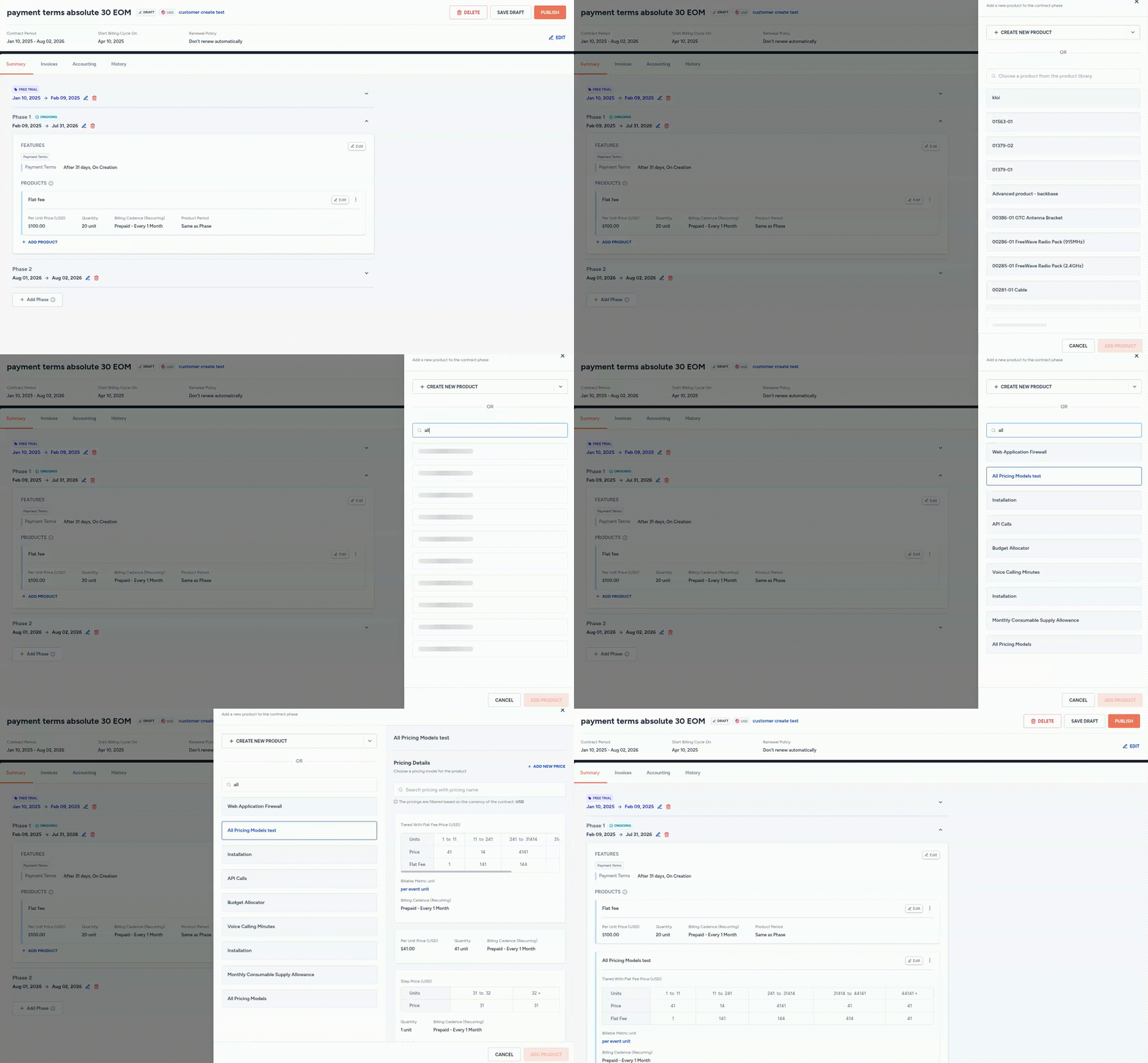
- Click on the + ADD PRODUCT button.
- Search for the product name.
- Select the desired product from the list of products.
- Select the pricing details.
Edit contract details
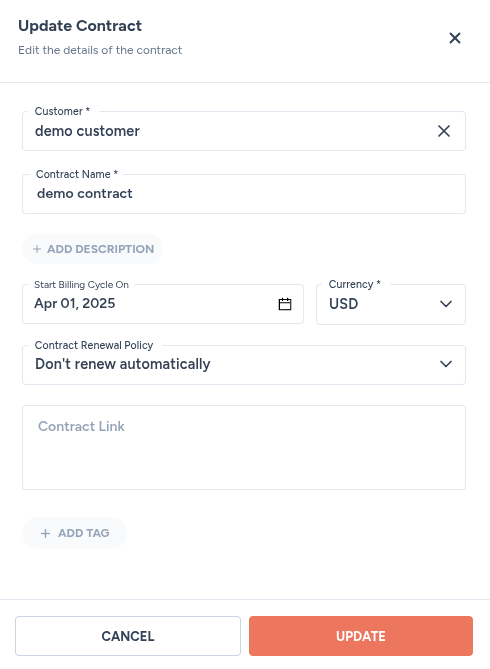
- In the Summary tab of the Contract Details page, you can edit the contract details by clicking on the EDIT button.
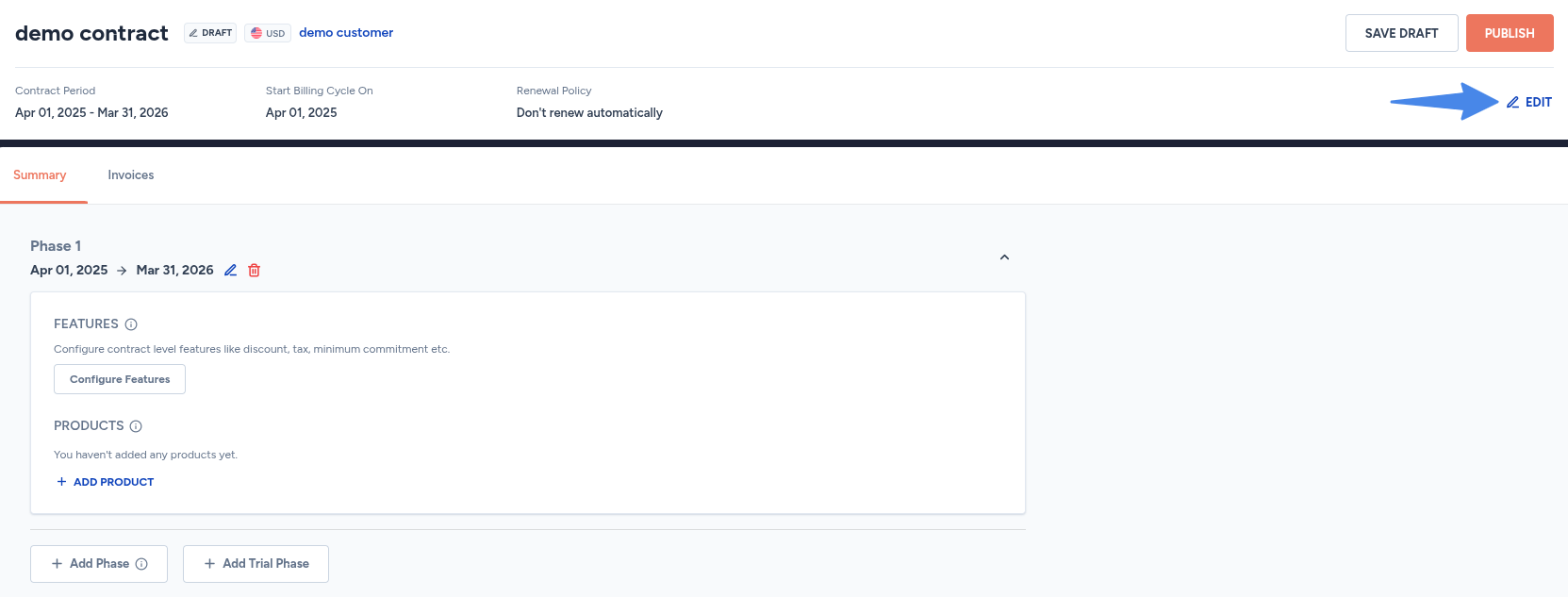
- Update the required details in the Update Contract form.
- Click on the UPDATE button to save the changes.