Steps to create a contract
Preliminary steps
- Navigate to the Contracts section in the side panel.
- Select the Contracts option to open the Contracts page.
- Click on the + ADD NEW CONTRACT button to open the Create Contract form.
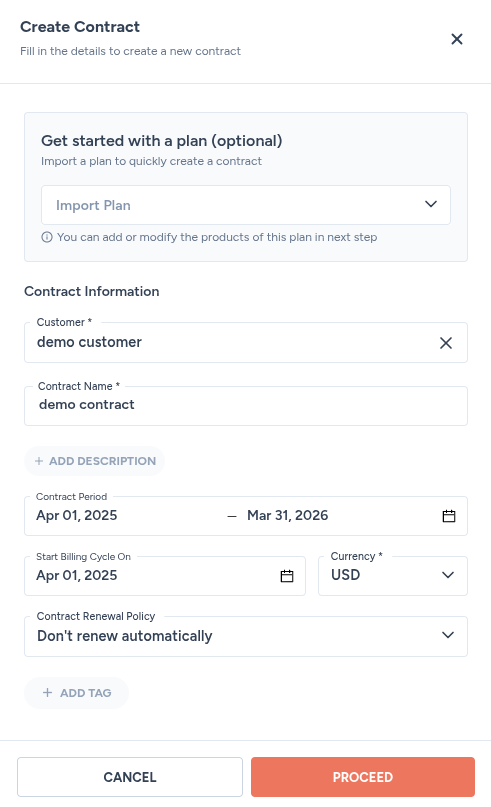
- Fill in the following details:
This form doesn’t have a renewal policy field. Every contract is fixed to Don’t renew automatically. If you want a different renewal behavior, set it as your organization’s default under Settings → Contracts & Invoices. See contract renewal: concepts for how that works.
- Click on the PROCEED button, and you will be taken to the Summary tab of the Contract Details page.
Add features
🔖 Phase 1: the default phase A default phase is created for you automatically, spanning the same start and end dates as the contract.
- Click on the Configure Features button.
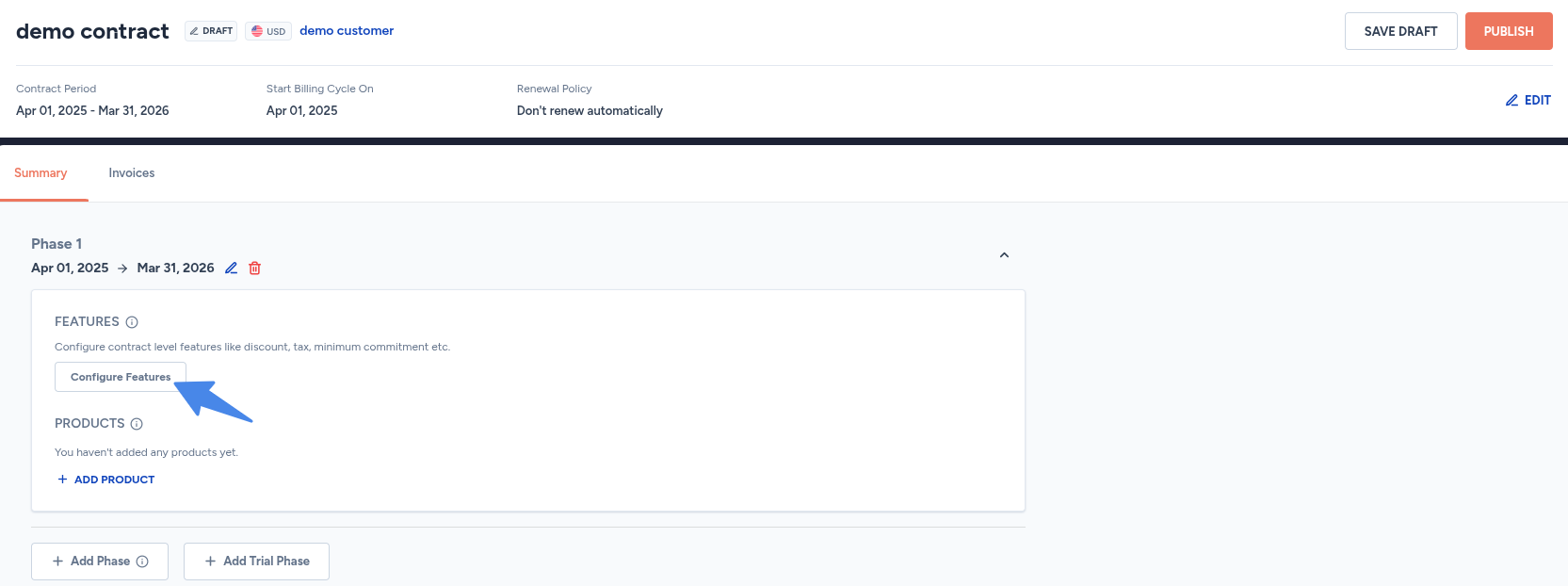
Free units and grants aren’t configured here. Those are product-level features, set up on the product’s own pricing rather than on the phase.
Add products
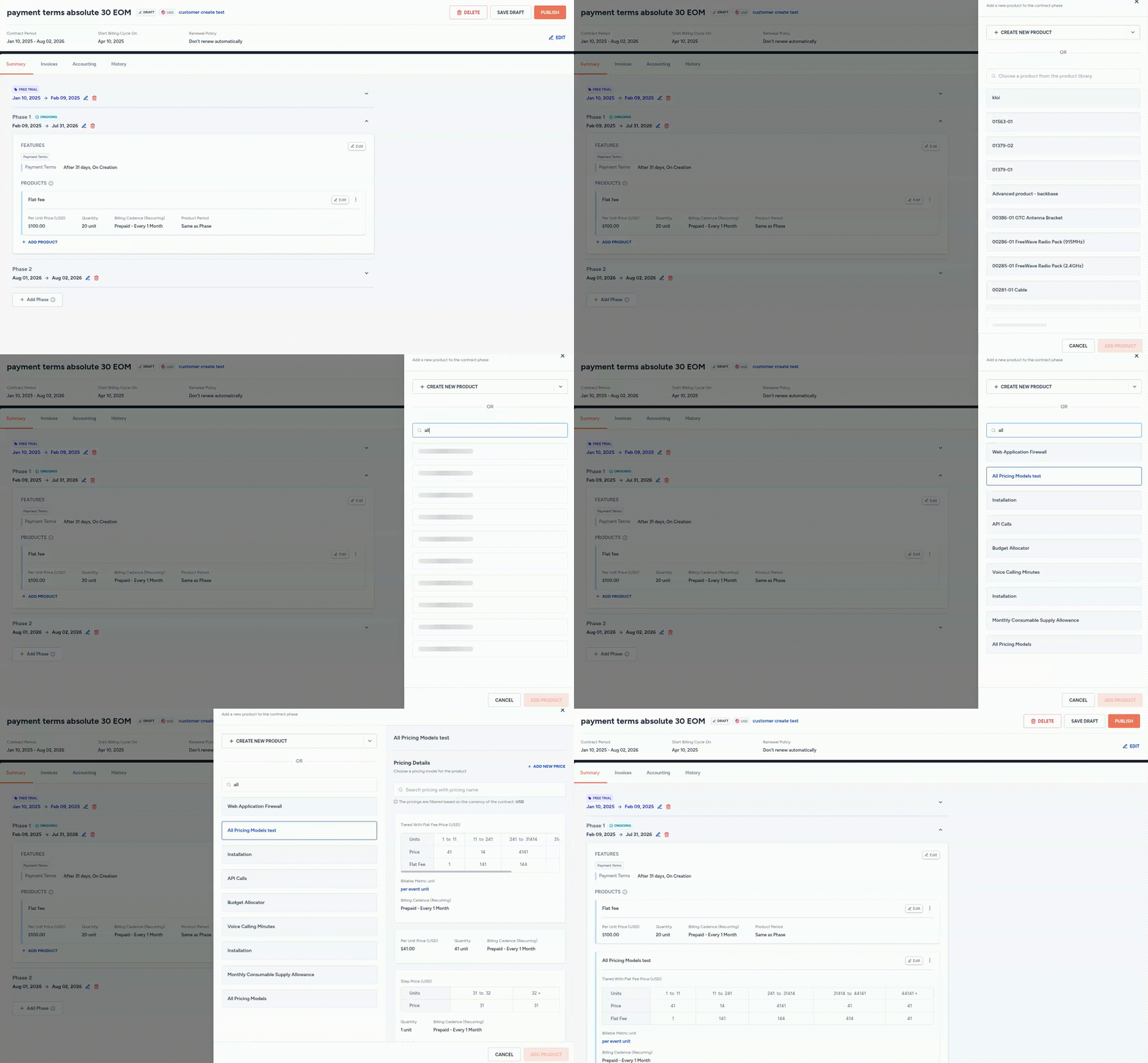
- Click on the + ADD PRODUCT button.
- Search for the product name.
- Select the desired product from the list of products.
- Select the pricing details.
Edit contract details
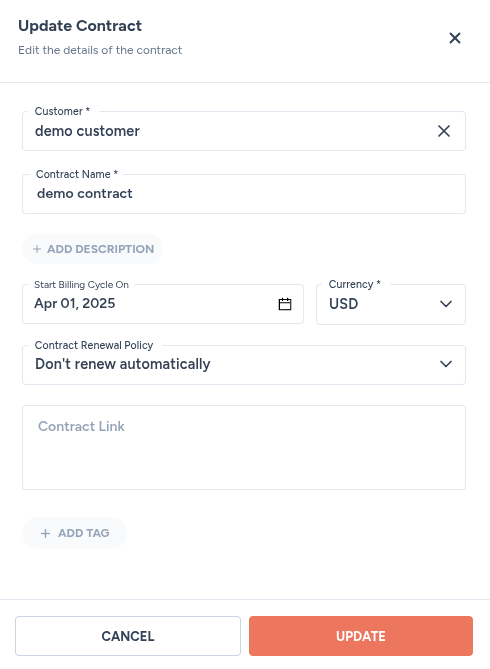
- In the Summary tab of the Contract Details page, you can edit the contract details by clicking on the EDIT button.
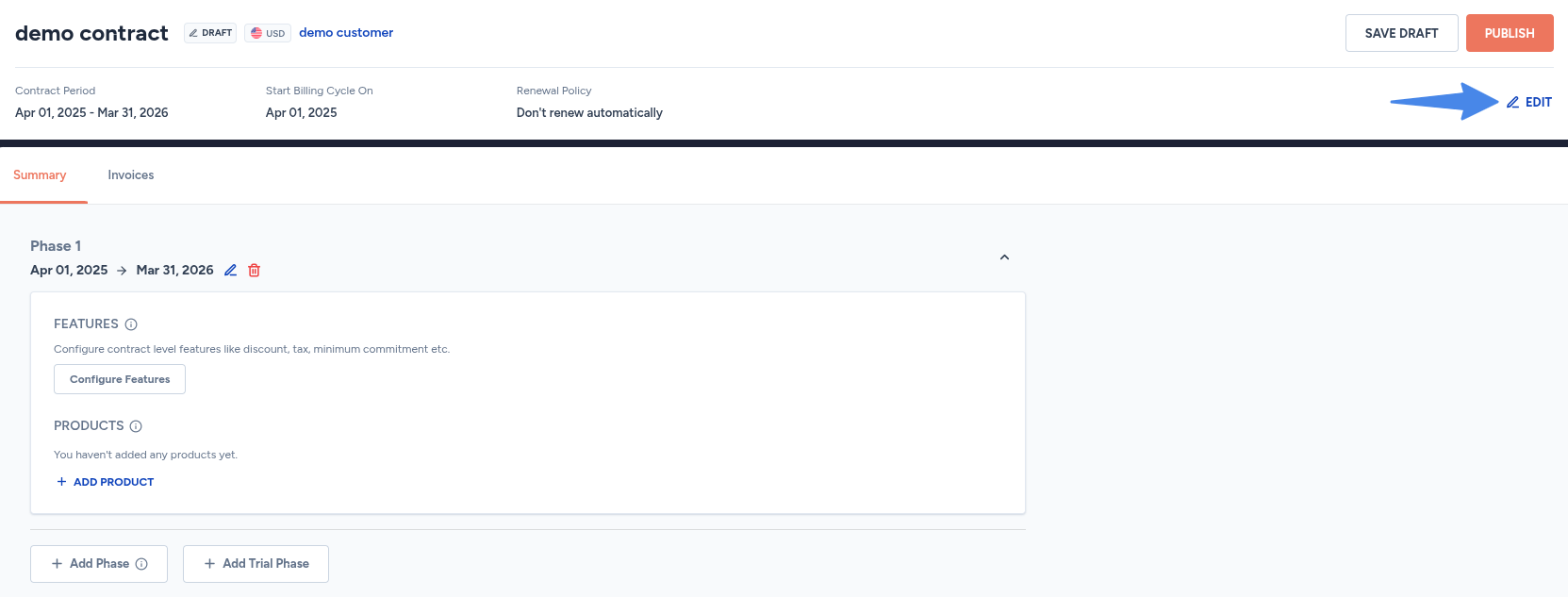
- Update the required details in the Update Contract form.
- Click on the UPDATE button to save the changes.