

Concepts
Avalara AvaTax is a cloud service that calculates transaction tax. In Zenskar, Avalara AvaTax is a third-party tax engine. When a served country uses Avalara as its tax engine, Zenskar asks Avalara to calculate the tax on invoices for that country. For how tax categories, served countries, and tax engines work together, see Tax configuration.Avalara connections
An Avalara connection links one Avalara AvaTax account to one Zenskar business entity. An Avalara connection uses the following credentials:- License Key: the license key of your Avalara account.
- ACCOUNT ID: the ID of your Avalara account.
- Company Code: the code of the company in your Avalara account. The default is
DEFAULT.
The credentials must belong to the matching Avalara environment.
A business entity can have only one third-party tax engine connected. Zenskar rejects an Avalara connection for a business entity that already has another third-party tax engine.
Avalara tax codes
An Avalara tax code is the code that Avalara uses to decide how a type of goods or services is taxed. An example isSW054000. Avalara tax codes are the third-party tax codes of Avalara.
You map a Zenskar tax category to an Avalara tax code. You enter the Avalara tax code as text, up to 25 characters. Zenskar does not check the code against Avalara’s list of tax codes. Avalara publishes its tax codes at taxcode.avatax.avalara.com.
The mapping applies in every business entity that uses Avalara.
Avalara does not need your products registered. Zenskar sends the Avalara tax code with each line item.
Customers in Avalara
Zenskar identifies the customer to Avalara by the Zenskar customer ID. Zenskar also sends the customer’s default billing address. For most countries other than the United States, Zenskar sends the customer’s tax ID for that country. Avalara receives it as the business-identification number.Tax exemption
Zenskar reads the following customer custom attributes to mark exemptions in Avalara:
For the list of entity-use codes, see Avalara’s list of entity-use codes.
Address validation
When you save a customer whose business entity has Avalara connected, Zenskar asks Avalara to validate the customer’s default billing address. The validation runs in the background. An invalid address does not block contract activation. The Avalara setup includes a Tax on Invalid Address setting. Cedar contracts do not use this setting.Tax on contracts and invoices
Zenskar works with Avalara at the following points:
Invoice generation fails in the following cases:
- A tax category in the contract has no Avalara tax code.
- The business entity’s address has no country. Avalara needs the address from which the sale is made.
- Zenskar cannot reach Avalara, or Avalara returns an error.
Approval
At approval, Zenskar holds the invoice in the following cases:- The tax inputs of a line item changed after invoice generation. Tax inputs include the customer’s address, tax IDs, and custom attributes, the Avalara tax code, and the Avalara connection.
- The recalculated tax differs from the invoice’s tax by more than your organization allows.
- A tax category on the invoice has no Avalara tax code.
- The invoice has line items in future billing periods that Avalara has not priced yet.
- Zenskar cannot reach Avalara, or Avalara returns an error.
Committing the transaction
After approval, Zenskar commits the transaction in Avalara in the background. Zenskar tries up to five times. If Avalara does not commit the transaction, the invoice stays approved. Zenskar sends the invoice email at approval. The email does not wait for the commit. The ID of an Avalara transaction is the Zenskar invoice ID, followed by a colon and eight characters.How-to guides
Connect Avalara AvaTax
Prerequisites
- You have your Avalara account ID, license key, and company code.
- The credentials belong to the matching Avalara environment. A sandbox Zenskar organization needs Avalara sandbox credentials. A production Zenskar organization needs Avalara production credentials.
- The business entity does not have another third-party tax engine connected.
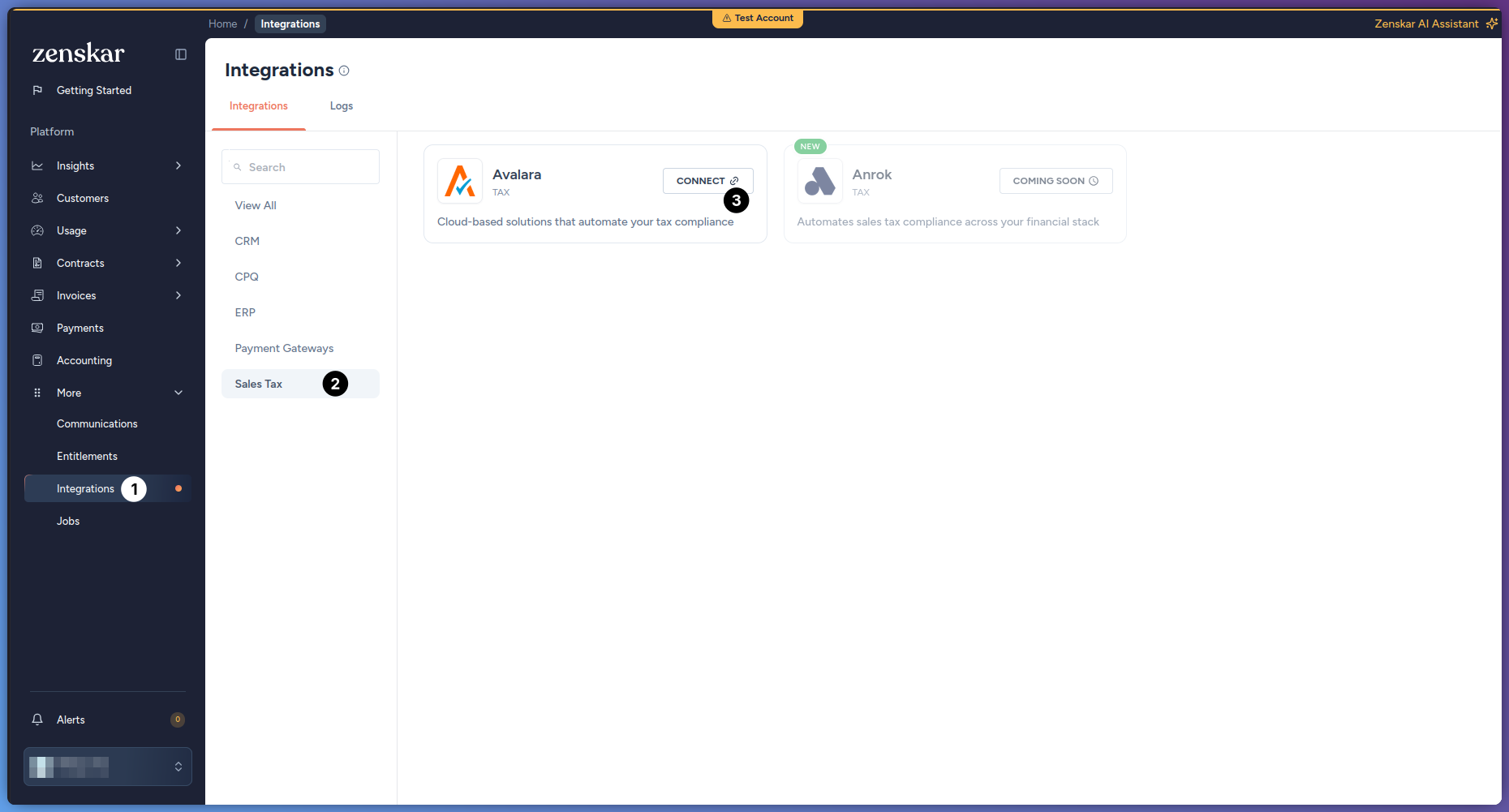
- Go to More > Integrations.
-
Click the Avalara card. To find the card, you can filter by Sales Tax.
-
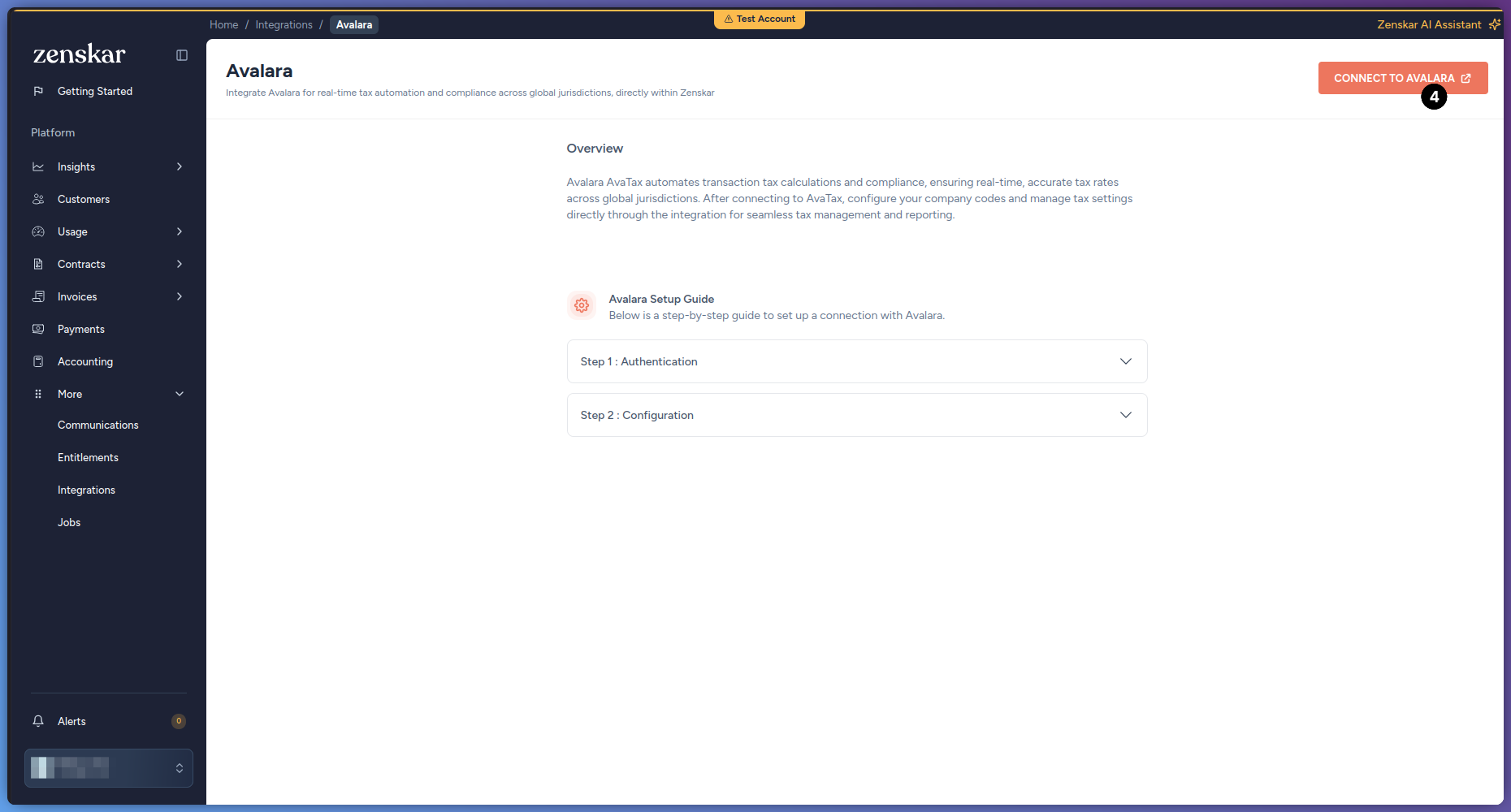
Click NEW CONNECTION.
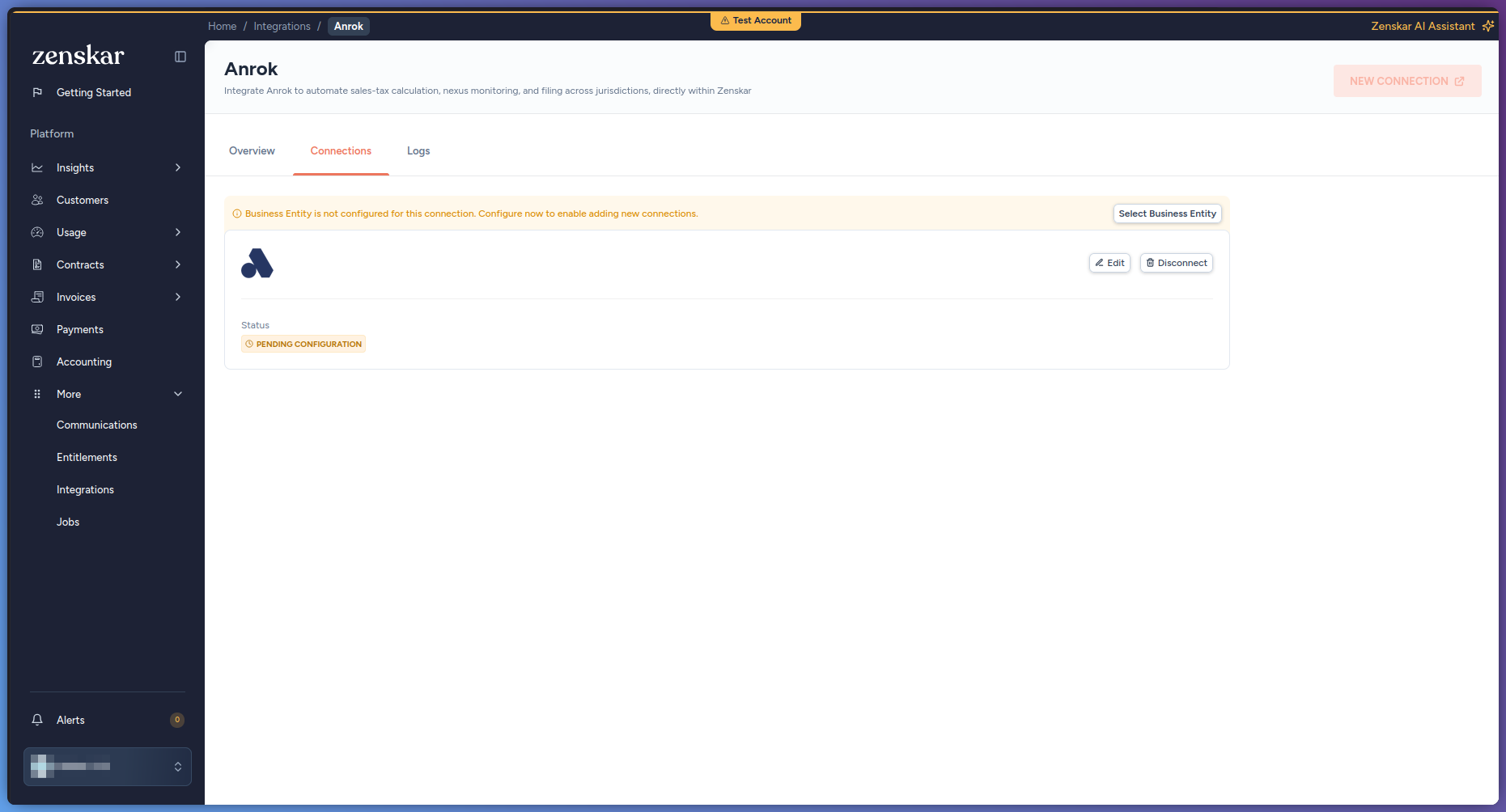
 NEW CONNECTION is unavailable while an existing Avalara connection has no business entity. To continue, click Select Business Entity on that connection.
-
Enter the credentials:
- In License Key, enter your Avalara license key.
- In ACCOUNT ID, enter your Avalara account ID.
- In Company Code, keep
DEFAULT, or enter your Avalara company code.
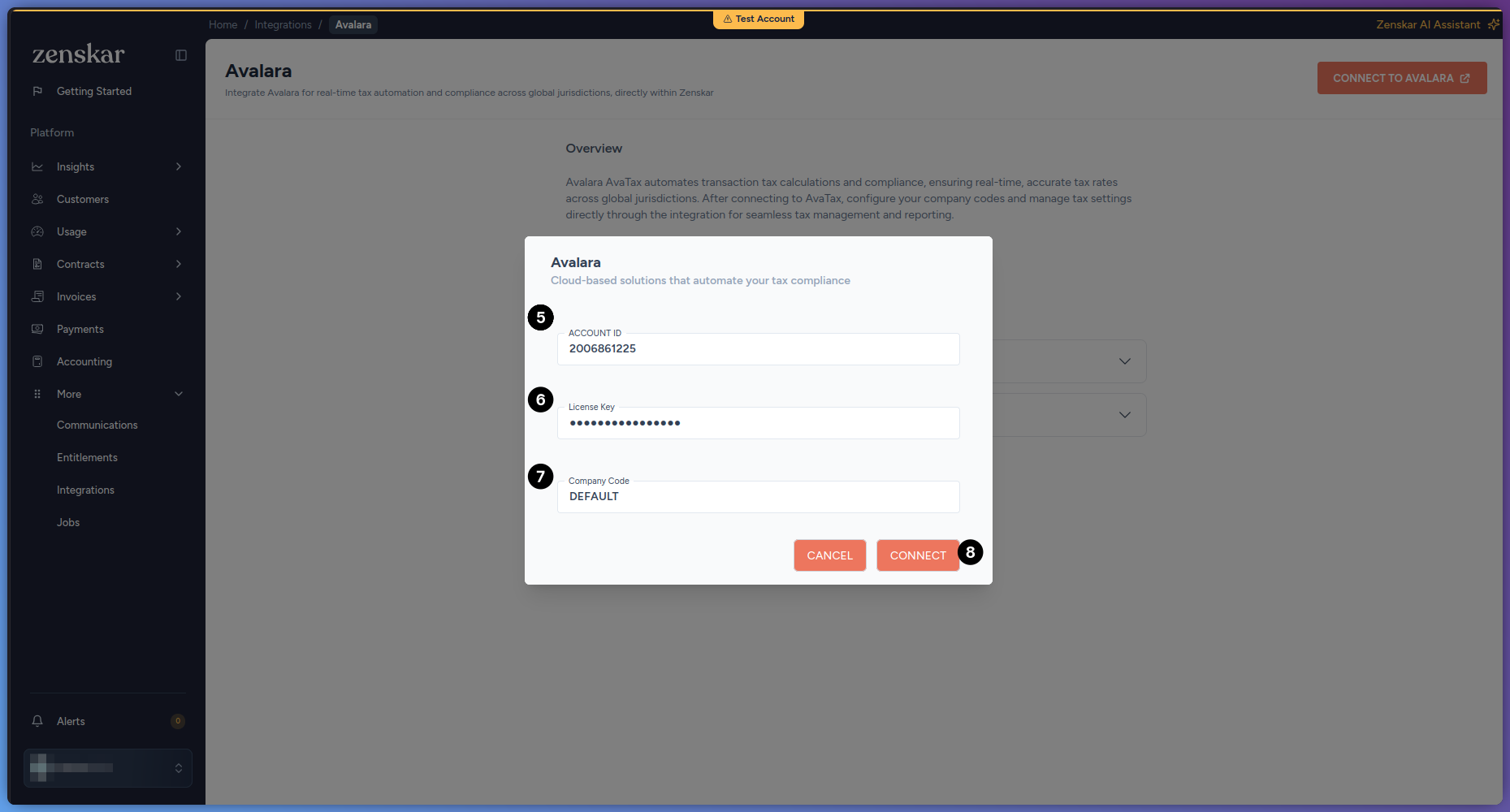
- Click Connect. If the credentials are valid, the Avalara Setup page opens at the Connect step. If they are not valid, Zenskar shows the message Invalid Credentials.
- In Select Zenskar Entity, select the business entity. The step also shows Tax on Invalid Address. Cedar contracts do not use this setting.
- Click Save & Continue.
-
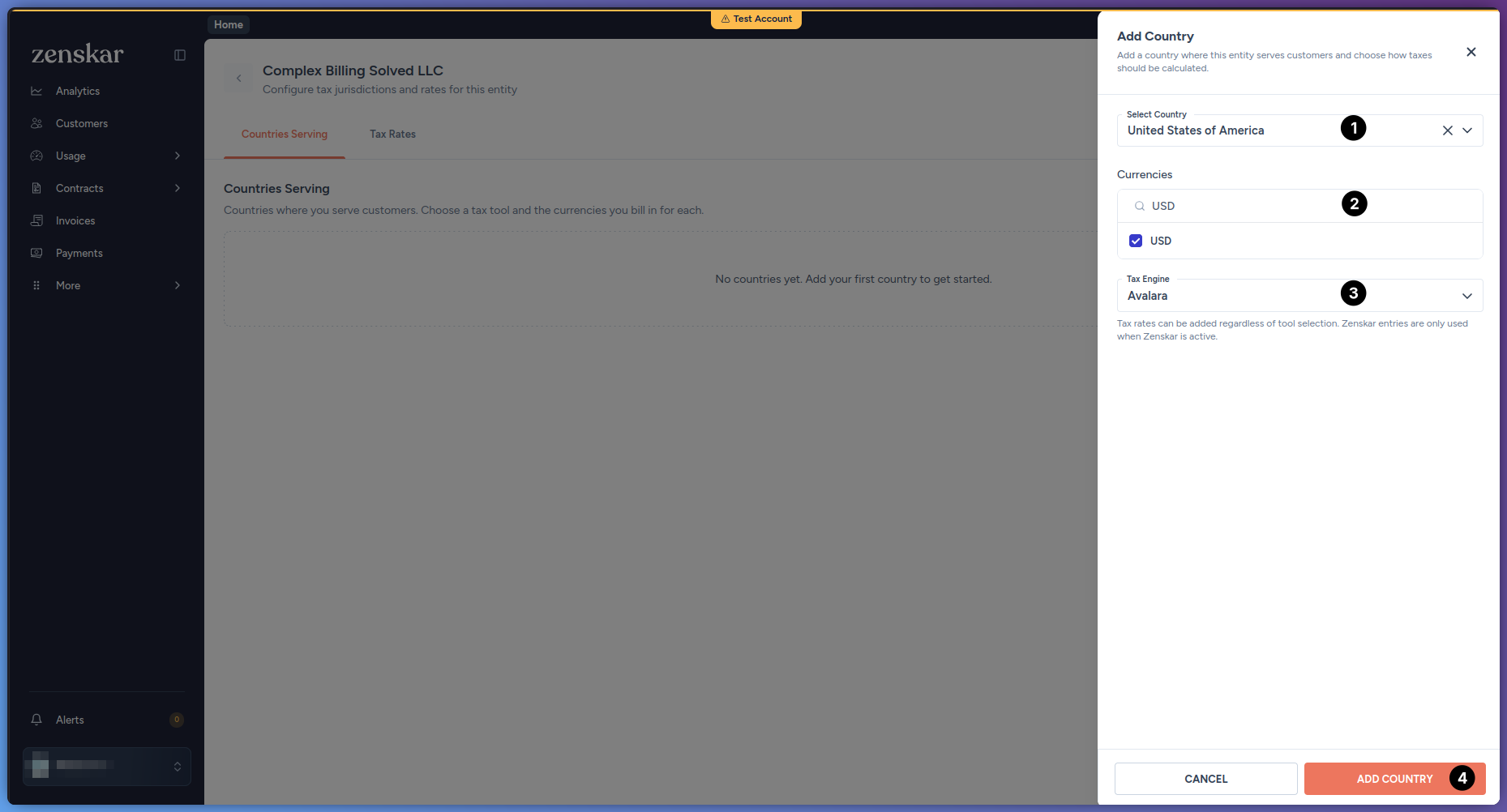
On the Countries Serving step, add or edit the countries that Avalara calculates tax for. In Tax Engine, select Avalara. For details, see Manage served countries.
- Click Continue.
- On the Tax Categories step, set the Avalara Tax Code of each tax category that your products use. To look up codes, click Browse Avalara tax codes. For details, see Map a tax category to an Avalara tax code.
- Click Finish Setup.
Map a tax category to an Avalara tax code
Prerequisites
- Connect Avalara AvaTax. The Avalara Tax Code field appears only after you connect Avalara.
- Go to Settings > Tax Configuration.
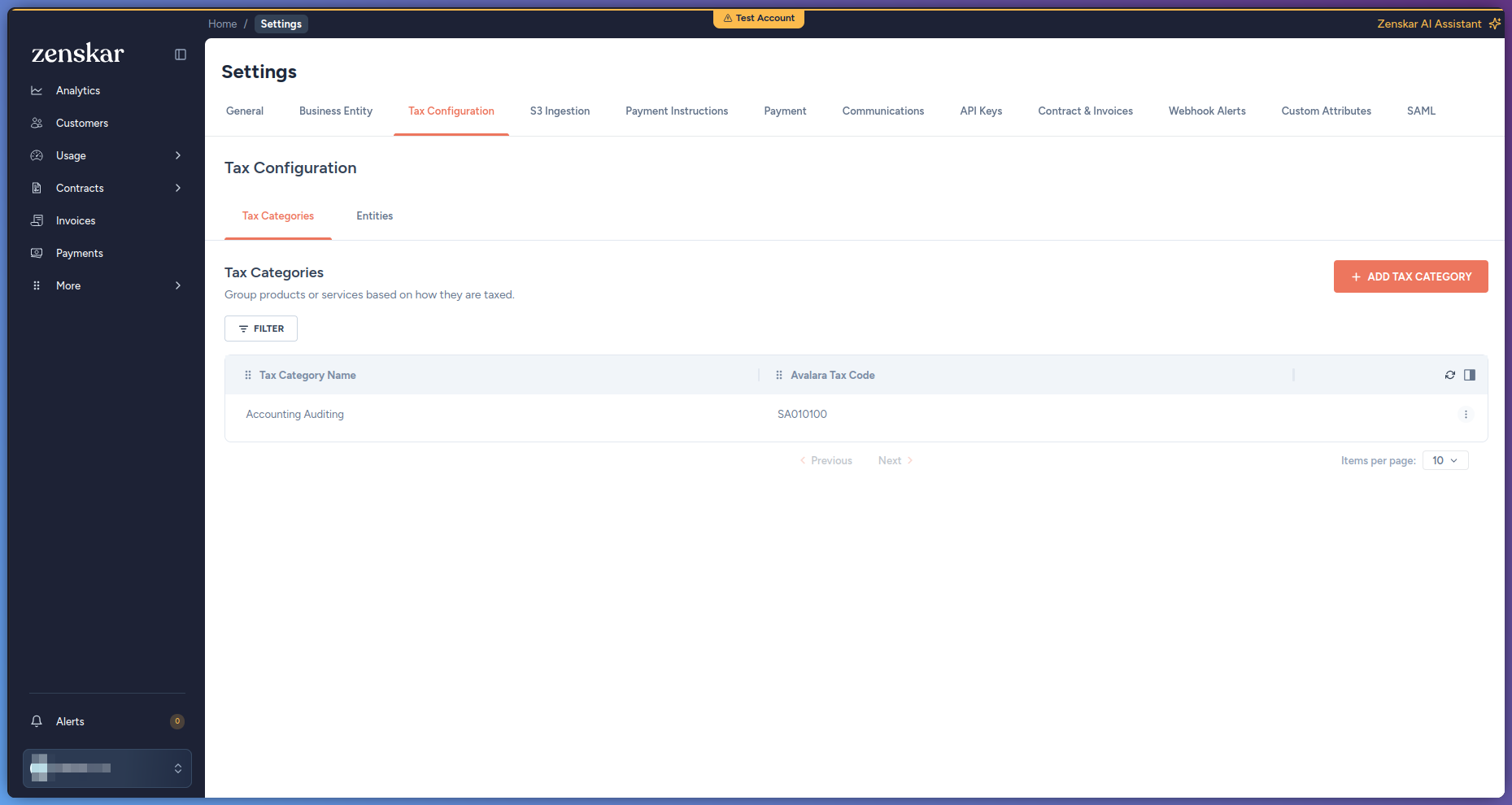
- On the Tax Categories tab, in the tax category’s actions menu, click Edit.
-
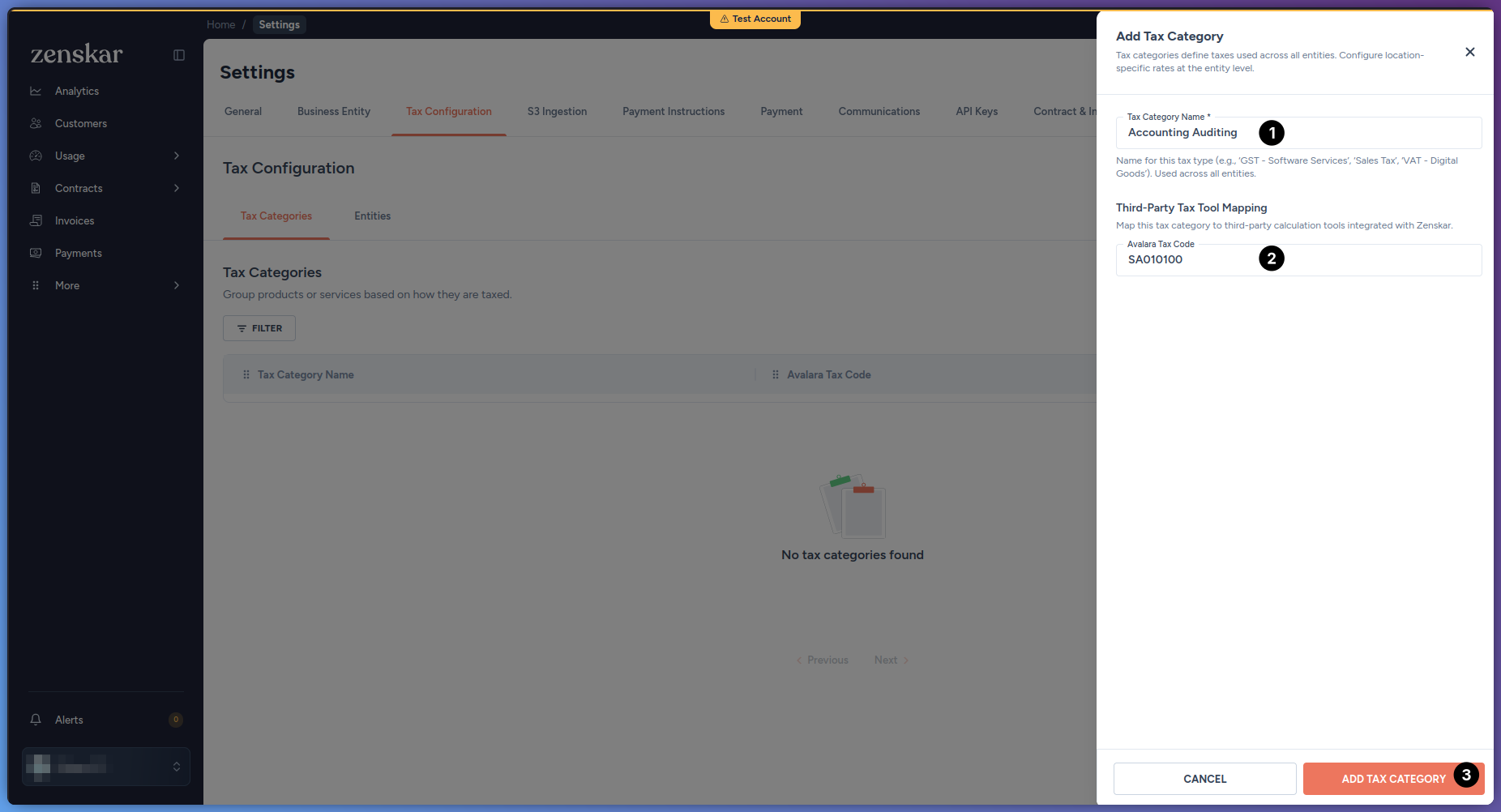
In Avalara Tax Code, enter the Avalara tax code.
- Click Save Changes.
Exempt a customer in Avalara
Prerequisites
- Your organization has the
exempt_tax,tax_exemption_number, andentity_use_codecustomer custom attributes. To create them, see Custom attributes. For their types, see Exemption custom attributes.
- Go to Customers.
- In the customer’s actions menu, click Edit.
-
Set
exempt_taxto true. -
Optional: in
tax_exemption_number, enter the exemption-certificate number. -
Optional: in
entity_use_code, enter the Avalara entity-use code. To look up codes, click Browse Avalara entity use codes under the field. - Click Save.
Check the Avalara transaction of an invoice
Prerequisites
- The invoice is approved, partially paid, paid, or void. The Integrations tab does not appear on other invoices.
- Go to Invoices, and open the invoice.
-
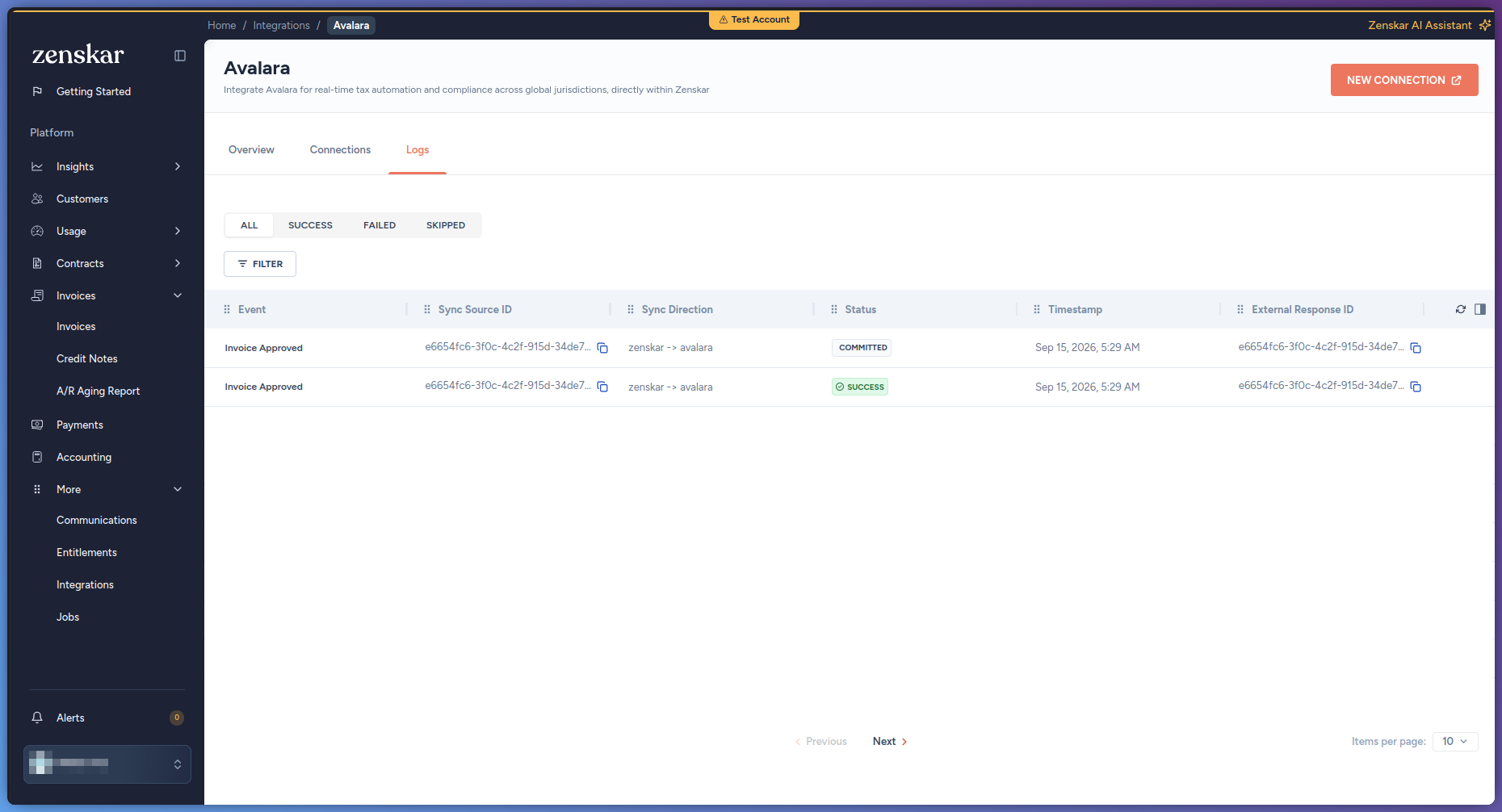
Click the Integrations tab.
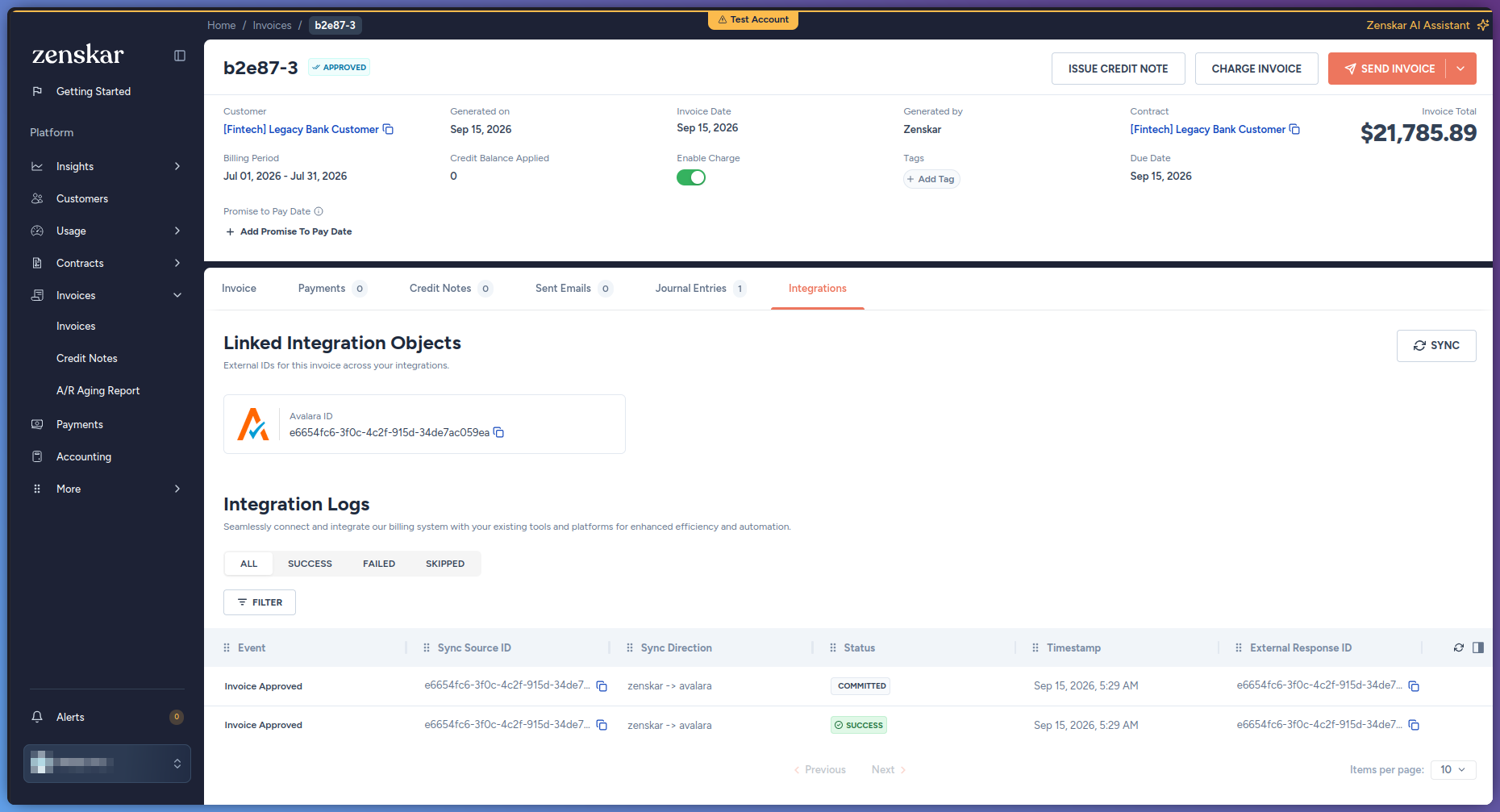
Under Linked Integration Objects, the Avalara ID card shows the ID of the Avalara transaction. To copy the ID, click the copy icon next to it.
Under Integration Logs, each row is one sync event between Zenskar and Avalara for the invoice. The row shows the event, its status, and its timestamp. To show only failed events, click Failed.
-
In Avalara, open Transactions, and search for the ID that you copied.
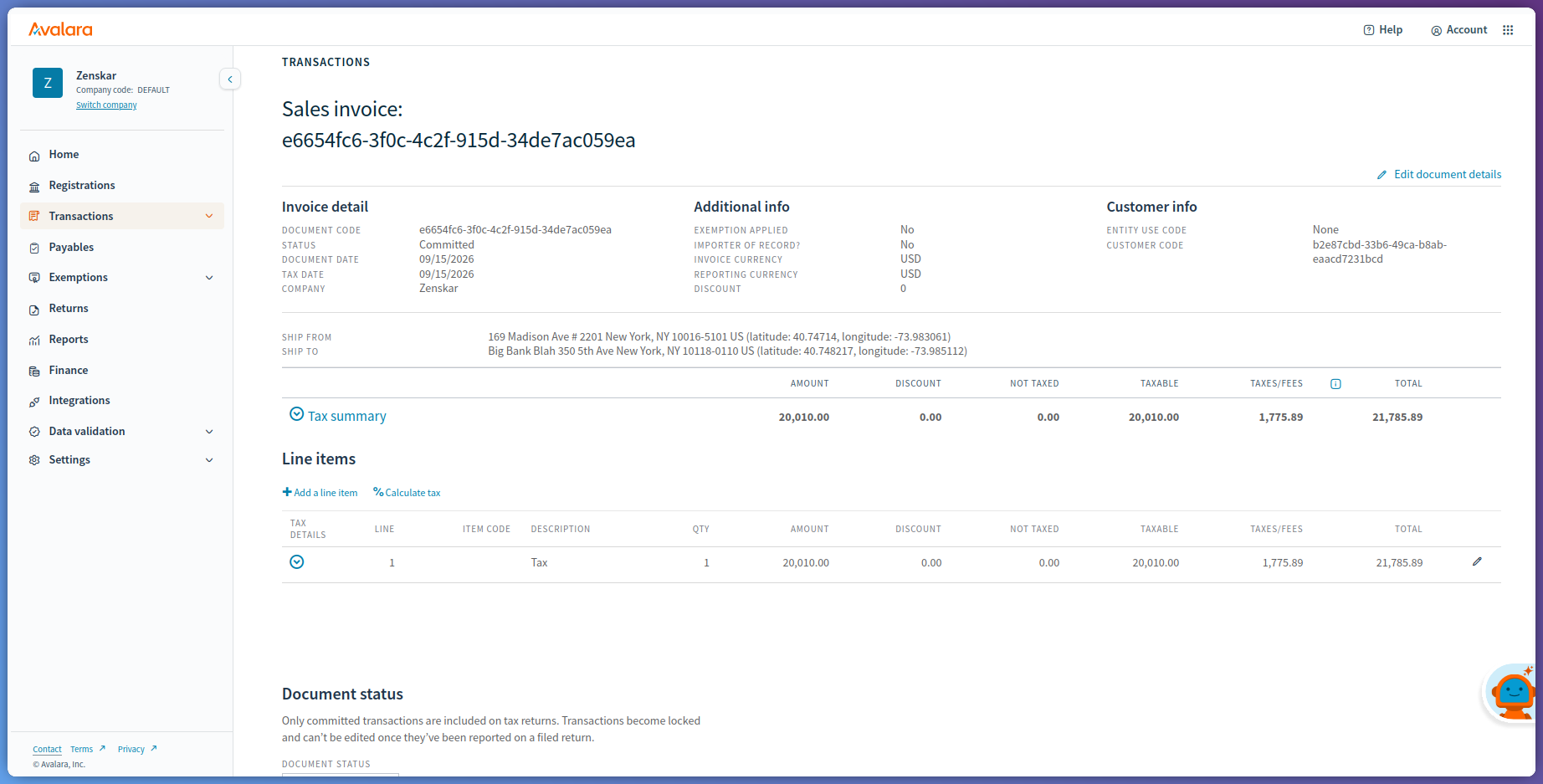
The transaction shows the status Committed, the document type
SalesInvoice, the amount, and the taxable amount. To see the addresses and the calculated tax, open the transaction. If the integration worked, the amounts match the invoice in Zenskar.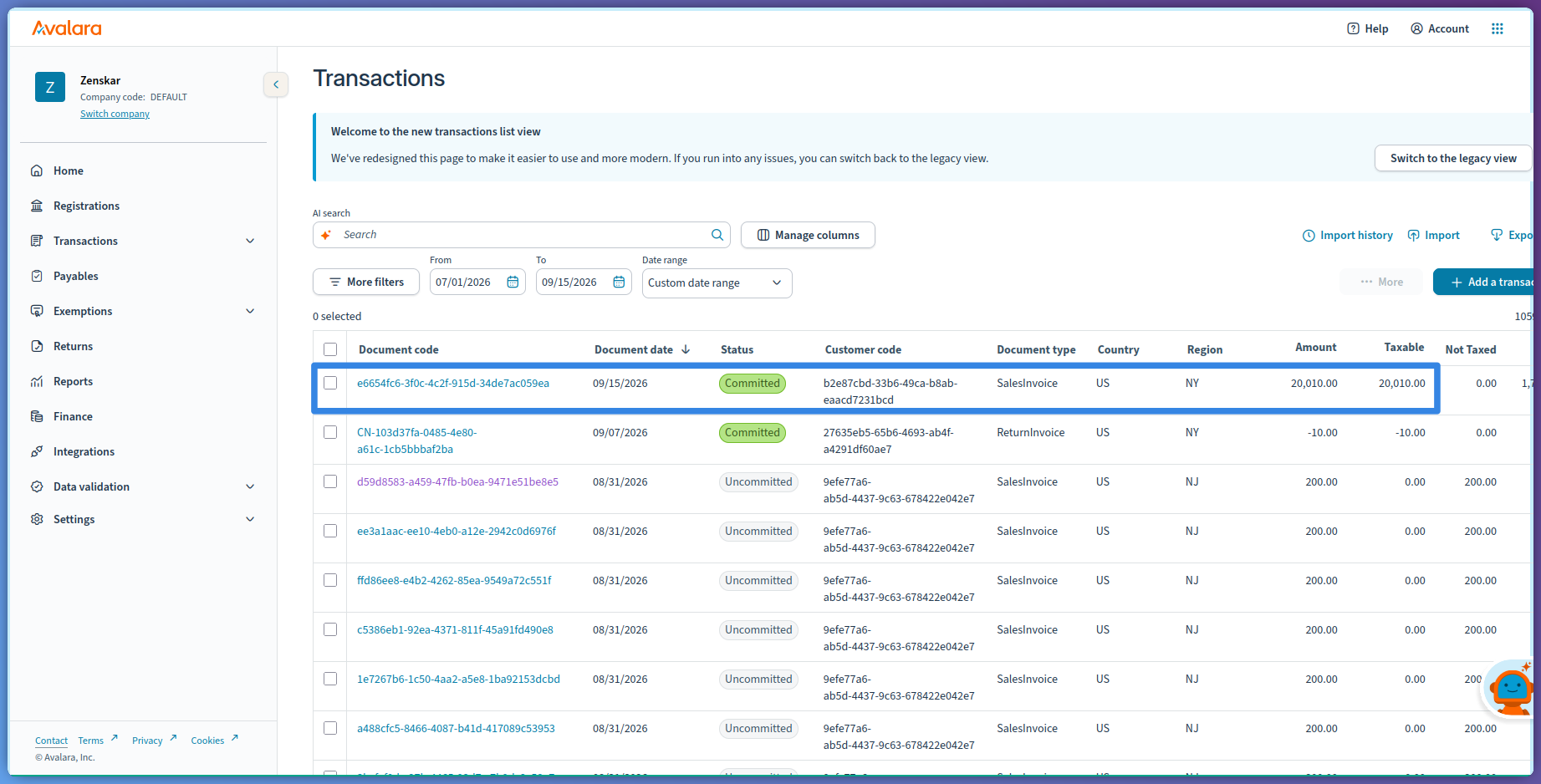
Disconnect Avalara AvaTax
- Go to More > Integrations.
- Click the Avalara card.
- Click the Connections tab.
-
On the connection, click Disconnect.
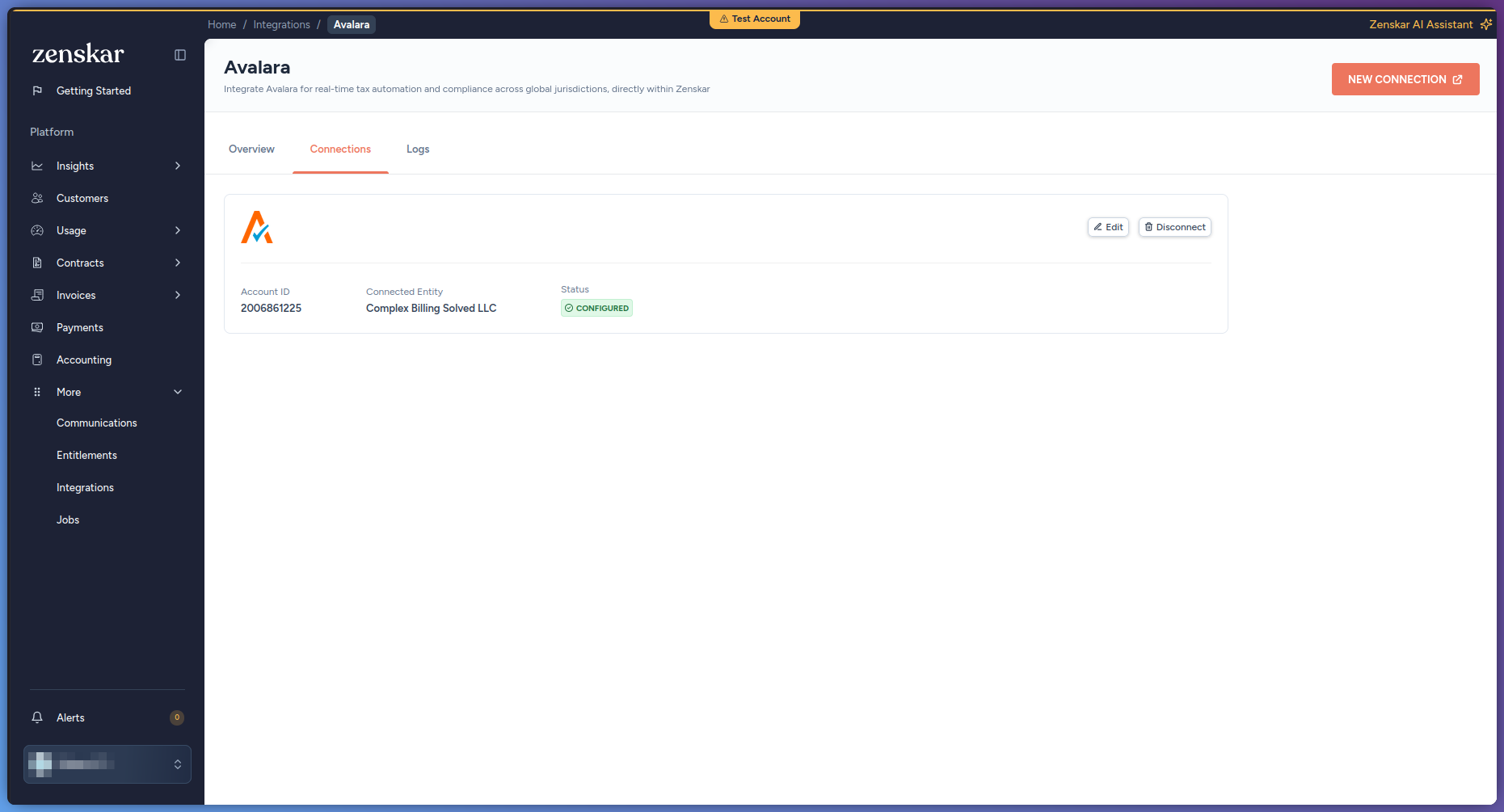 The Delete Connector ID dialog opens.
- Click Delete.
Reference
Location
Connection form
Tax-category field
Setup steps
Tax on Invalid Address
The setting has the following options:- Ignore tax and generate invoice
- Ignore tax if address is non-taxable
- Let the invoice fail on generation. This is the default.