

Connect Anrok
Prerequisites
- You have an Anrok API key. You create API keys in Anrok, under Settings > Manage API keys.
- The Zenskar business entity does not have another third-party tax engine connected.
- Your role has the permissions in the following table.
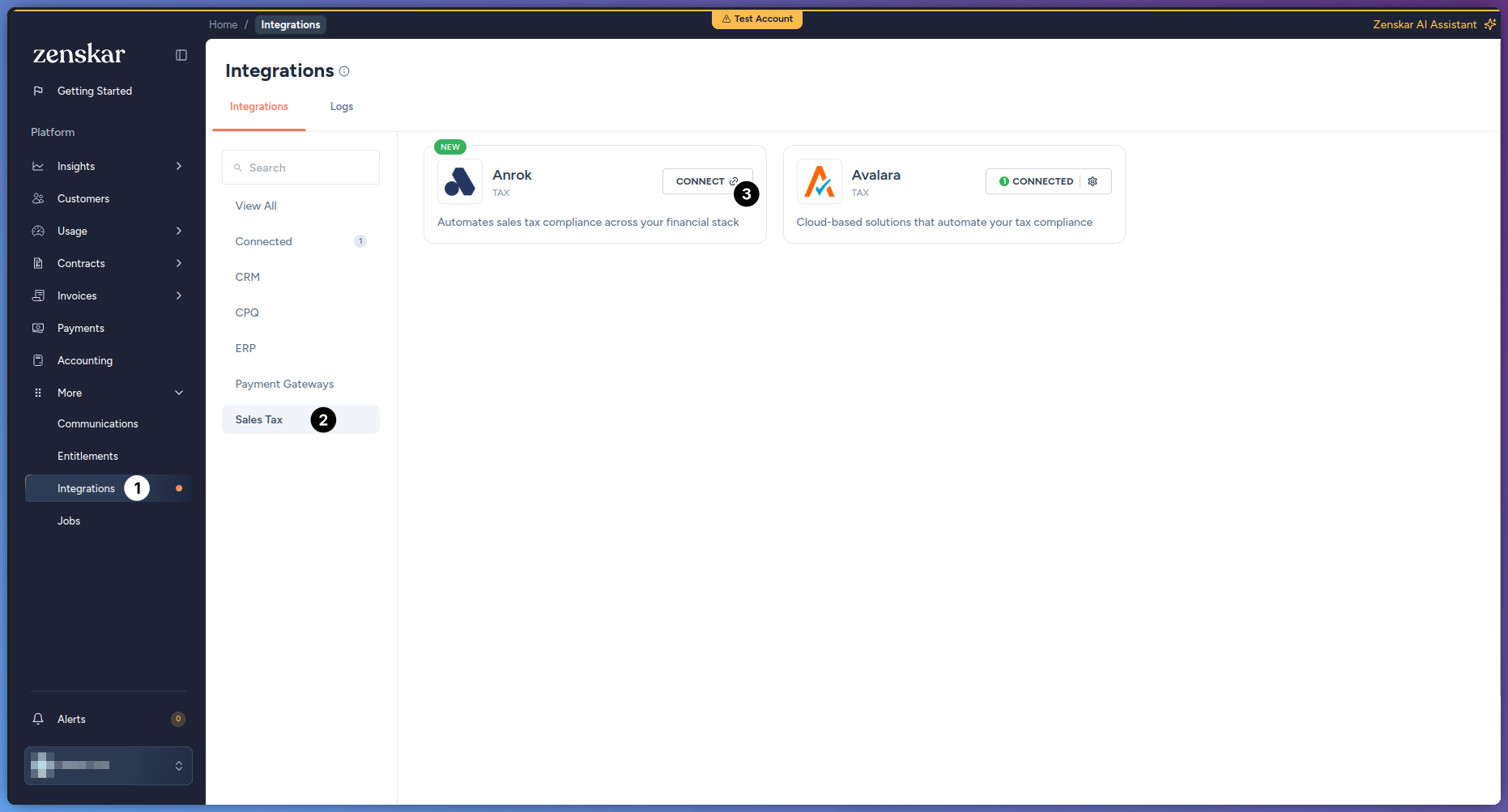
- Go to More > Integrations.
-
Click the Anrok card. To find the card, you can filter by Sales Tax.
-
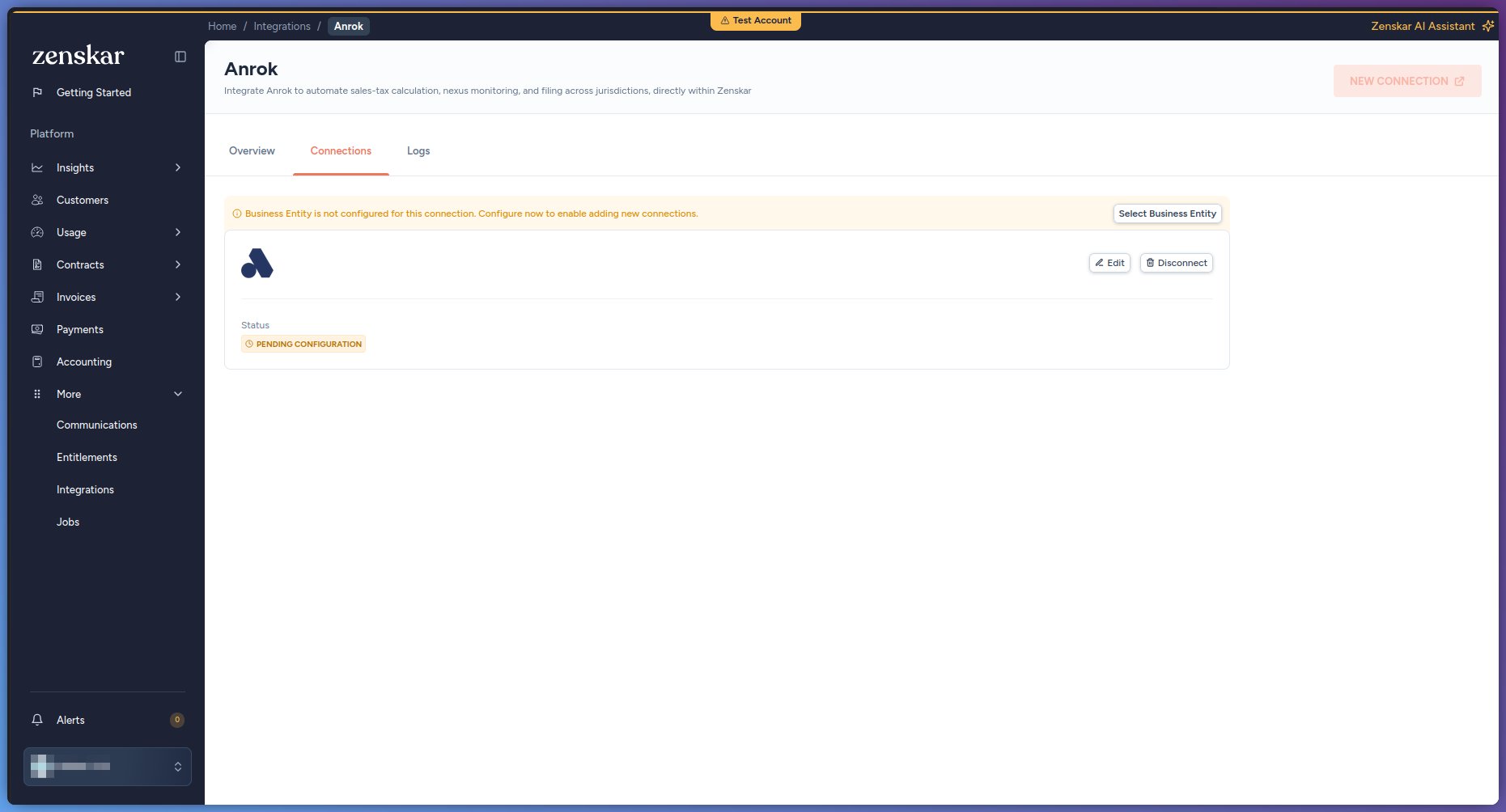
Click NEW CONNECTION.
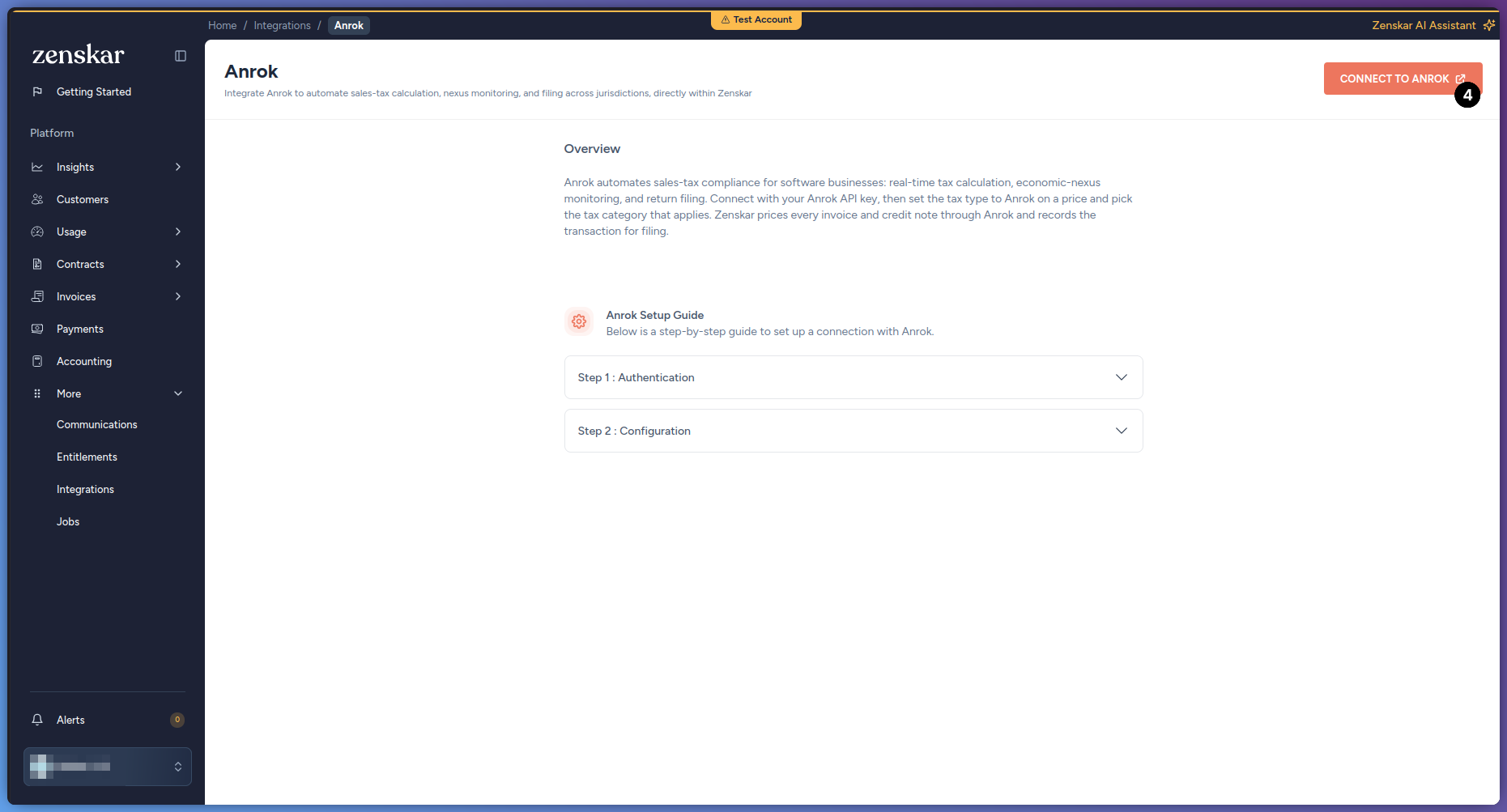 NEW CONNECTION is unavailable while an Anrok connection has no Zenskar business entity. In that case, click Select Business Entity on that connection. Then continue from step 6.
-
In API Key, enter your Anrok API key.
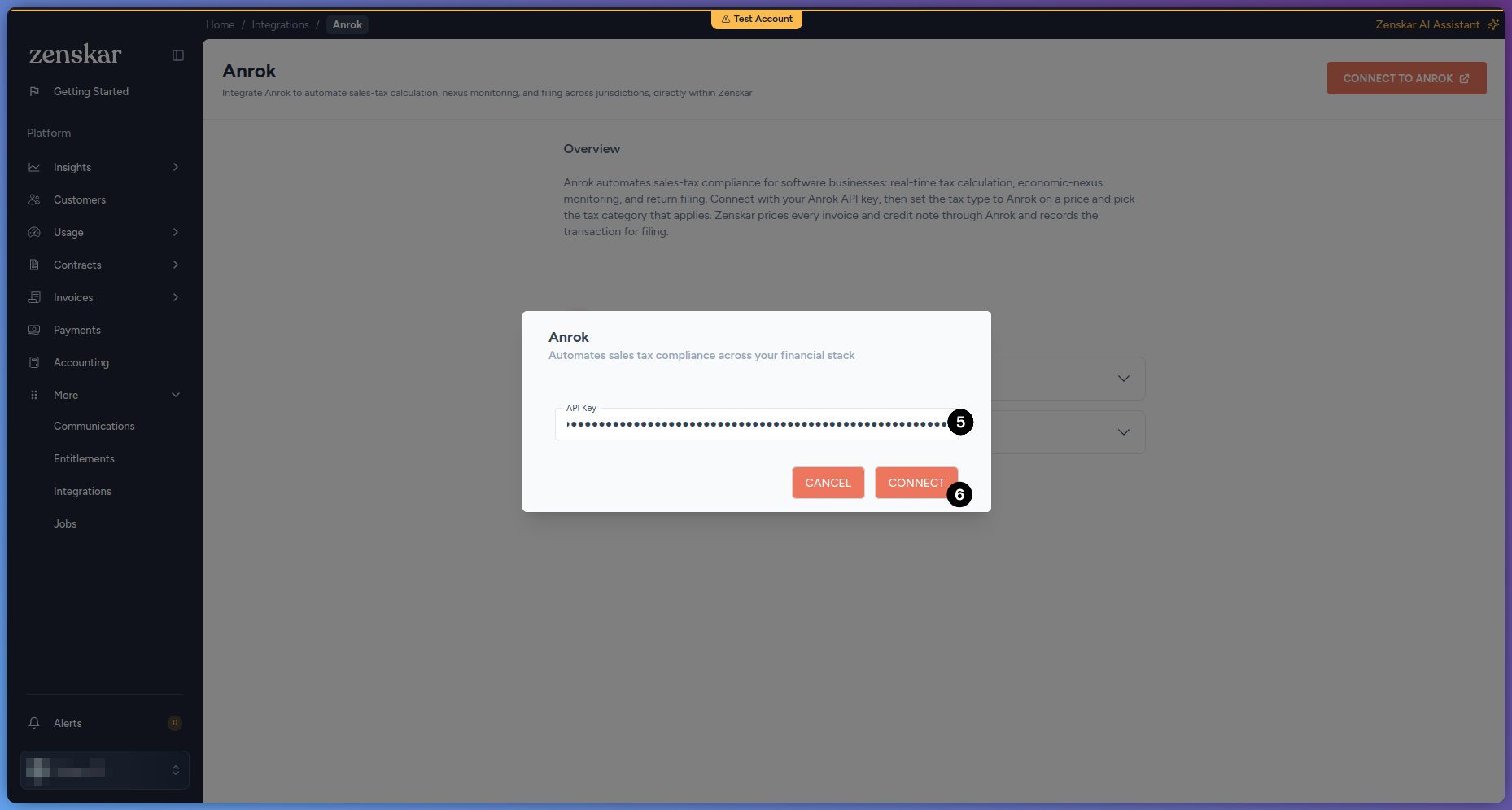
- Click Connect. If Anrok accepts the API key, the Anrok Setup page opens at the Connect step. If Anrok rejects the API key, Zenskar shows an error.
-
In Select Zenskar Entity, select the Zenskar business entity.
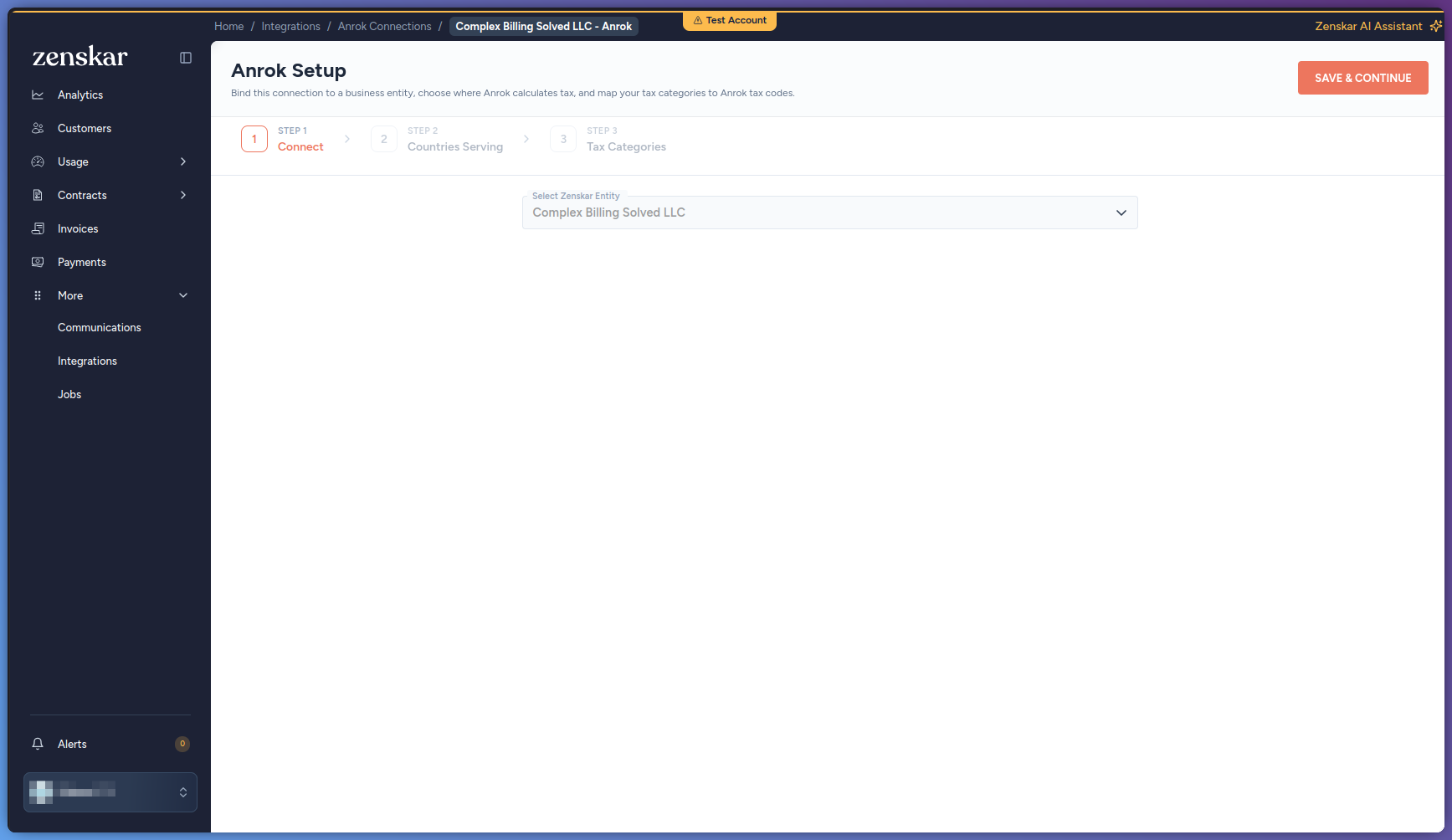
- Click Save & Continue. Zenskar rejects a Zenskar business entity that already has another third-party tax engine connected.
-
On the Countries Serving step, add or edit the served countries of the Zenskar business entity. For each served country that Anrok should tax, select Anrok in Tax Engine. See Manage served countries.
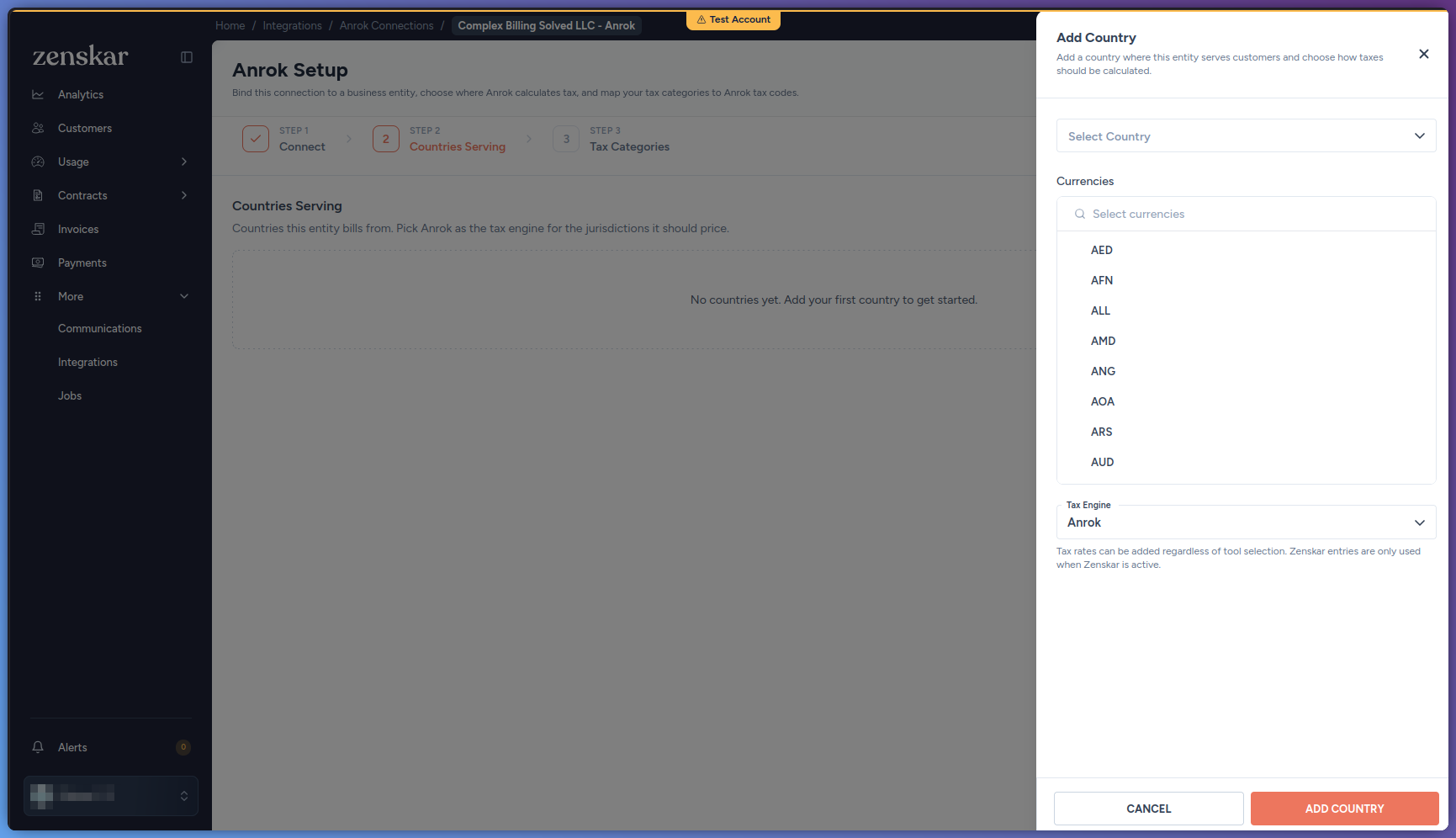
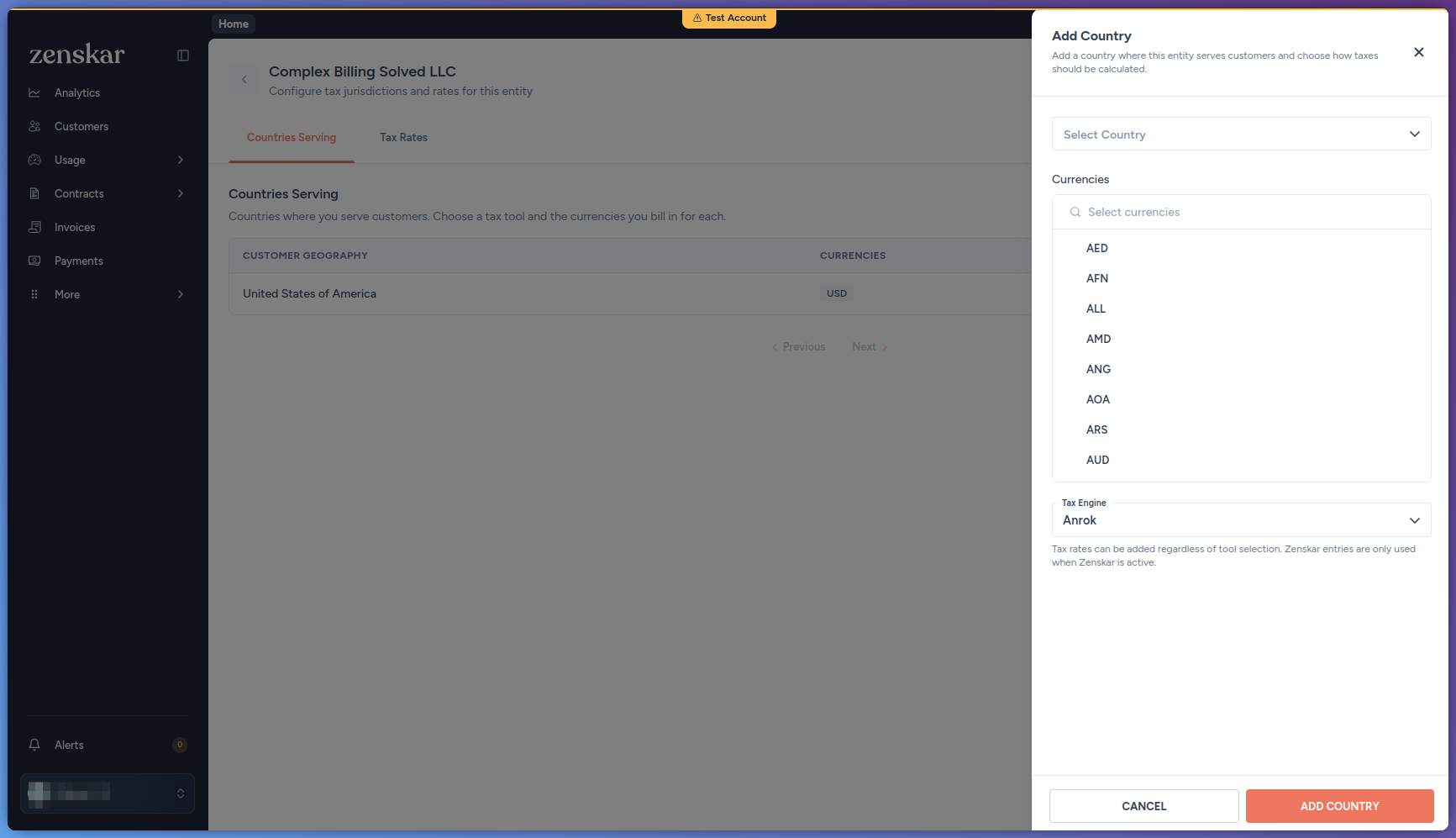
- Click Continue.
-
On the Tax Categories step, set the Anrok Tax Code of each Zenskar tax category that your Zenskar products use. See Map a Zenskar tax category to an Anrok tax code.
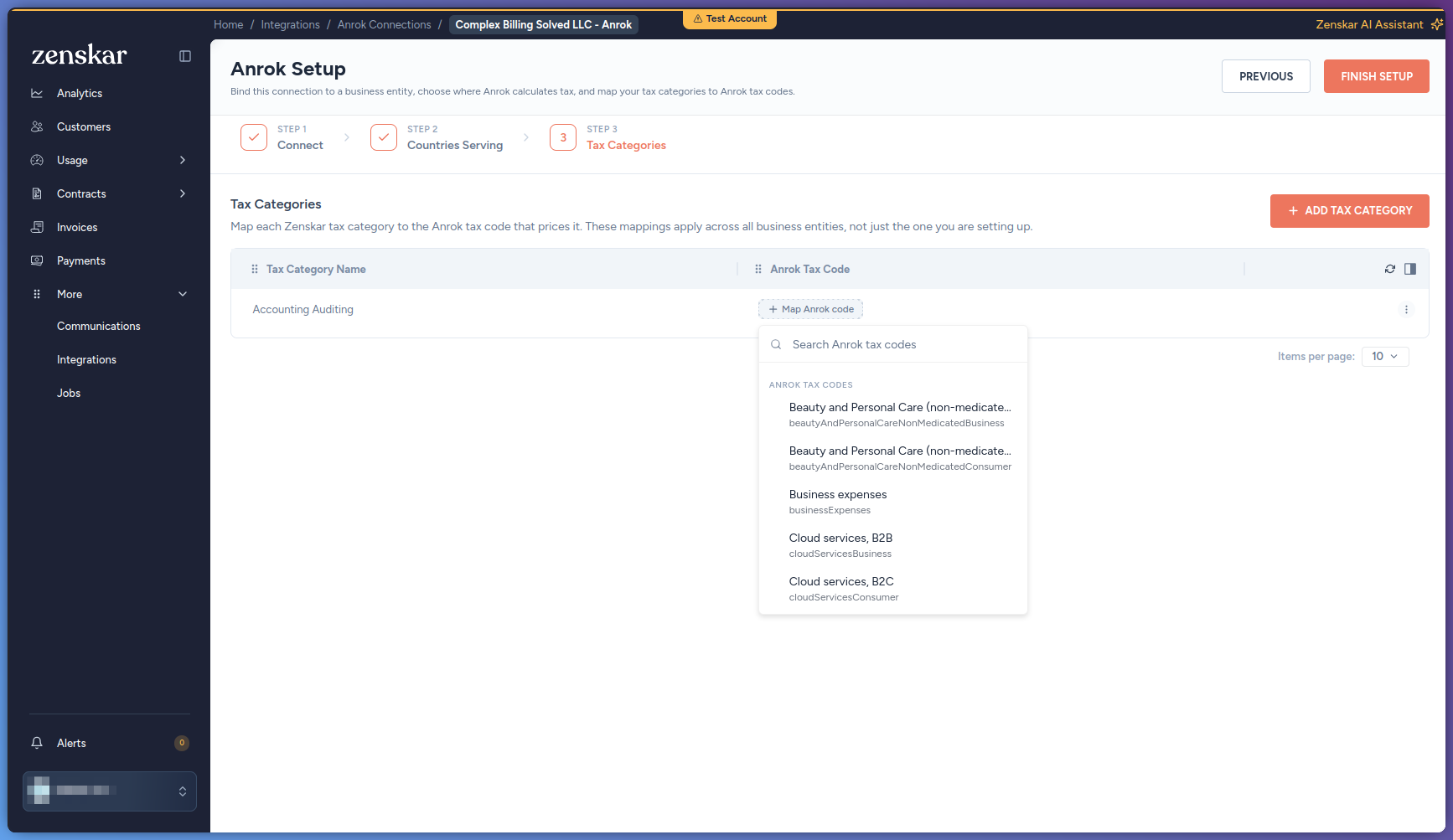
- Click Finish Setup. The Connections tab of the Anrok page opens.
Zenskar ignores the Anrok products that you created directly in Anrok. Zenskar creates its own Anrok products. Zenskar does not match the two.
Edit an Anrok connection
Editing an Anrok connection changes the served countries of its Zenskar business entity. It also changes the Anrok tax codes of the Zenskar tax categories. The Zenskar business entity of a connection cannot change.Prerequisites
- The Anrok connection has a Zenskar business entity.
- Your role has the permissions in the following table.
- Go to More > Integrations.
- Click the Anrok card.
- Click the Connections tab. Each connection on the tab shows its Account ID, Connected Entity, Connected On, Last Updated On, and Status. The status is Configured after the connection has a Zenskar business entity. Before that, it is Pending Configuration.
- On the connection, click Edit. The Anrok Setup page opens at the Connect step. Select Zenskar Entity shows the Zenskar business entity of the connection. You cannot change it.
- Click Continue. To go to a step directly, you can also click the step at the top of the page.
- On the Countries Serving step, add or edit the served countries. See Manage served countries.
- Click Continue.
- On the Tax Categories step, change the Anrok Tax Code of the Zenskar tax categories. See Map a Zenskar tax category to an Anrok tax code.
- Click Finish Setup.
Map a Zenskar tax category to an Anrok tax code
Prerequisites
- Anrok is connected. The Anrok Tax Code field and column appear only after you connect Anrok.
- Your role has the permissions in the following table.
- Go to Settings > Tax Configuration.
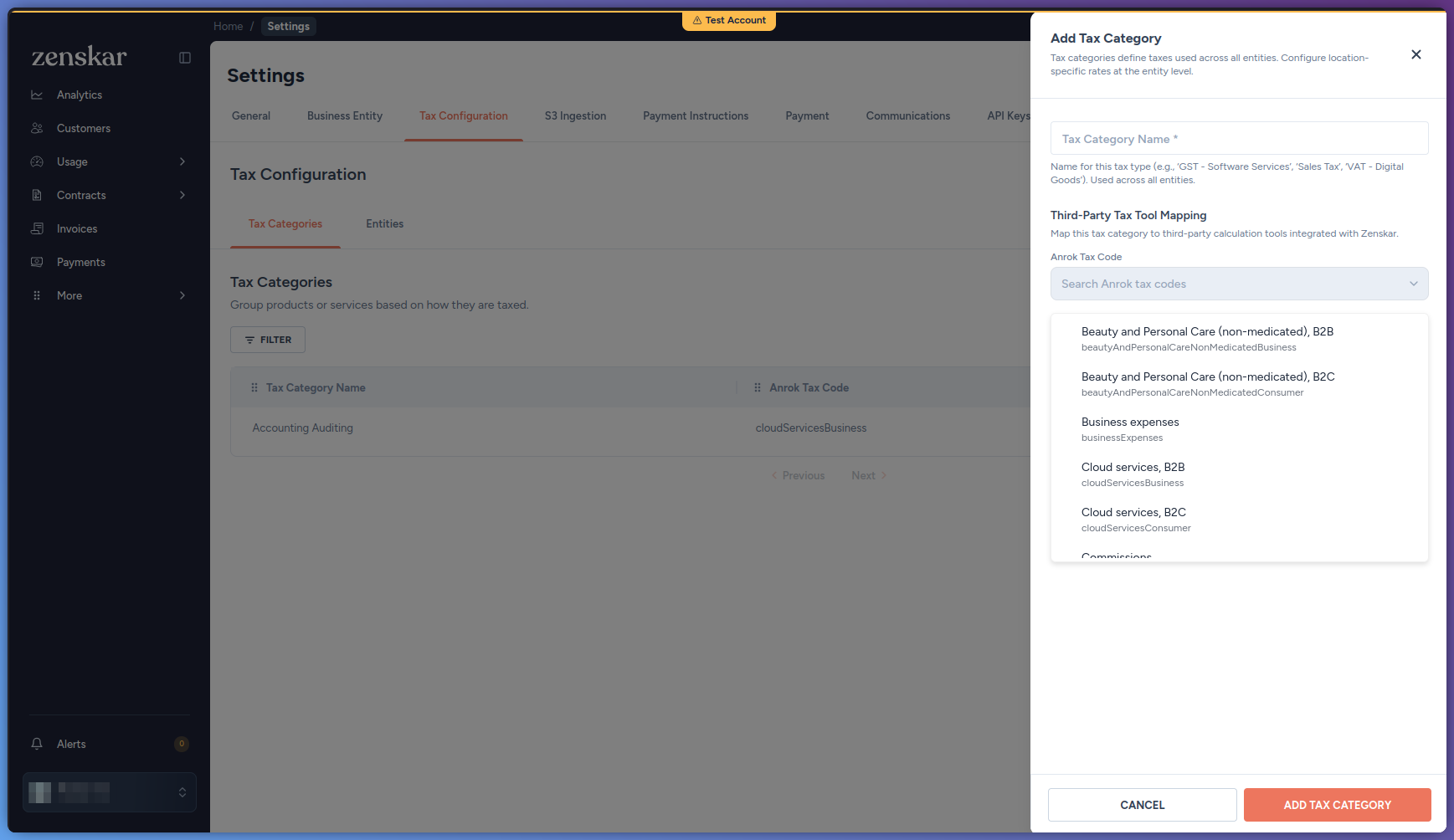
- On the Tax Categories tab, in the actions menu of the Zenskar tax category, click Edit. The Edit Tax Category panel opens.
-
In Anrok Tax Code, search for the Anrok tax code by its name or ID. Then select it.
-
Click Save Changes.
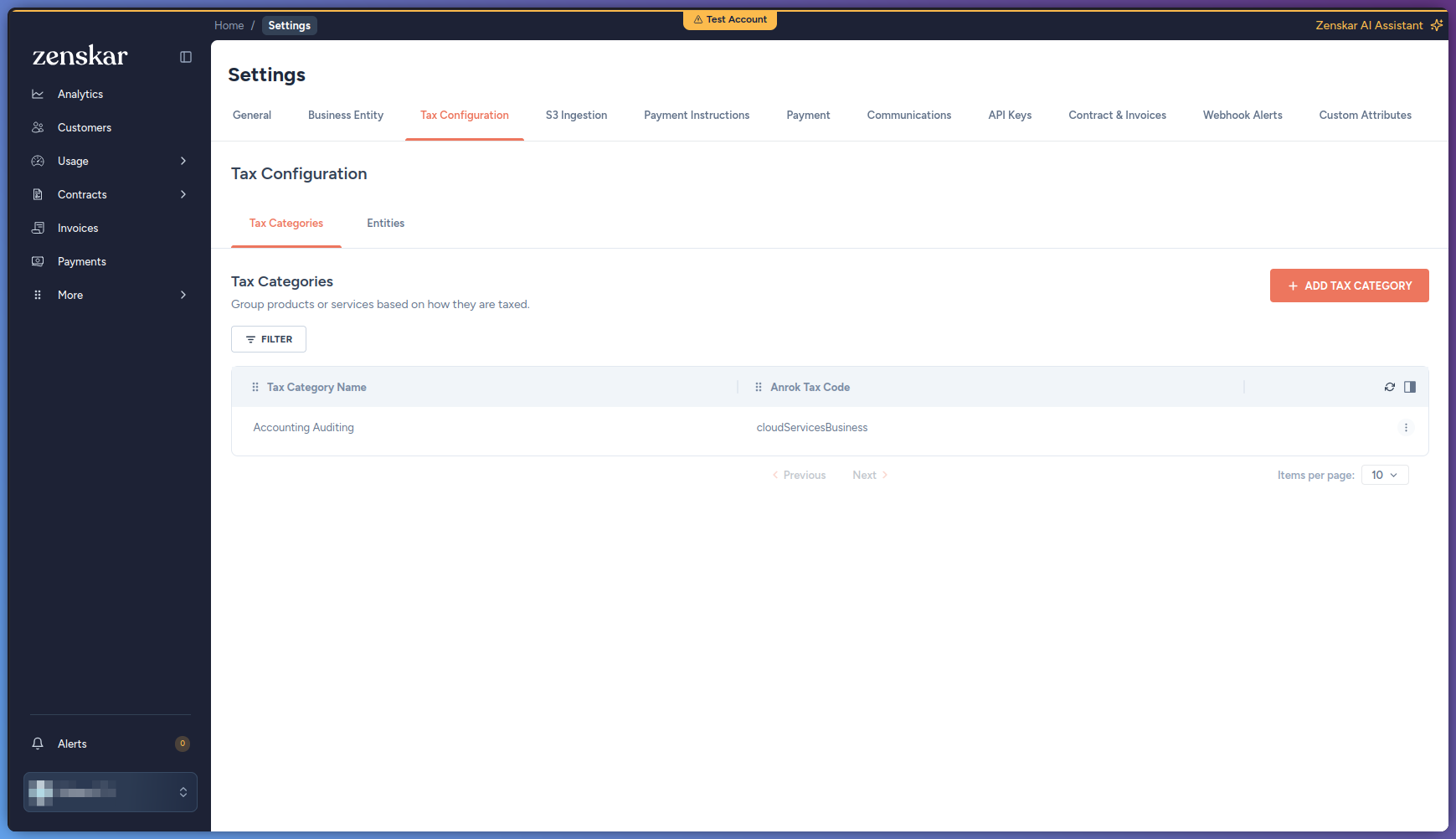
You can also map the code in the Anrok Tax Code column of the tax-category list. Click Map Anrok code or the current code. Then select the Anrok tax code. Zenskar saves the selection right away.
Link a Zenskar customer to an Anrok customer
Prerequisites
- Anrok is connected to the Zenskar customer’s business entity. The Add Anrok ID button appears only then.
- The Anrok customer exists, and you have its customer ID from Anrok.
- Your role has the permissions in the following table.
After you link a Zenskar customer, you cannot remove the link. You can only change it to another Anrok customer.
- Go to Customers, and open the Zenskar customer.
-
Click the Integrations tab.
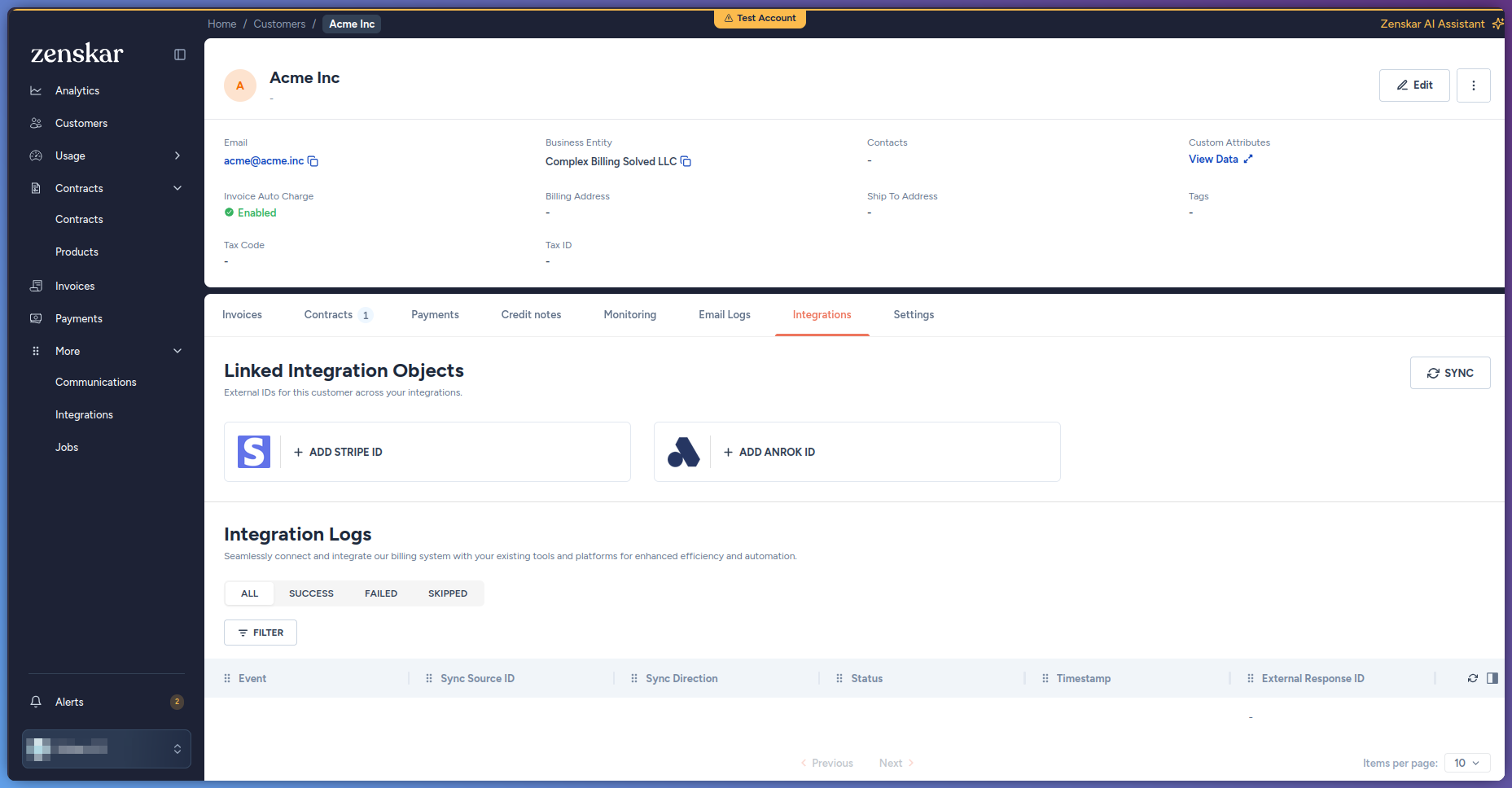
- Under Linked Integration Objects, click Add Anrok ID. The Add Anrok ID dialog opens.
-
In Anrok customer ID, enter the exact customer ID from Anrok. Search by name is not supported.
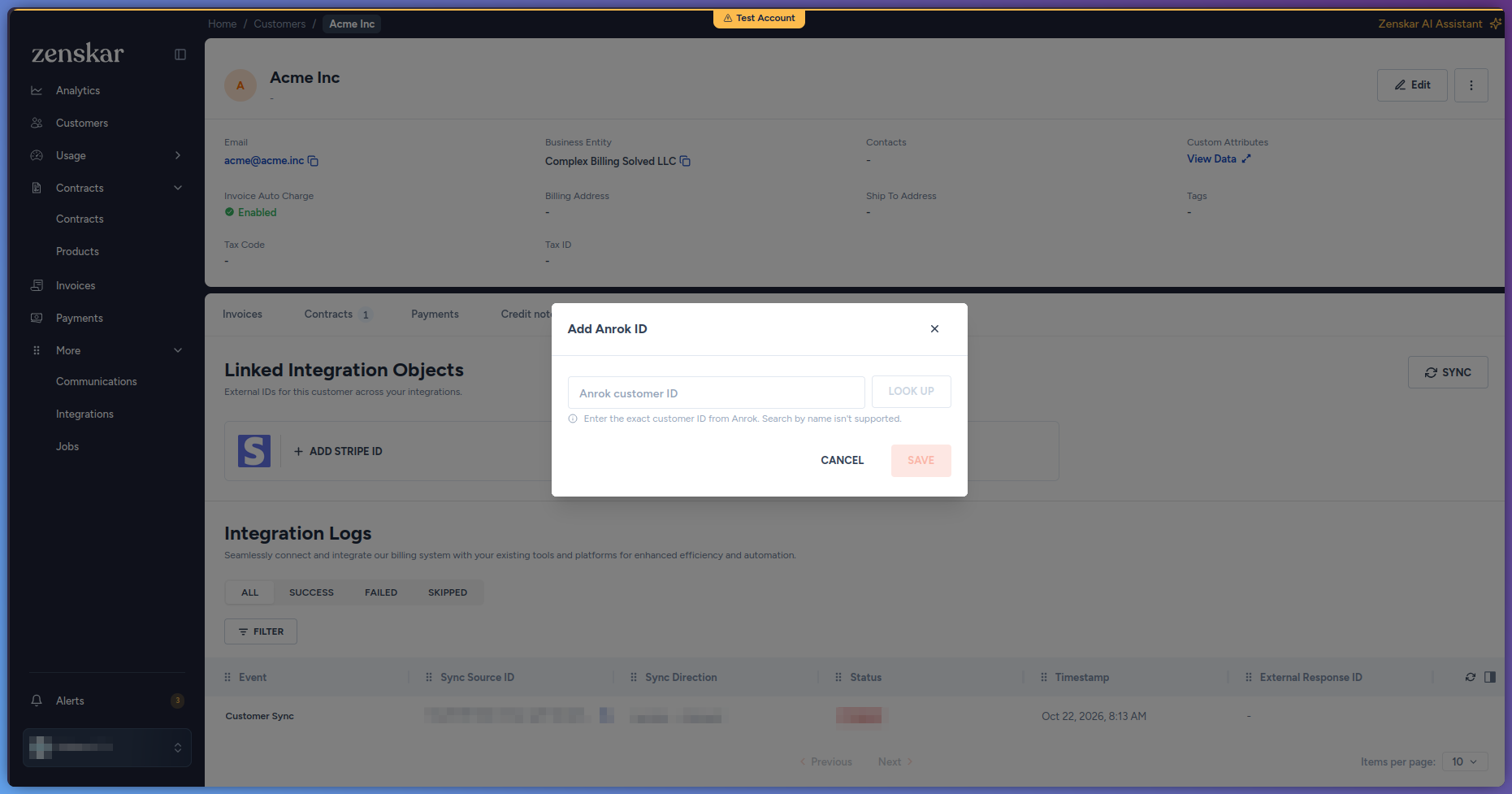
- Click Look up. If Anrok has the Anrok customer, Zenskar shows its name and email. Zenskar shows an error in two cases: Anrok has no Anrok customer with this ID, or the Anrok customer is already linked to another Zenskar customer. In both cases, Save stays unavailable.
- Click Save.
Check the Anrok transaction of a Zenskar invoice
Prerequisites
- The Zenskar invoice is approved, partially paid, paid, or void. The Integrations tab appears only on these invoices.
- Your role has the permissions in the following table.
- Go to Invoices, and open the Zenskar invoice.
-
Click the Integrations tab.
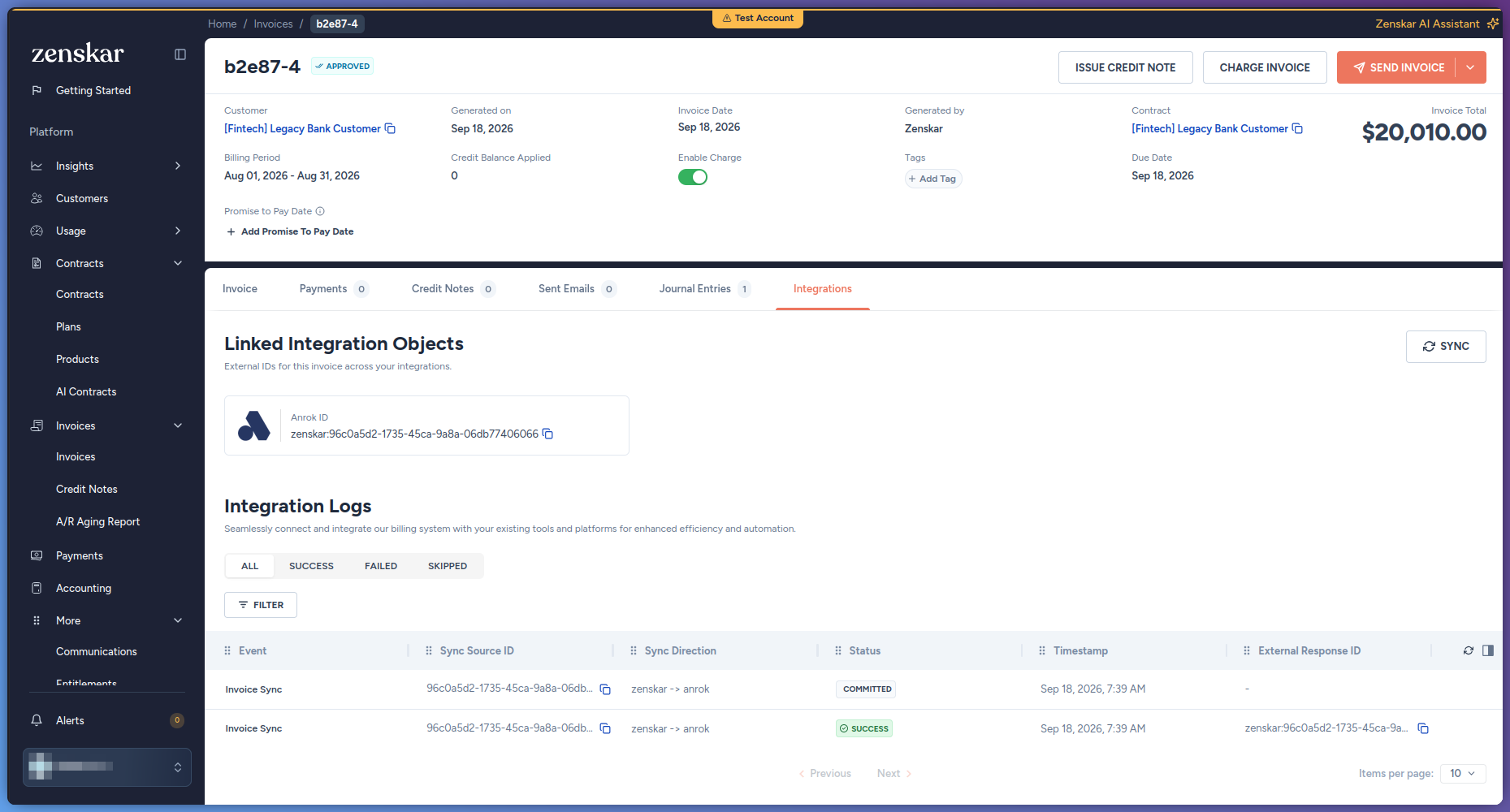
Under Linked Integration Objects, the Anrok ID card shows the ID of the Anrok transaction. To copy the ID, click the copy icon next to it.
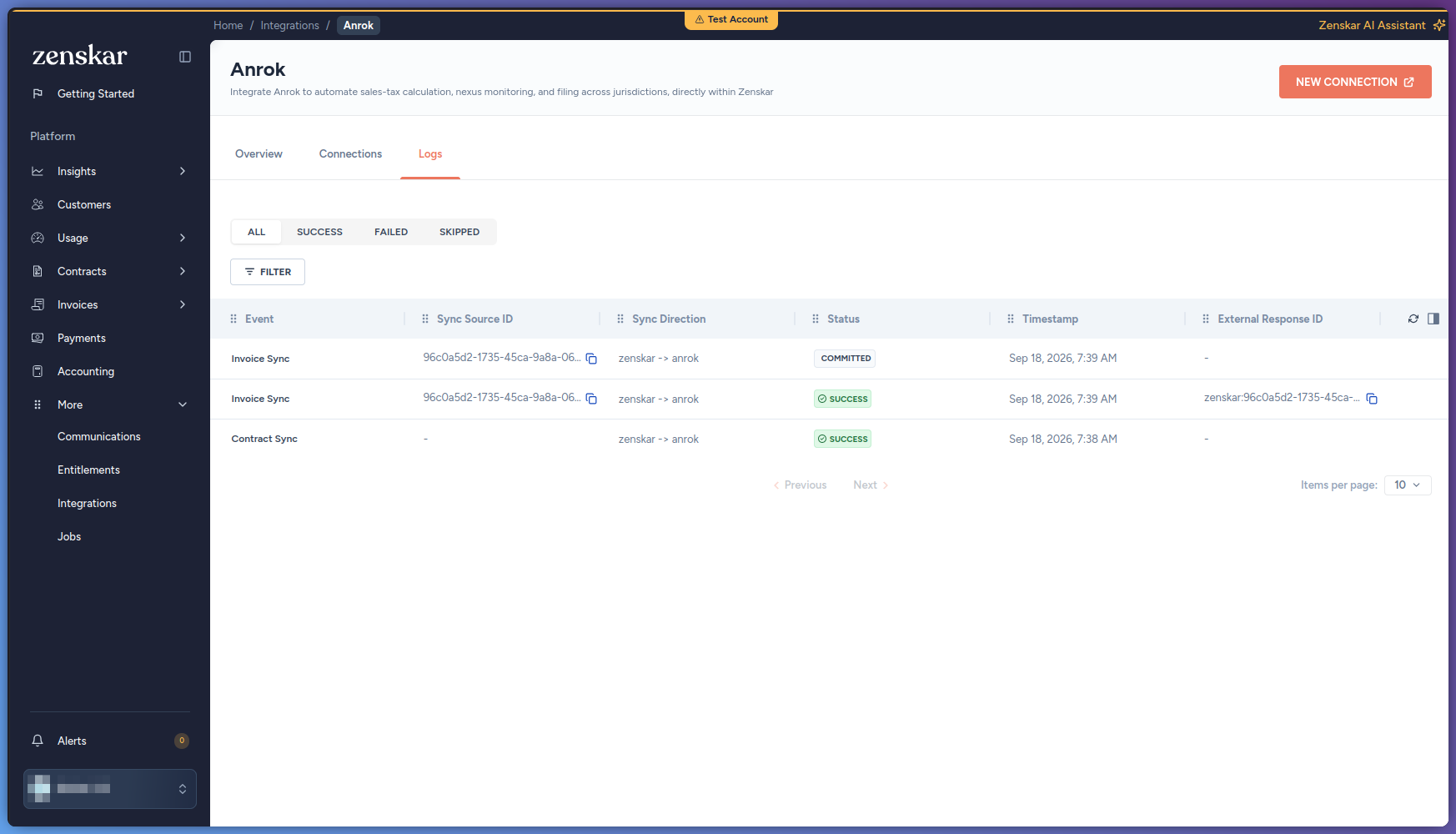
Under Integration Logs, each row is one sync event between Zenskar and Anrok for the Zenskar invoice. The row shows the event, its status, and its timestamp. To show only failed events, click Failed.
-
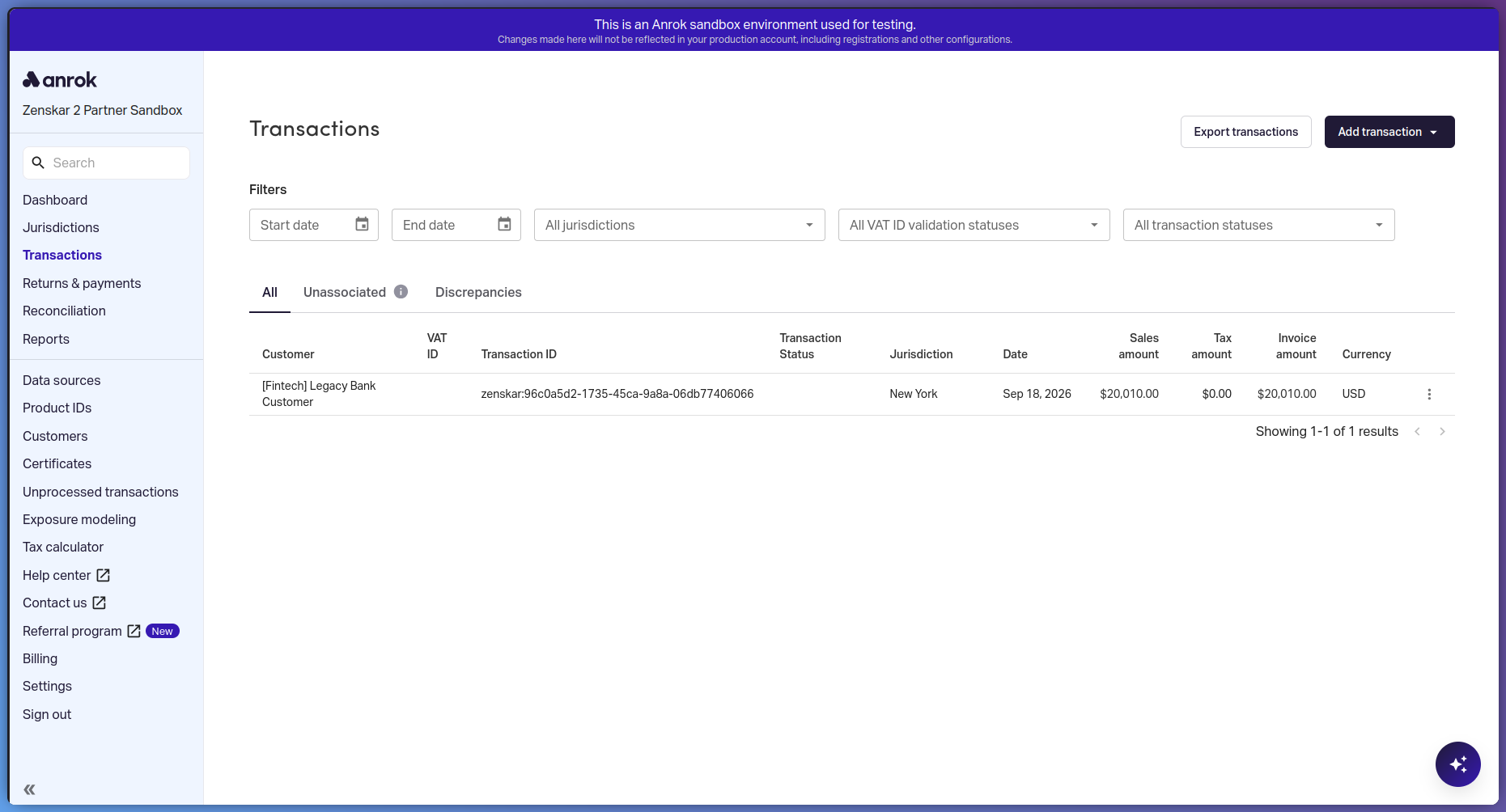
In Anrok, open Transactions, and search for the ID that you copied.
The Anrok transaction shows the Anrok customer, the jurisdiction, and the sales, tax, and invoice amounts. If the integration worked, the amounts match the Zenskar invoice.
Disconnect Anrok
Prerequisites
- Your role has the permissions in the following table.
Disconnecting Anrok removes every link between Zenskar and the Anrok account. Zenskar customers lose their links to Anrok customers. Zenskar invoices lose their links to Anrok transactions. You cannot undo this. After you connect Anrok again, link each Zenskar customer again. See Link a Zenskar customer to an Anrok customer.
- Go to More > Integrations.
- Click the Anrok card.
- Click the Connections tab.
- On the connection, click Disconnect. The Delete Connector ID dialog opens.
- Click Delete.