

Tax configuration
This document explains what tax configuration is, how it works at the organization and business-entity levels, and how tax categories, business entities, served countries, tax engines, and tax rates fit together.Map of concepts
Map of concepts
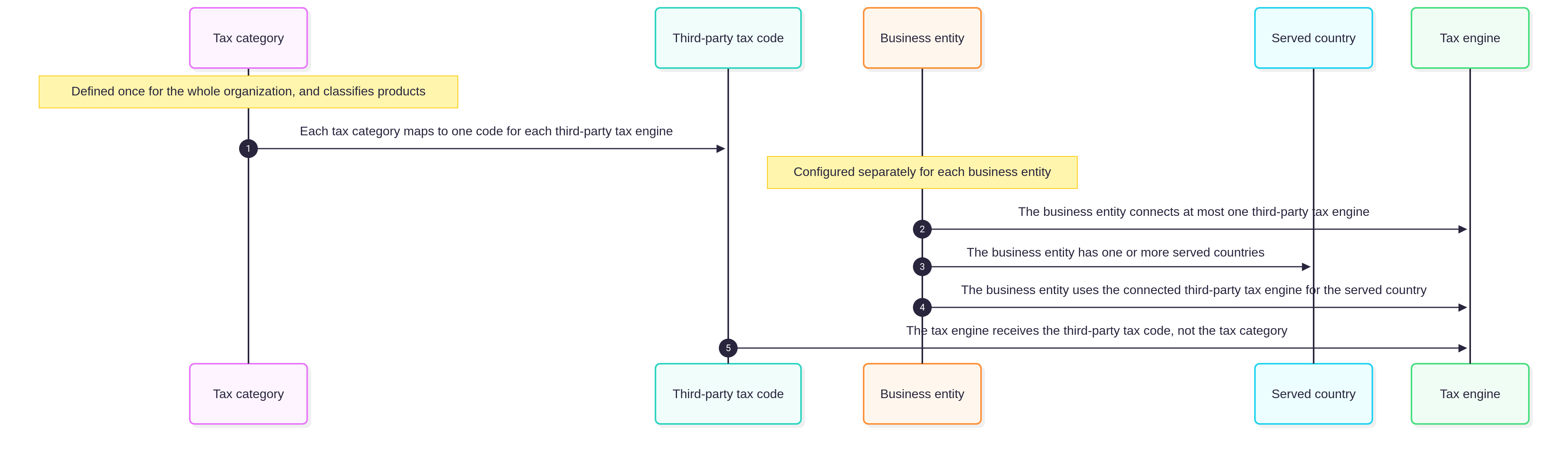
Tax categories are defined once for the whole organization. Each business entity serves one or more countries and uses one tax engine for each served country. With the Zenskar tax engine, the tax rates of the business entity apply to each tax category. With a third-party tax engine, the engine receives the third-party tax code of the tax category and applies its own rates and rules.
Tax configuration levels: organization and business entity
Tax configuration works at two levels: the organization, and each of its business entities.Organization: one set of tax categories
Tax categories exist once, for the whole organization. They are available to every business entity. A tax category describes only the kind of product. Where tax applies, and how much, is configured separately for each business entity. For example, a SaaS subscription has the same tax category whether a business entity in the United States or in Germany sells it. A change to a tax category applies to every business entity.Business entities: where and how tax is collected
Each business entity has its own served countries, tax engines, and tax rates. A business entity is a separate legal or billing unit. Each business entity can be registered for tax in different countries. The tax rates of one business entity do not apply to another, even for the same country. For each served country, the business entity uses either the Zenskar tax engine or a third-party tax engine. One business entity can mix the two. For example, a business entity can use a third-party tax engine for the United States and the Zenskar tax engine for India. A business entity can connect at most one third-party tax engine. For details, see Tax engines. The two kinds of tax engine use tax categories differently:
For a third-party tax engine, Zenskar sends the third-party tax code and both addresses. The engine applies its own rates and rules to them.
The Zenskar tax engine uses tax rates only for the served countries for which the business entity uses it. Tax rates can exist for any served country. If the business entity uses a third-party tax engine for the served country, the tax rates of that country have no effect. For what happens to them when the tax engine changes, see Changing the tax engine for a served country.
Sequence of configuration
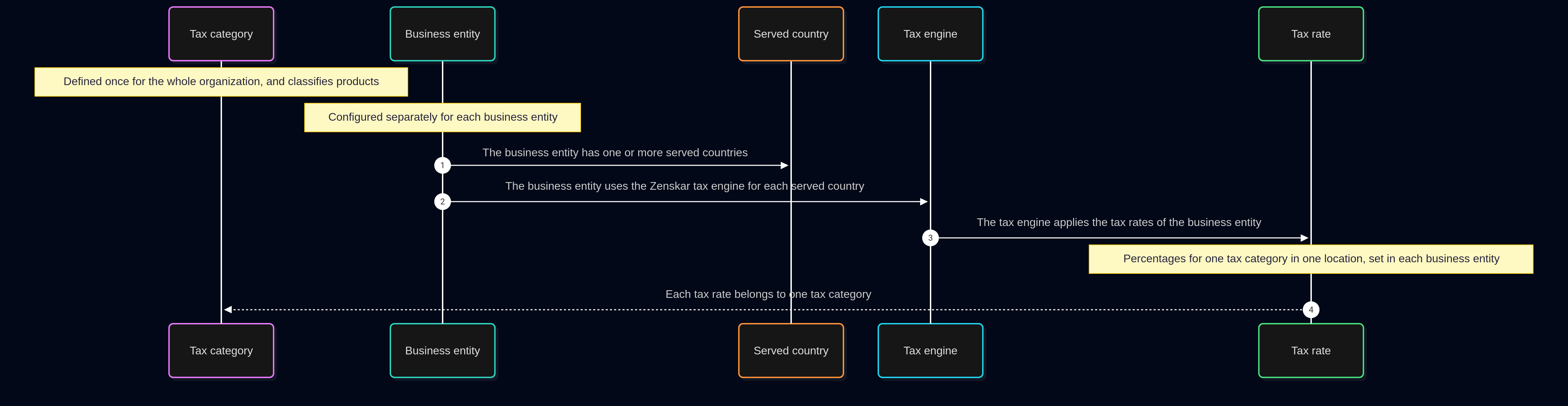
With the Zenskar tax engine, the concepts connect in the following order: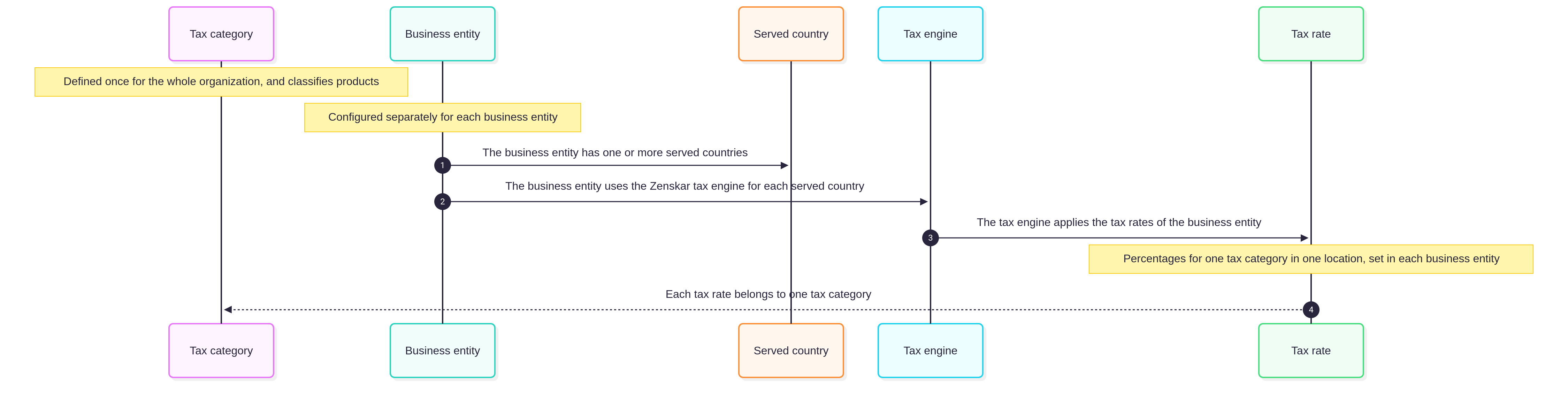
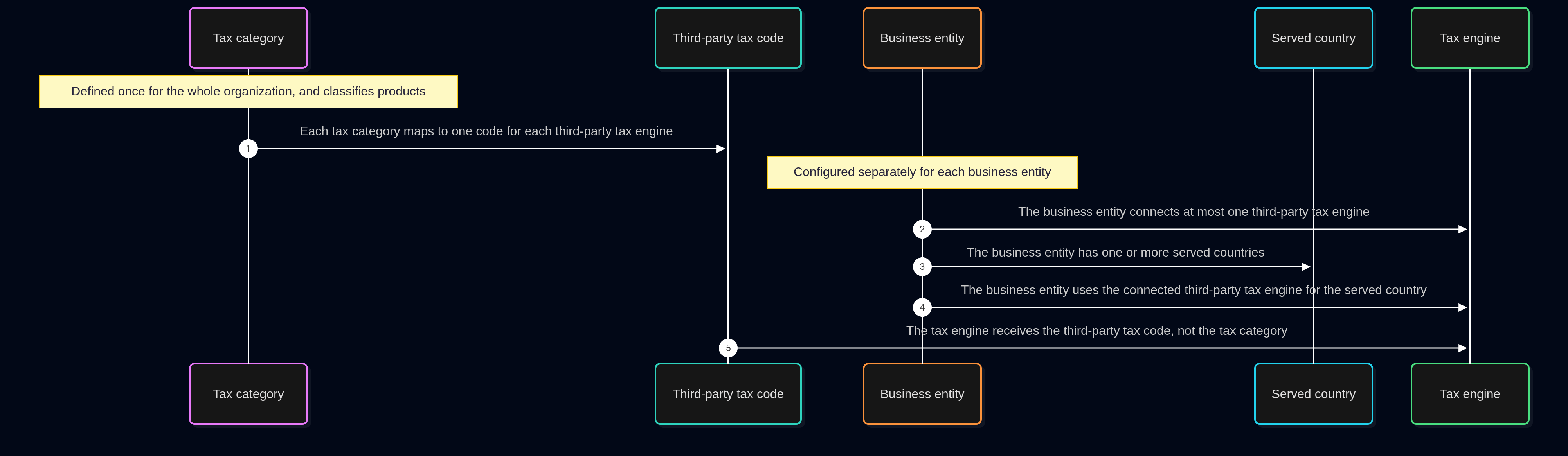
 With a third-party tax engine, the concepts connect in the following order:
Tax categories: how products are taxed
A tax category is a classification of products based on how they are taxed. Examples of tax categories areSaaS subscription and Professional services.
A tax category has the following properties:
- A name.
- A third-party tax code for each third-party tax engine that the organization uses. Each code is optional.
Names
The name of a tax category must be unique within the organization. Tax rates and other modules refer to a tax category by a fixed identifier, separate from its name. For this reason, a tax category can be renamed at any time. Everything that uses the tax category keeps working. A tax category cannot be deleted. It stays in the organization after it is created. Renaming is the way to retire a tax category.Third-party tax codes
A third-party tax code is the code that a third-party tax engine uses to classify a product for tax purposes. Each third-party tax engine has its own catalog of tax codes. A third-party tax engine receives only the third-party tax code of a tax category. For this reason, each tax category needs a code in each third-party tax engine that the organization uses. Zenskar does not translate codes from one third-party tax engine to another. A third-party tax code applies in every business entity that uses that engine, for every served country. Each tax category is mapped once for each third-party tax engine. The mapping applies to every business entity. A tax category has at most one code for each third-party tax engine. Mapping a new code for an engine replaces the previous one. The field for a third-party tax code appears only after that engine is connected to a business entity in the organization. Codes for an engine can be mapped only after the engine is connected. A third-party tax code is optional. A tax category without a code for a third-party tax engine can affect contracts that bill customers in a served country for which the business entity uses that engine. The Zenskar tax engine uses the tax rates that each business entity configures for the tax category. The following example shows one tax category and what each tax engine uses for it:
The correct code comes from the tax-code catalog of each third-party tax engine.
Disconnected third-party tax engines
When a third-party tax engine is disconnected, Zenskar keeps the codes mapped for it. The codes are hidden until the engine is connected again. They then apply again.Business entities
Each business entity has its own tax configuration. The Entities tab lists every business entity in the organization. It shows one card for each business entity. Business entities are created in Business entity, not in tax configuration. A new business entity appears on the Entities tab after it is created. The card summarizes the tax configuration of the business entity:
The card shows gaps in the configuration. A business entity collects tax only in its served countries. A served country for which the business entity uses the Zenskar tax engine needs tax rates. Zenskar saves the served country without them. The card shows “N countries need rates” until each such served country has a tax rate. A served country without tax rates can affect contracts that bill customers in that country.
Configure opens the tax configuration of the business entity. It has two tabs, in the order in which they are configured:
- Countries Serving: the served countries and their tax engines. For details, see Served countries and tax engines.
- Tax Rates: the tax rates of the business entity. For details, see Tax rates.
Served countries and tax engines
A served country is a country in which a business entity bills customers. A served country is where the customers of a business entity are, wherever the business entity is located. Zenskar uses the country in the default billing address of the customer. For example, a business entity located in the United States that bills customers in Germany serves Germany. A business entity can add each country only once. The Select Country list excludes countries that the business entity already serves. The country of a served country cannot change after it is added. Serving a different country requires a new served country.Currencies
For each served country, the business entity lists the currencies in which it bills customers in that country. A served country needs at least one currency. A served country covers a contract only when the currency of the contract is on the list. The list therefore needs every currency in which the business entity bills customers in that country. For example, a business entity that bills customers in Canada in both CAD and USD adds both currencies to Canada. A missing currency can affect contracts in that currency. A currency can be turned off without removing the served country. At least one currency must stay on. A currency that is off is hidden from the Countries Serving list.Tax engines
A tax engine is the system that calculates tax for a served country. A tax engine is either the Zenskar tax engine or a third-party tax engine. The Zenskar tax engine is built into Zenskar. A third-party tax engine, such as Avalara AvaTax or Anrok, is one that is connected to a business entity. The business entity uses one tax engine for each served country. All currencies of that served country use it. The Tax Engine list offers the Zenskar tax engine and the third-party tax engine connected to this business entity. A third-party tax engine connected to another business entity is not offered. Using it requires a connection to this business entity too.A business entity can have at most one third-party tax engine connected. An organization that uses two third-party tax engines connects each one to a different business entity.
Each business entity connects a different third-party tax engine. For each served country, a business entity uses either the Zenskar tax engine or its connected third-party tax engine.
Changing the tax engine for a served country
When the tax engine for a served country changes, the change applies to every currency of that country that is on. The tax rates of the served country stay configured. They apply again if the country switches back to the Zenskar tax engine. Tax categories need codes in a third-party tax engine before a served country switches to that engine. Zenskar does not check the mapping when the tax engine changes. For the effect of a missing code, see Third-party tax codes.Removing a served country
Removing a served country takes effect immediately. The dashboard does not ask for confirmation. Zenskar removes the country and all of its currencies. Zenskar keeps the tax rates of the country. If the country is added again, the tax rates apply again. Removing a served country can affect contracts that bill customers in that country.Served countries with a disconnected tax engine
Disconnecting a third-party tax engine does not change the tax engine of any served country. A served country for which the business entity uses the disconnected engine shows it as “(not connected)”. While that served country is edited, the Tax Engine list still offers the disconnected engine. The served country can keep the engine or switch away from it. A served country for which the business entity uses a disconnected tax engine can affect contracts that bill customers in that country. The business entity stops using a disconnected tax engine for a served country only when the tax engine for that served country changes.Tax rates
Each business entity configures tax rates for the Zenskar tax engine. A tax rate changes over time through rate changes.Tax rates
Jurisdictions, tax components, rate changes, and the limits of the Zenskar tax engine.