

Concepts
What Zenskar and Anrok each own
Nexus and the tax-category catalog live in your Anrok account. Zenskar does not
manage them.
As of this version, the Anrok card under Integrations is enabled only for
organizations Zenskar has turned it on for. Otherwise the card is still shown,
but disabled and marked “coming soon.” Ask Zenskar to turn Anrok on for your
organization if you need it.
Anrok tax categories
Anrok classifies what a line is selling by tax category, picked from a list rather than typed, drawn from your connected Anrok account’s own catalog rather than a Zenskar one you set up in advance. The list is fetched live every time the dropdown opens. The category is set on a Tax feature on a plan, contract, or product (see Assign an Anrok tax category); there’s no separate mapping step. A line also needs to resolve to a single product Anrok can identify in its own catalog: a line-level tax inherits the line’s product, and a whole-invoice tax (with no product of its own) is registered under a stable synthetic reference so it still resolves. A tax feature with no product it can attach to (for example, applied to a bundle) is refused when the plan or contract is published.When Zenskar calls Anrok
Recording is idempotent: Zenskar keys the Anrok transaction on the invoice ID
(
zenskar:<invoice id>), so retrying or re-approving an invoice updates the
same Anrok transaction instead of creating a duplicate. There is no separate
commit step.
The tax engine for a line is whatever Tax Type its feature has, baked
into the plan or contract’s published workflow when you publish or
re-publish it. If an already-generated invoice’s engine is no longer
connected for that entity, Zenskar blocks invoice generation, naming the
fix: connect the missing engine again, or regenerate the invoice with a tax
engine that’s connected. Regenerating alone replays the same published
workflow, so to actually switch engines, change the feature’s Tax Type
and re-publish the plan or contract first, then regenerate.
Anrok authenticates with a single API key per seller account, and each
connection binds one Zenskar business entity to it. If you
connect more than one Anrok account, the Tax Category picker used
everywhere in the product and price UI reads categories from only the first
connection created, so a second connection isn’t usable for that yet.
Integration scope boundary
How Zenskar tells tax engines apart
A tax feature’s Tax Type is the only thing that routes a line to Anrok, Avalara, or Manual. Nothing else on the plan, contract, or product decides it.Tax engine comparison
Compares Manual, Avalara, and Anrok on rate source, address
handling, exemptions, and credit notes.
How-to guides
Connect an Anrok account
Do this once per Anrok account you bill from.Prerequisites
- An Anrok account with an API key.
- A Zenskar business entity to assign the connection to.
- Anrok enabled for your organization (see the Concepts note).
Steps
-
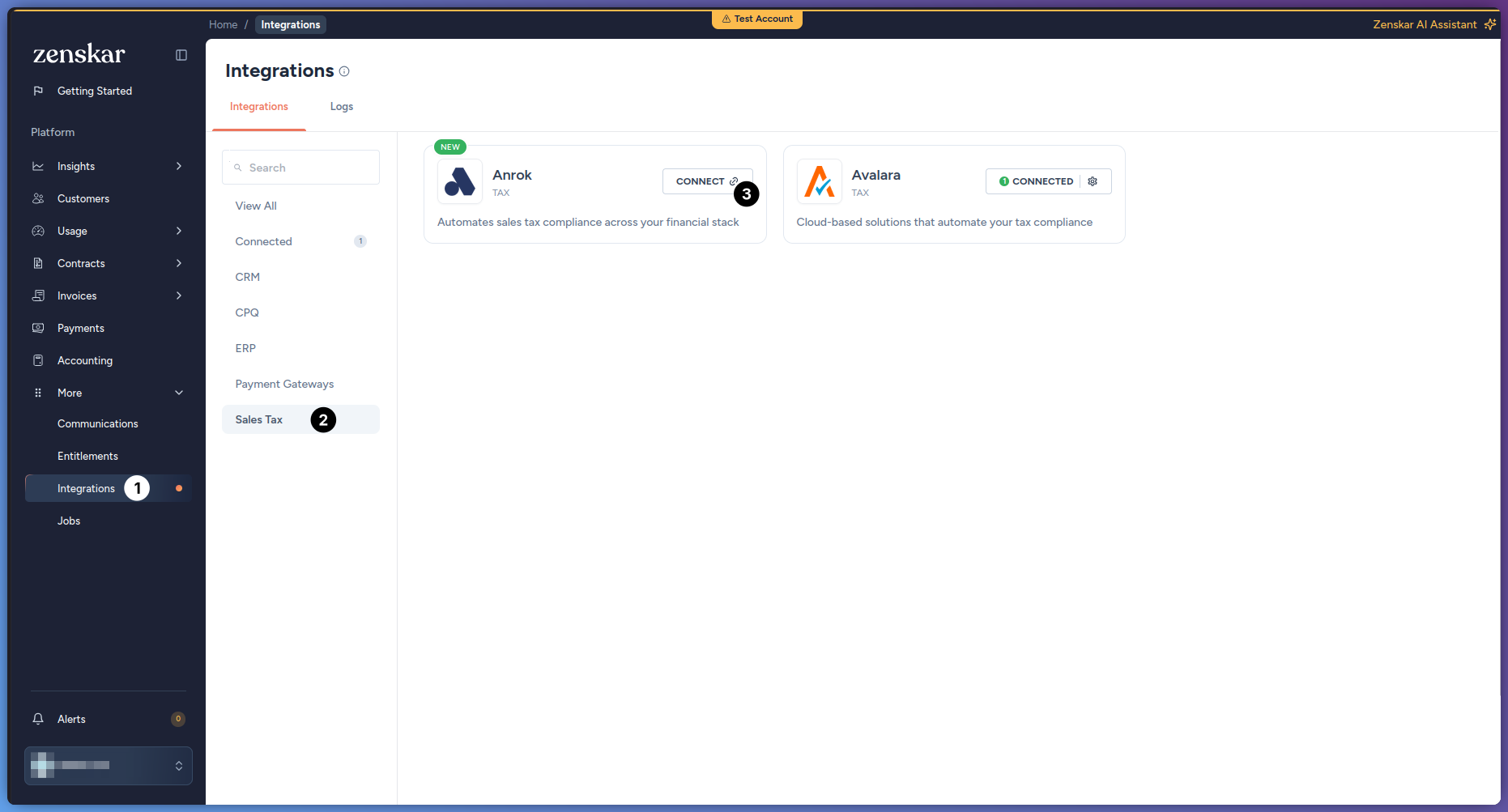
In the Zenskar sidebar, open More > Integrations. On the
Integrations page, choose the Sales Tax category and click
CONNECT on the Anrok card.
-
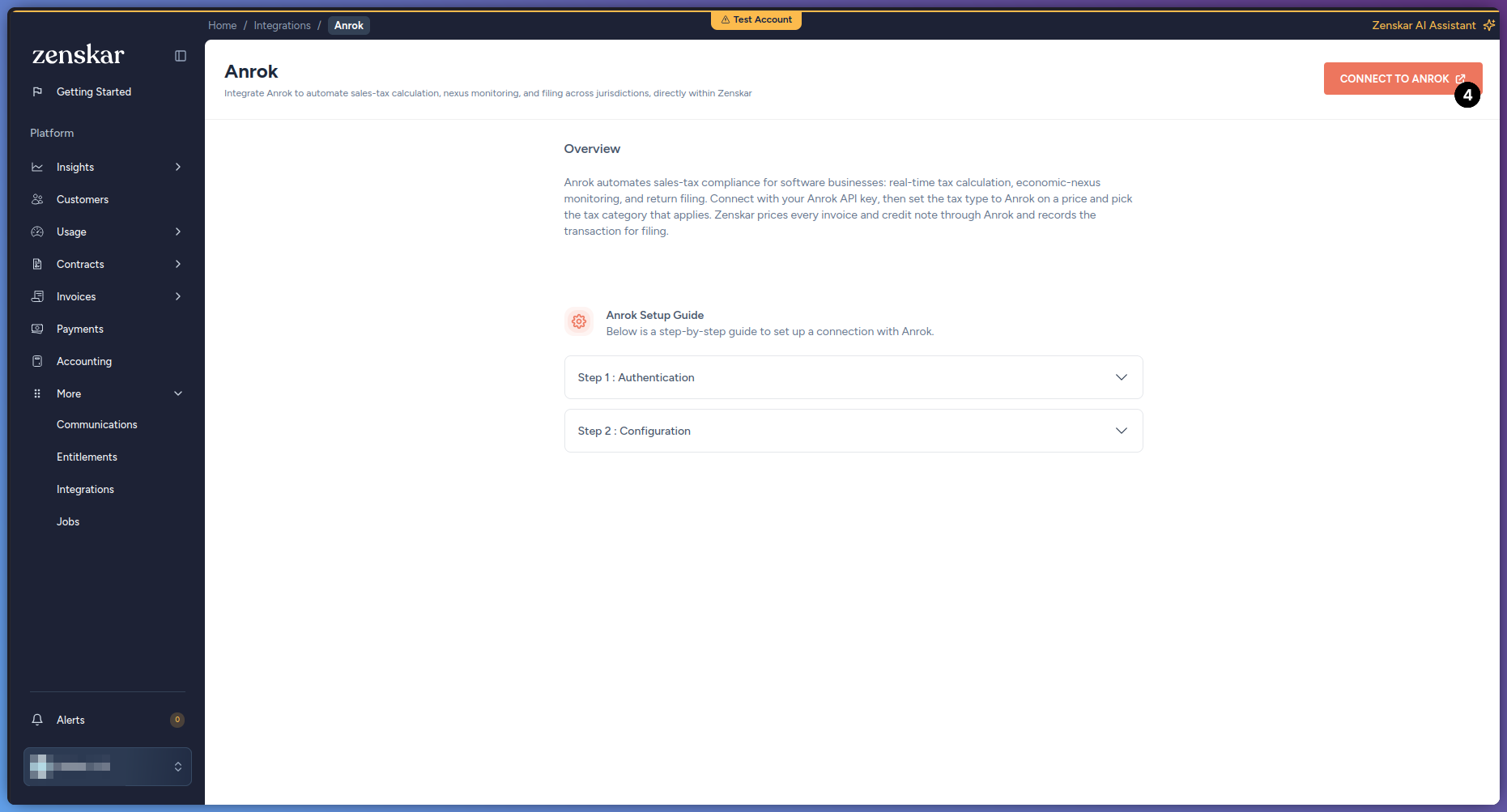
On the Anrok connector page, click CONNECT TO ANROK. (Once a
connection exists, this button reads NEW CONNECTION.)
-
Paste your Anrok API key, then click Connect.
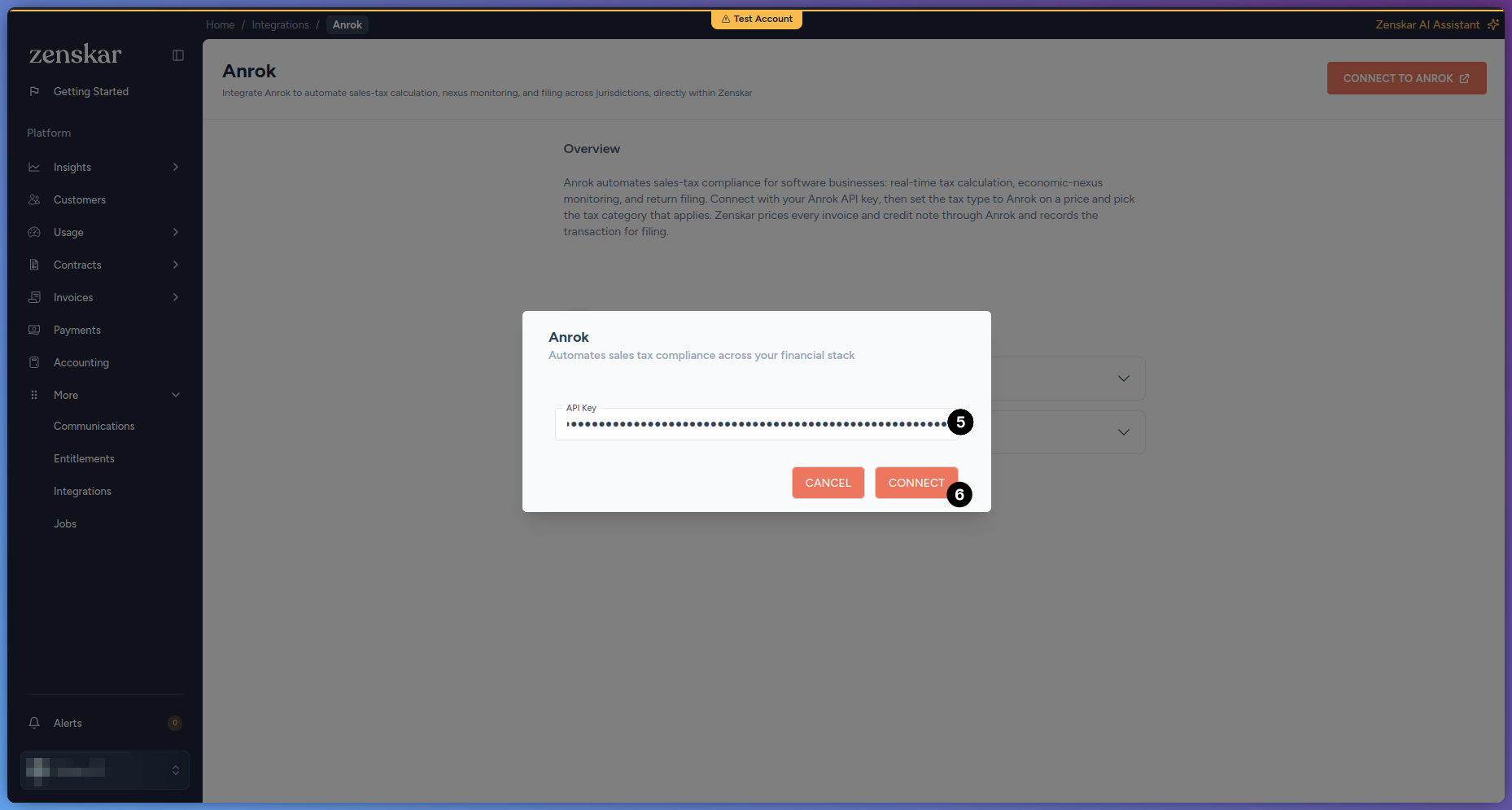 Zenskar validates the key against Anrok before saving the connection.
-
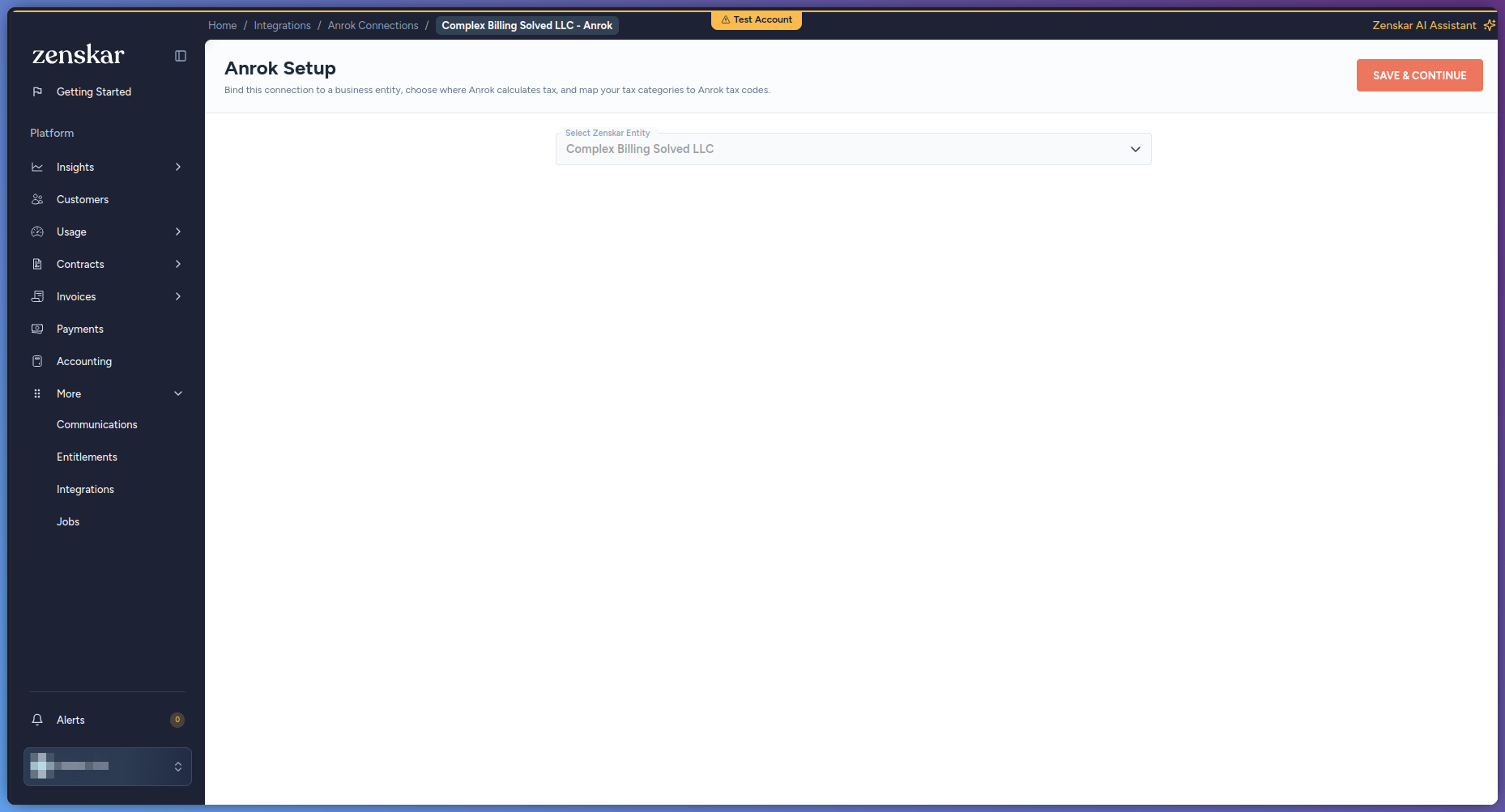
Zenskar creates the connection and opens Anrok Setup. Pick the entity
this Anrok account bills for from Select Zenskar Entity, then click
SAVE & CONTINUE.
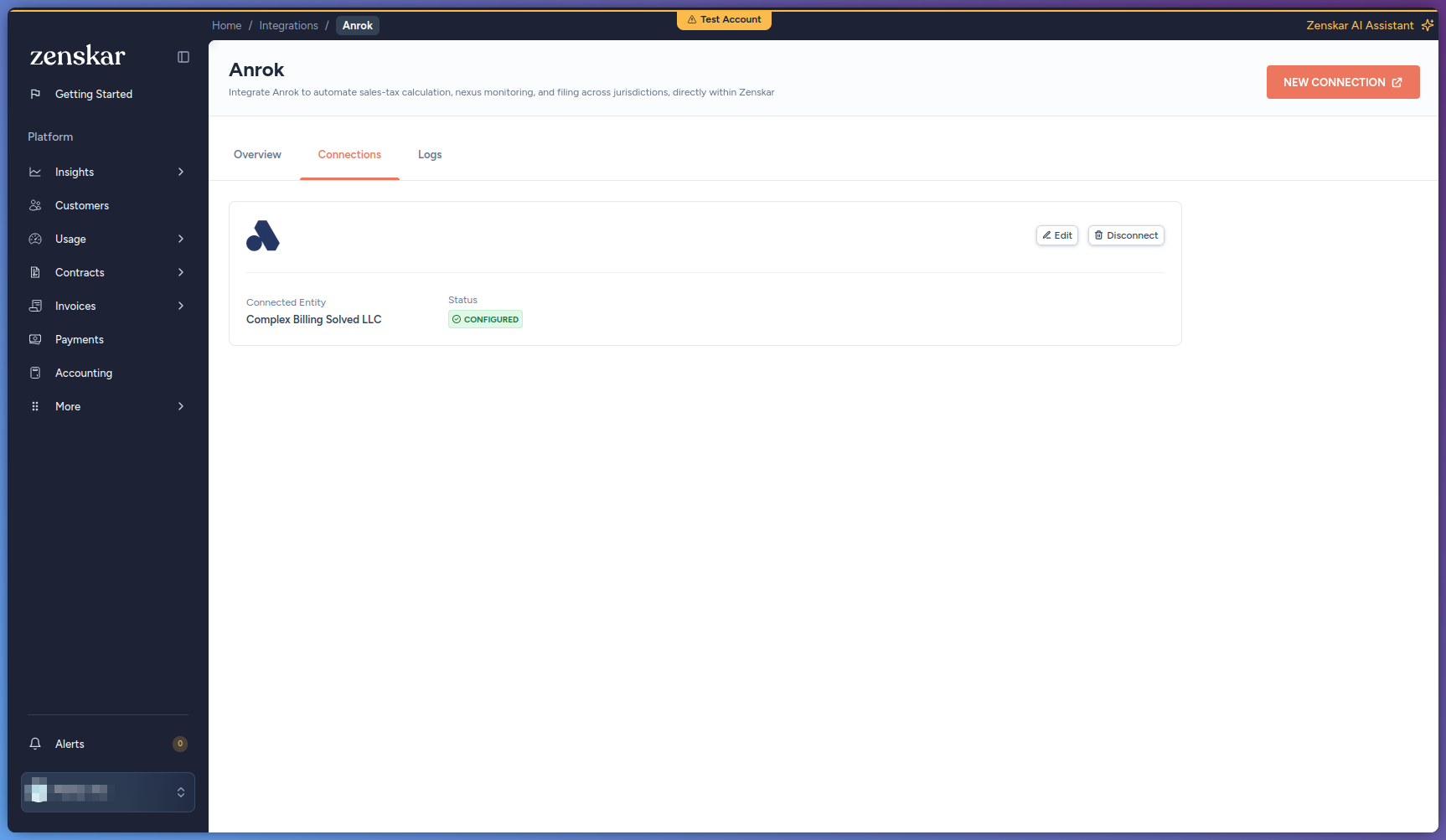
 Zenskar finishes the setup and returns you to the Connections tab,
where the connection now shows Configured. See Behavior on an
unresolvable address for how
Zenskar handles an address Anrok can’t resolve; it isn’t set here.
Zenskar finishes the setup and returns you to the Connections tab,
where the connection now shows Configured. See Behavior on an
unresolvable address for how
Zenskar handles an address Anrok can’t resolve; it isn’t set here.
If you leave Anrok Setup without picking a business entity, the connection
stays Pending Configuration on the Connections tab, showing the banner
Business Entity is not configured for this connection. Configure now to
enable adding new connections. Click Select Business Entity there to
return to Anrok Setup. You cannot add another Anrok connection until every
existing connection has an entity.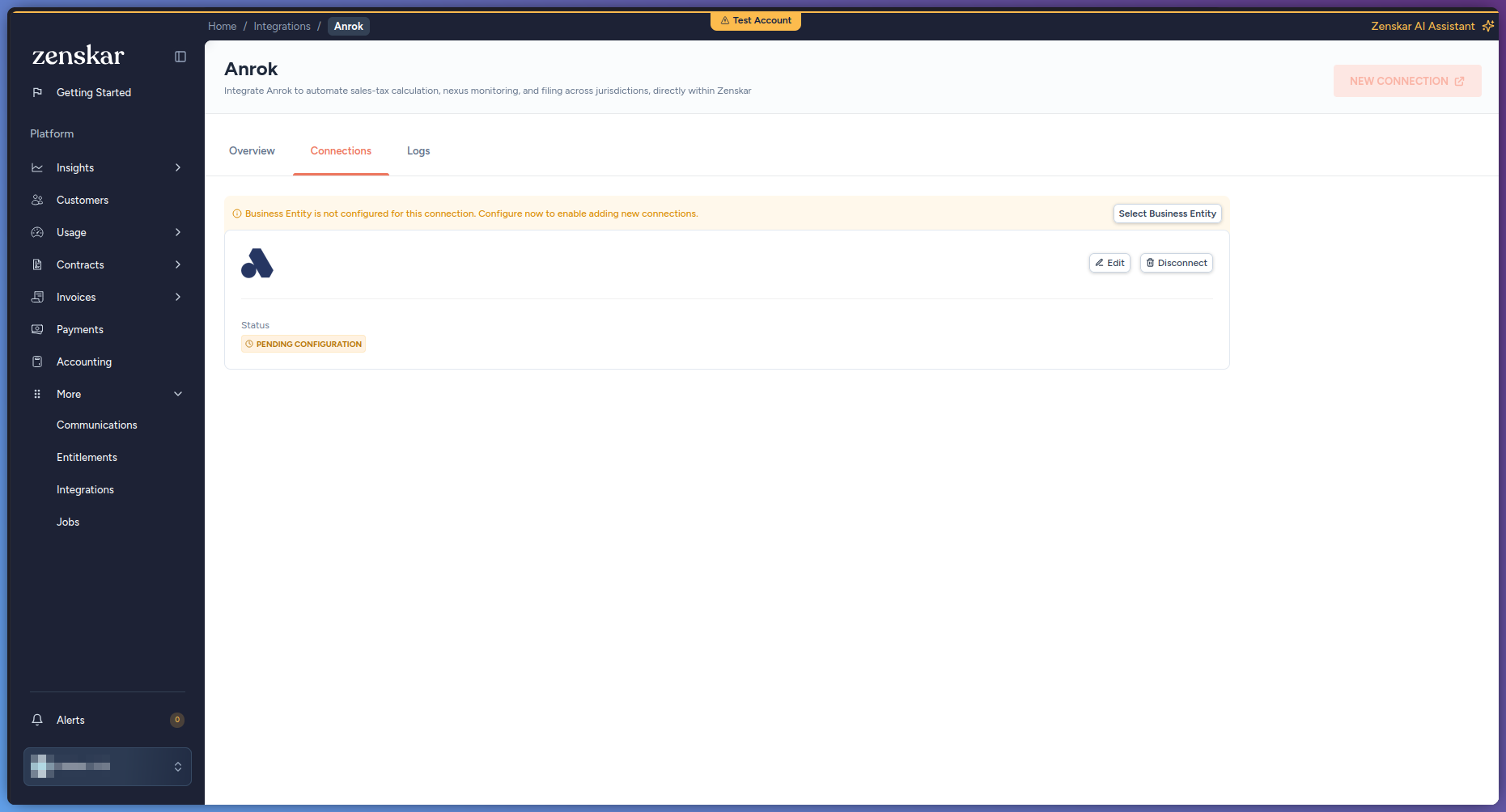
Assign an Anrok tax category
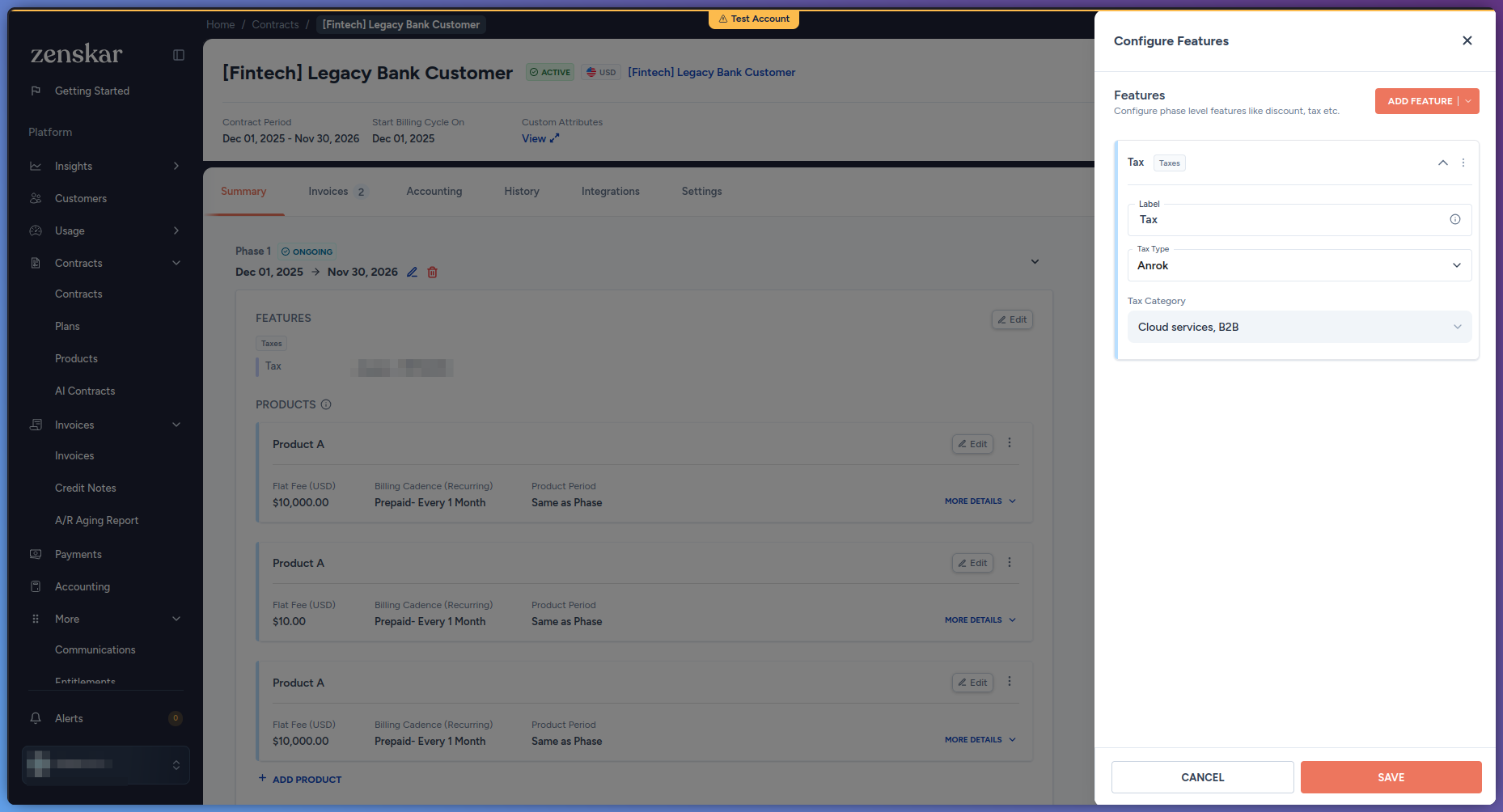
Anrok categories are picked directly on the tax feature; there’s no separate mapping step. Plans and contracts- Open the plan or contract and open its Configure Features panel.
- Click ADD FEATURE and choose Tax, or expand the existing Tax feature.
- Set Tax Type to Anrok. This option is always offered, whether or not an Anrok connection exists yet; if you publish the plan or contract without one, tax calculation fails at that point rather than the feature being blocked here.
- In Tax Category, pick from the dropdown. It’s fetched live from your connected Anrok account.
-
Click SAVE.
- Open the product’s Price Details section, and click + ADD NEW PRICE, or Edit on an existing price.
- Click ADD FEATURE and choose Tax, or expand the existing Tax feature.
- Set Tax Type to Anrok. This option is always offered, whether or not an Anrok connection exists yet; if you publish without one, tax calculation fails at that point rather than the feature being blocked here.
- In Tax Category, pick from the dropdown. It’s fetched live from your connected Anrok account.
- Click SAVE.
<code>.
Switching Tax Type away from Anrok clears the Tax Category. If a
category a price already uses is later renamed or removed in Anrok, Zenskar
keeps showing it labelled (not in Anrok) rather than silently dropping it.
Record a customer’s tax ID
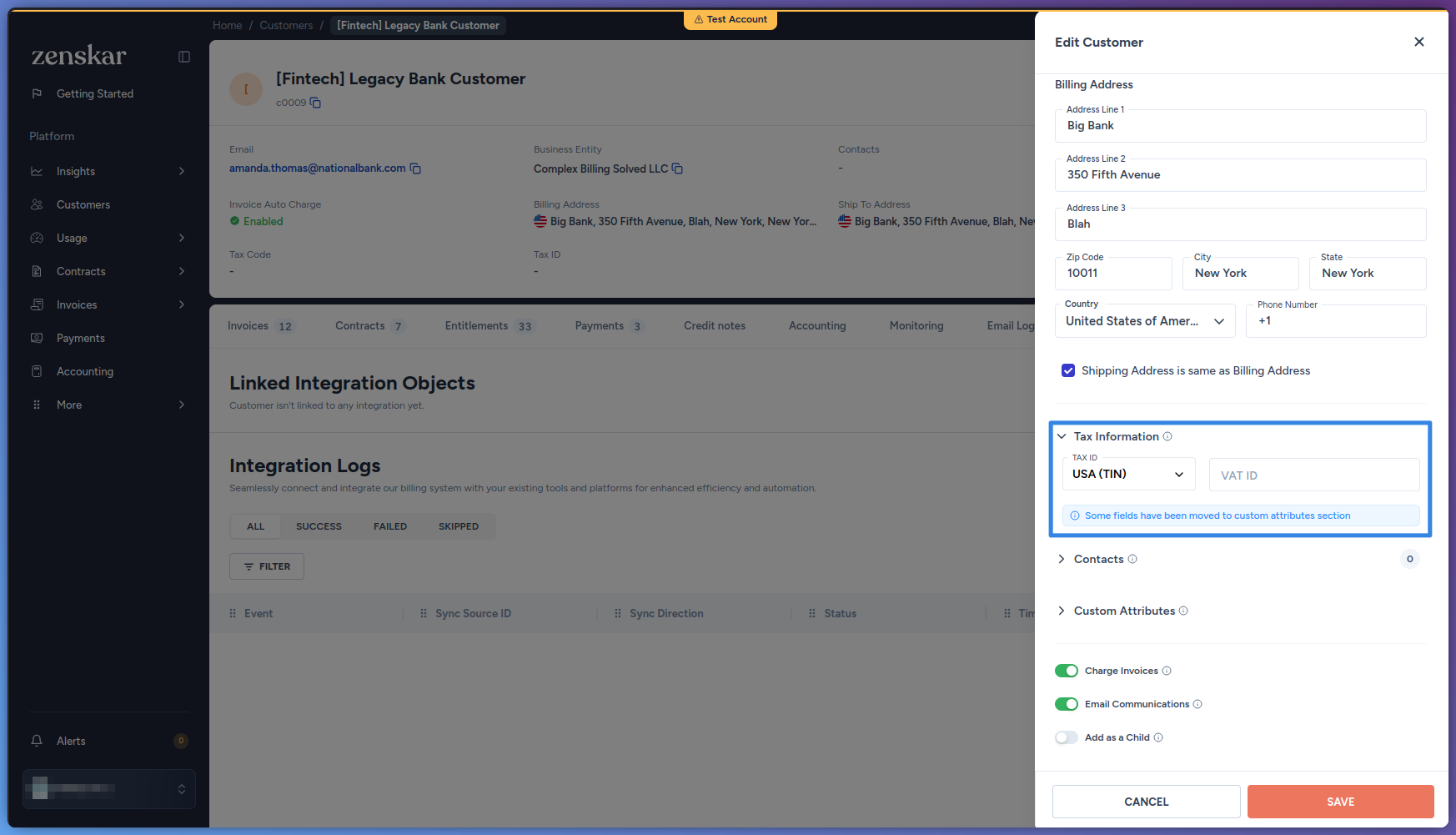
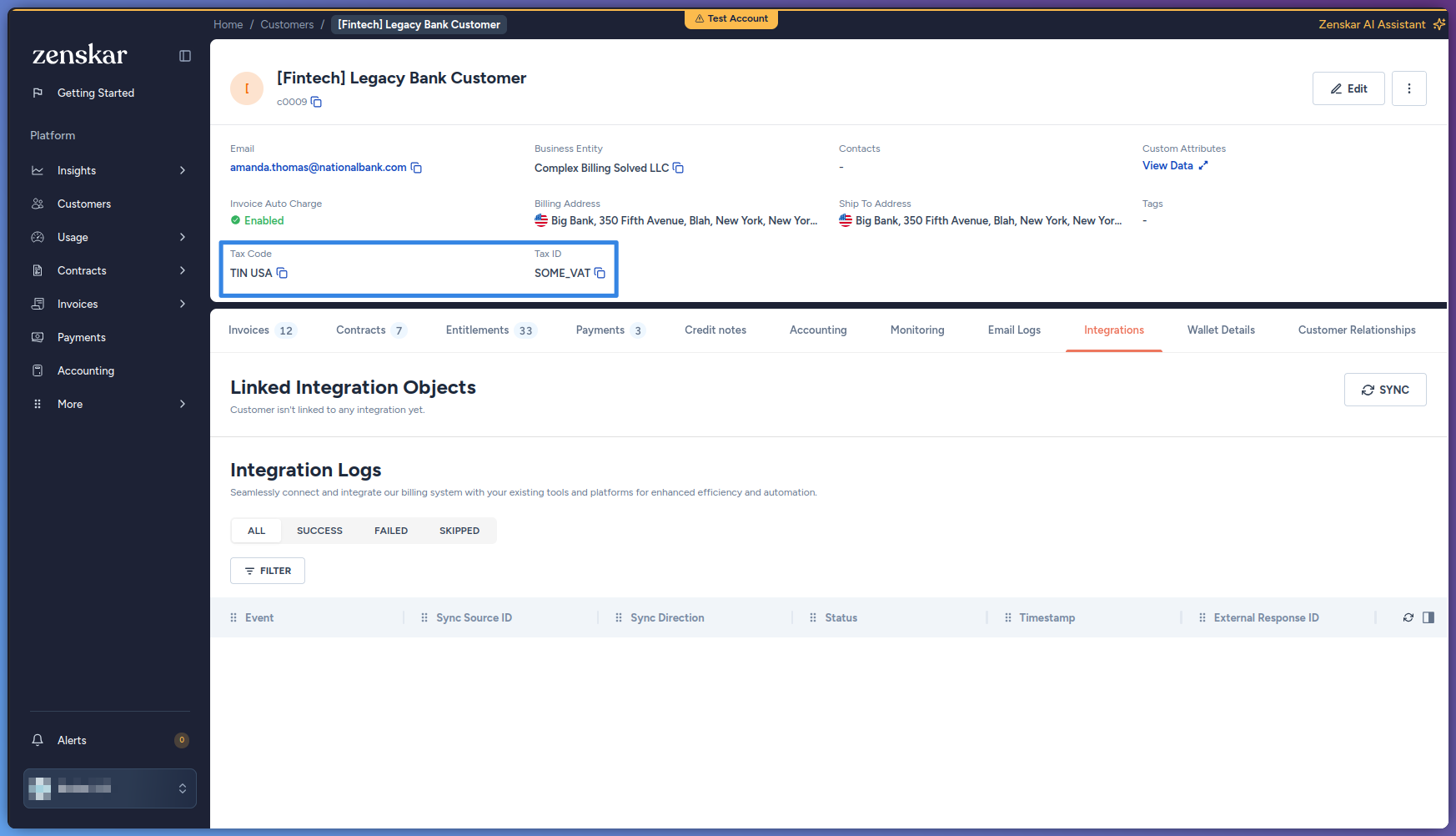
For EU business customers, a VAT ID lets Anrok apply reverse charge, so the B2B lines are zero-rated. Record it on the customer.- Open the customer and go to its Tax Information section, under Edit Customer. A note here reads “Some fields have been moved to custom attributes section.”
- Choose the TAX ID country and enter the VAT ID (or other tax registration number).
-
Save.
 The
The exempt_tax custom attribute is not read for Anrok, it only affects
Zenskar’s own tax engine. Zenskar has no exemption-number or exemption-reason
field for Anrok.
To exempt a specific customer from Anrok tax (for example, a US resale
certificate), handle it in Anrok directly. Anrok auto-creates the customer on
first transaction using an internal Zenskar identifier plus the customer’s
name and email; that identifier isn’t shown anywhere in Zenskar’s UI, so
search for the customer in Anrok’s dashboard by name or email rather than by
ID, and add the exemption certificate there.
Check the Anrok transaction on an invoice
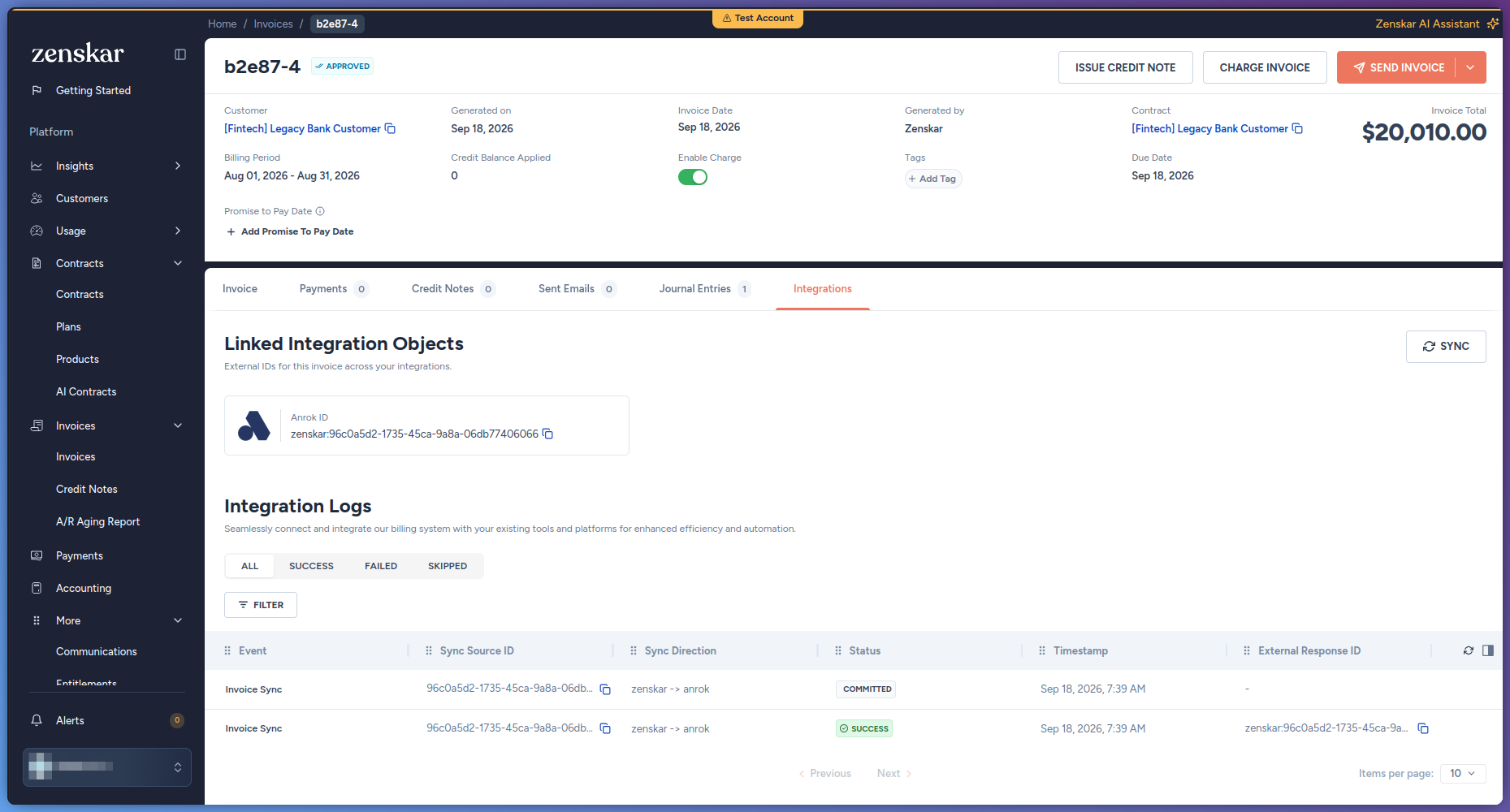
The Integrations tab appears on an invoice only after it is approved.- Open an approved invoice and go to its Integrations tab (next to Invoice, Payments, Credit Notes, Sent Emails, and Journal Entries).
-
Linked Integration Objects shows an Anrok ID card with the Anrok
transaction ID (copyable), in the form
zenskar:<invoice id>. - Integration Logs below it lists each sync event for the invoice (event type, direction, status such as Committed or Success, and a timestamp) rather than a per-line breakdown. Expanding a failed row shows an additional error line, but it’s a generic connector error message, not guaranteed to name a tax-specific reason. Anrok’s untaxed reasons and the per-jurisdiction amounts are not otherwise shown anywhere in this tab.
-
Sync re-runs the integration for the invoice. This upserts the same
Anrok transaction; it never creates a second one.
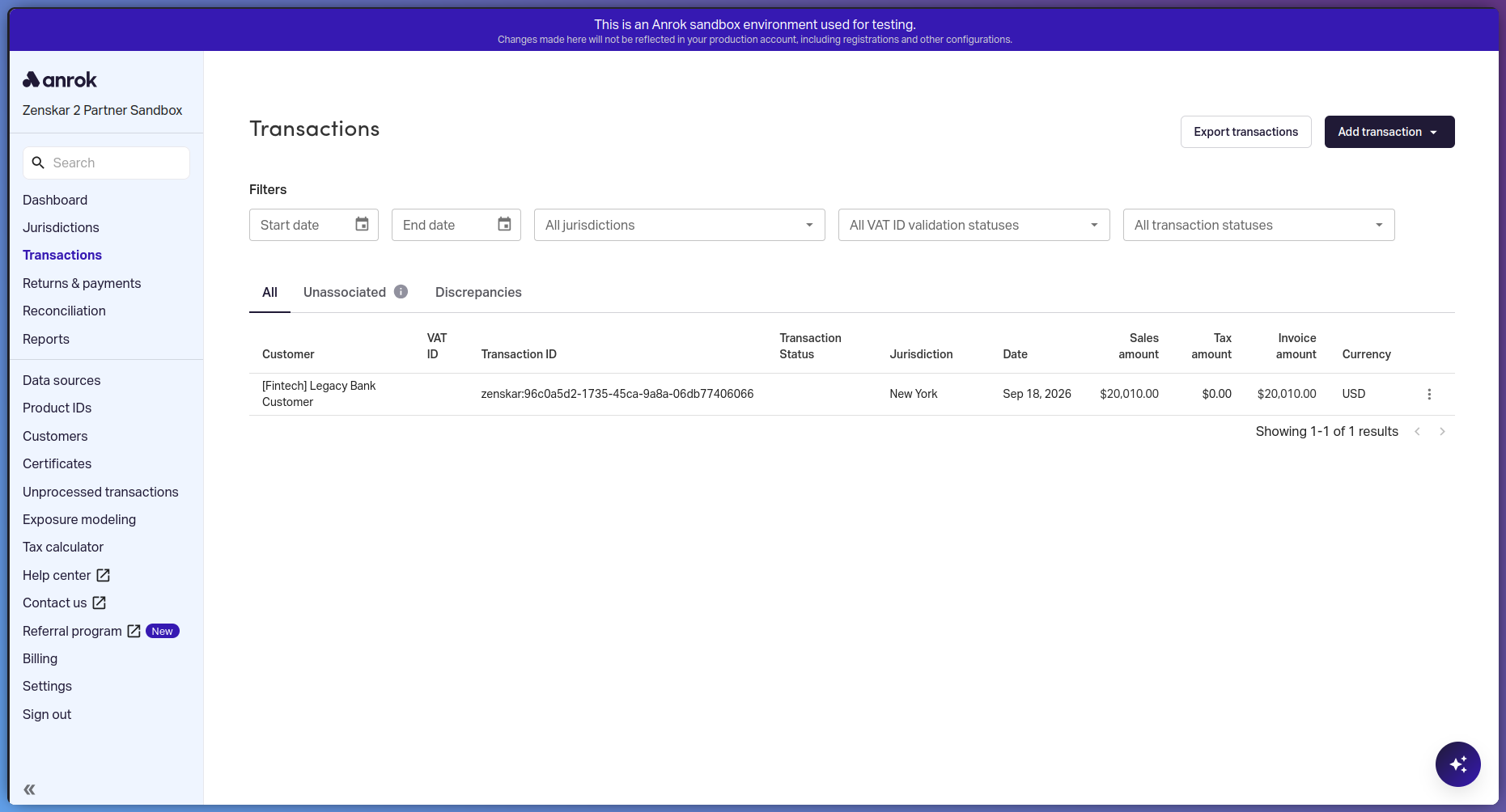
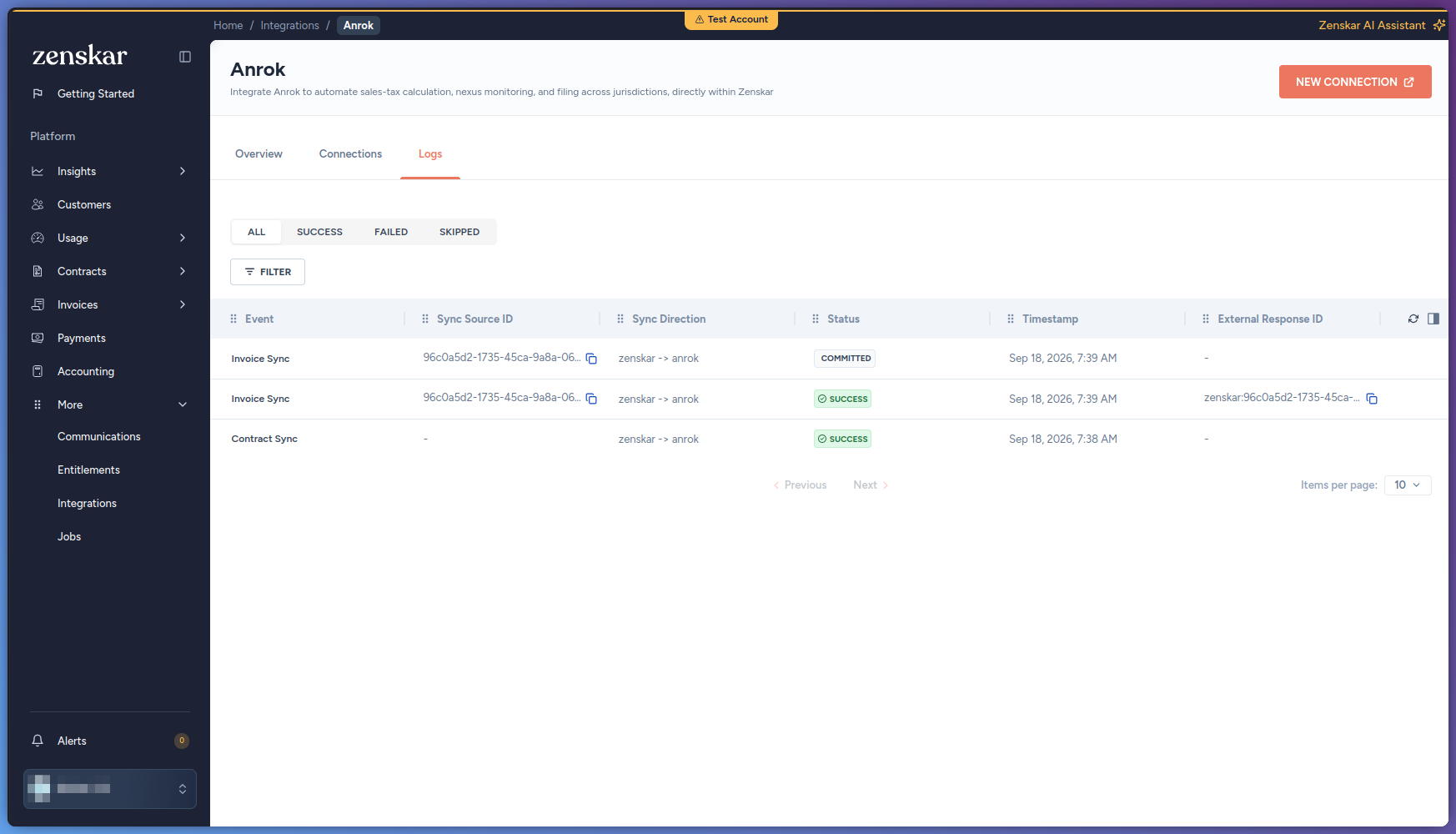 To see the same record on Anrok’s side, search Anrok’s Transactions list
for the Anrok ID (
To see the same record on Anrok’s side, search Anrok’s Transactions list
for the Anrok ID (zenskar:<invoice id>). The row shows the customer,
jurisdiction, sales amount, tax amount, and invoice amount, matching the
invoice total in Zenskar.
Issue a credit note against an Anrok-taxed invoice
Create the credit note on the invoice as you normally would (ISSUE CREDIT NOTE, on the invoice header). Zenskar reports the refund to Anrok automatically, against the invoice’s original transaction:- A full credit note is recorded as a negation of the original transaction.
- A partial credit note is recorded as a new, negative, pro-rated transaction, rebuilt from the original invoice’s stored request.
Disconnect Anrok
- Open More > Integrations > Sales Tax > Anrok and go to the Connections tab.
- Click Disconnect on the connection.
- In the confirmation dialog, which warns that all resource mappings will be deleted, click Delete.
Anrok has no Pause, Resume, or Re-authenticate action. Those are available only
for the ERP connectors (NetSuite, Xero, Zoho, Rillet, QuickBooks).
Reference
Connection form fields
Shown in the connect form in this order:Behavior on an unresolvable address
Not a configurable setting. When Anrok cannot resolve an address on an invoice, Zenskar always ignores tax on the line and generates the invoice.How a Zenskar action maps to an Anrok transaction
Re-running or re-approving an invoice updates the same transaction instead of
creating a duplicate.
What Zenskar sends to Anrok
For each line: the amount (in minor units), the line’s Anrok tax category, and whether the line’s price is tax-inclusive. Per transaction: the invoice ID (aszenskar:<invoice id>), invoice date, currency, the customer (created in
Anrok automatically if new) with its tax ID and address, and the business
entity’s address as ship-from. Anrok has no header-discount field, so any
invoice-level discount is allocated across the lines before the tax request is
built. Line descriptions are not sent.
What Anrok returns
For each line, the tax amount and a per-jurisdiction breakdown at nexus (tax agency) level, one entry per nexus rather than a state, county, and city stack. A line that isn’t taxed carries a reason from Anrok, passed through as-is:
These three are the only reason codes attested anywhere in Zenskar’s Anrok
connector; Zenskar defines no vocabulary of its own and relays whatever Anrok
sends. A reverse-charged line (a valid customer VAT ID shifting liability to
the buyer) isn’t a “not taxed” exception in this sense: it’s a correctly
calculated 0% rate, so it carries no reason code at all.
These reasons and the per-jurisdiction amounts are not shown anywhere in the
invoice UI, including Integration Logs, which lists sync events (status
and timestamp) rather than line-level detail.