> ## Documentation Index
> Fetch the complete documentation index at: https://zenskar.com/docs/llms.txt
> Use this file to discover all available pages before exploring further.
# Zoho Books
## Setup guide
This guide will help you connect your Zoho Books account with your Zenskar account.
### Integrate Zoho Books with Zenskar
1. Log into your Zenskar account.
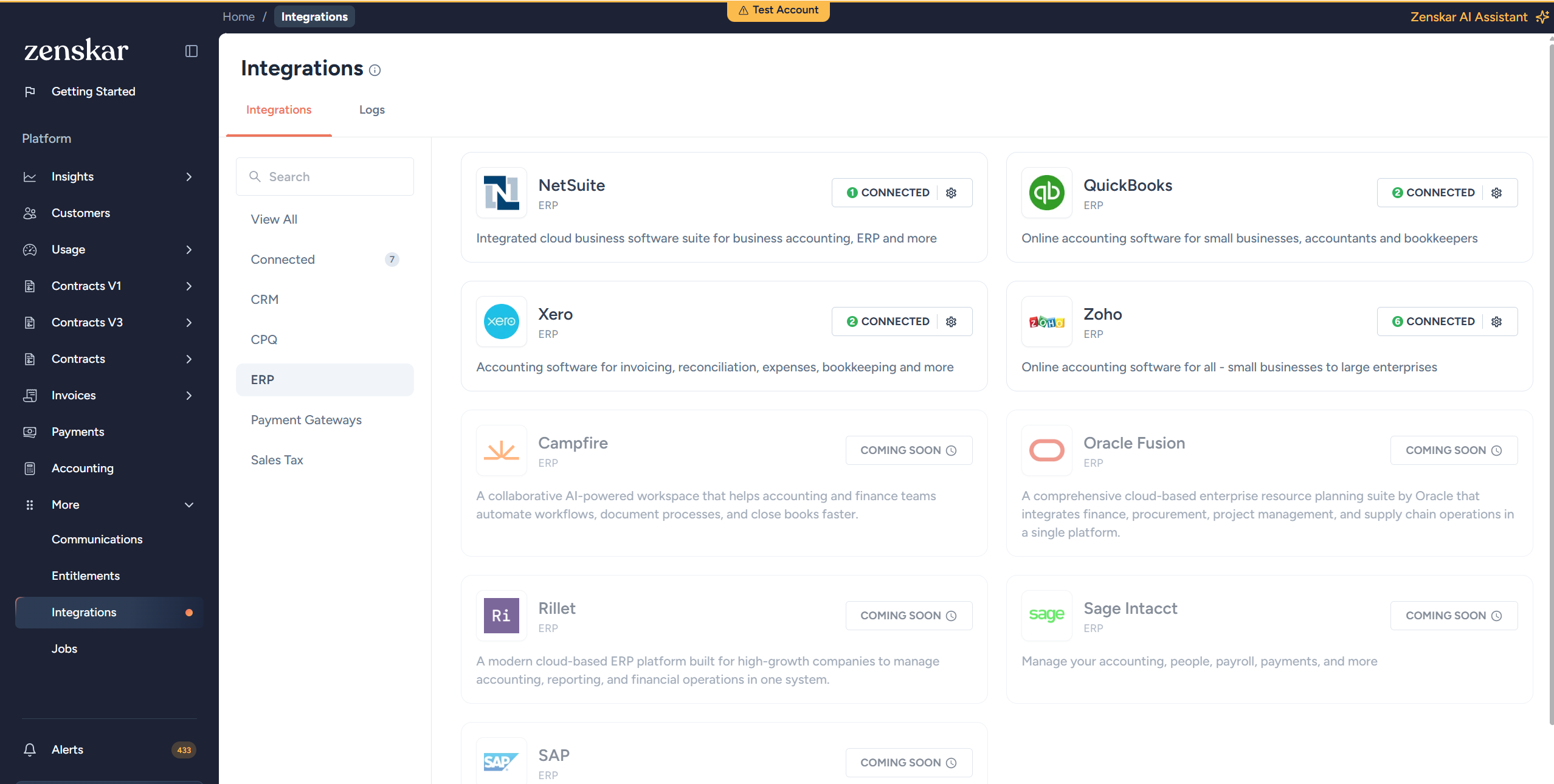
2.Click **More** in the main navigation menu and go to **Integrations** → **ERP** → **Zoho**.
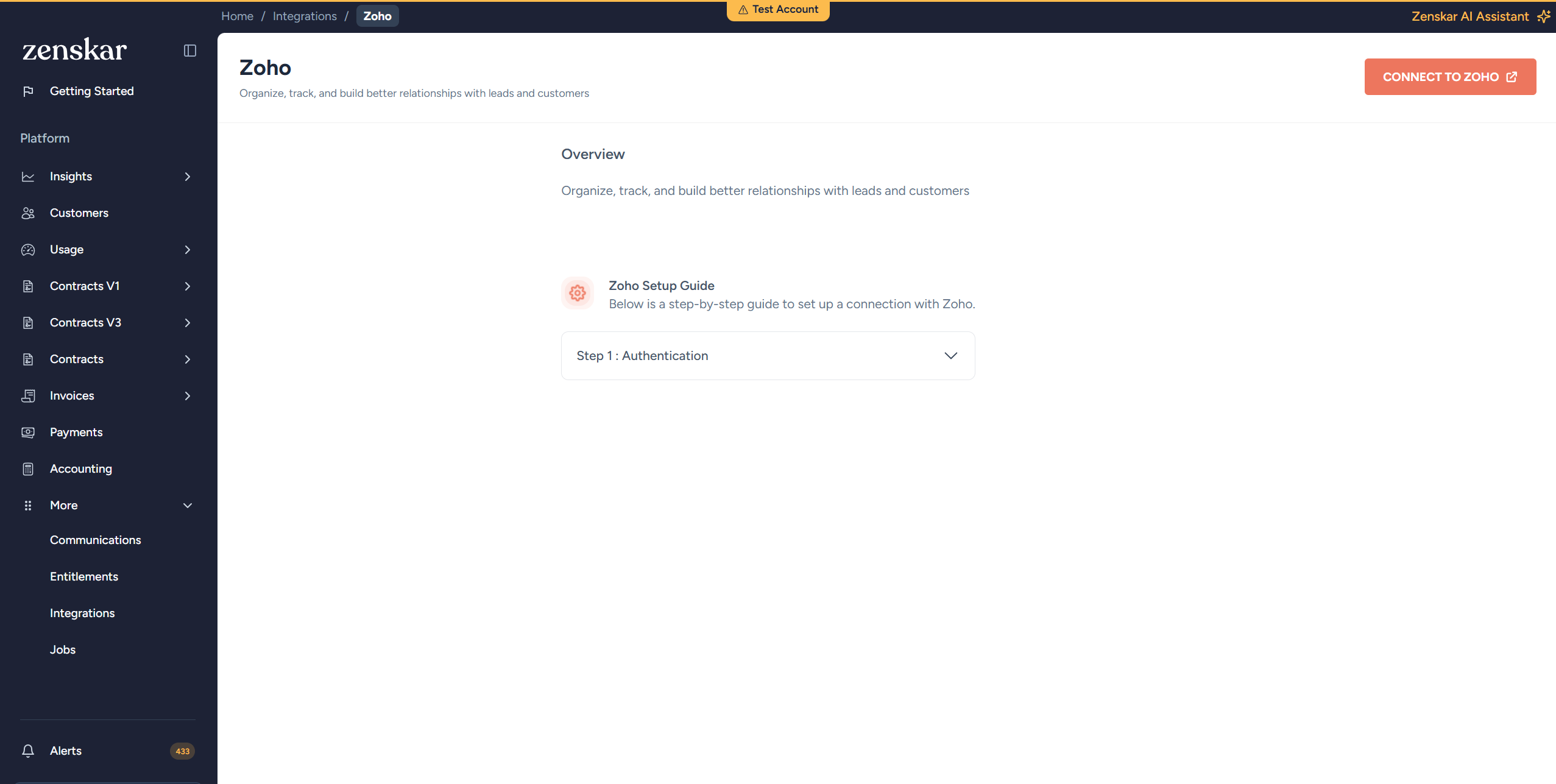
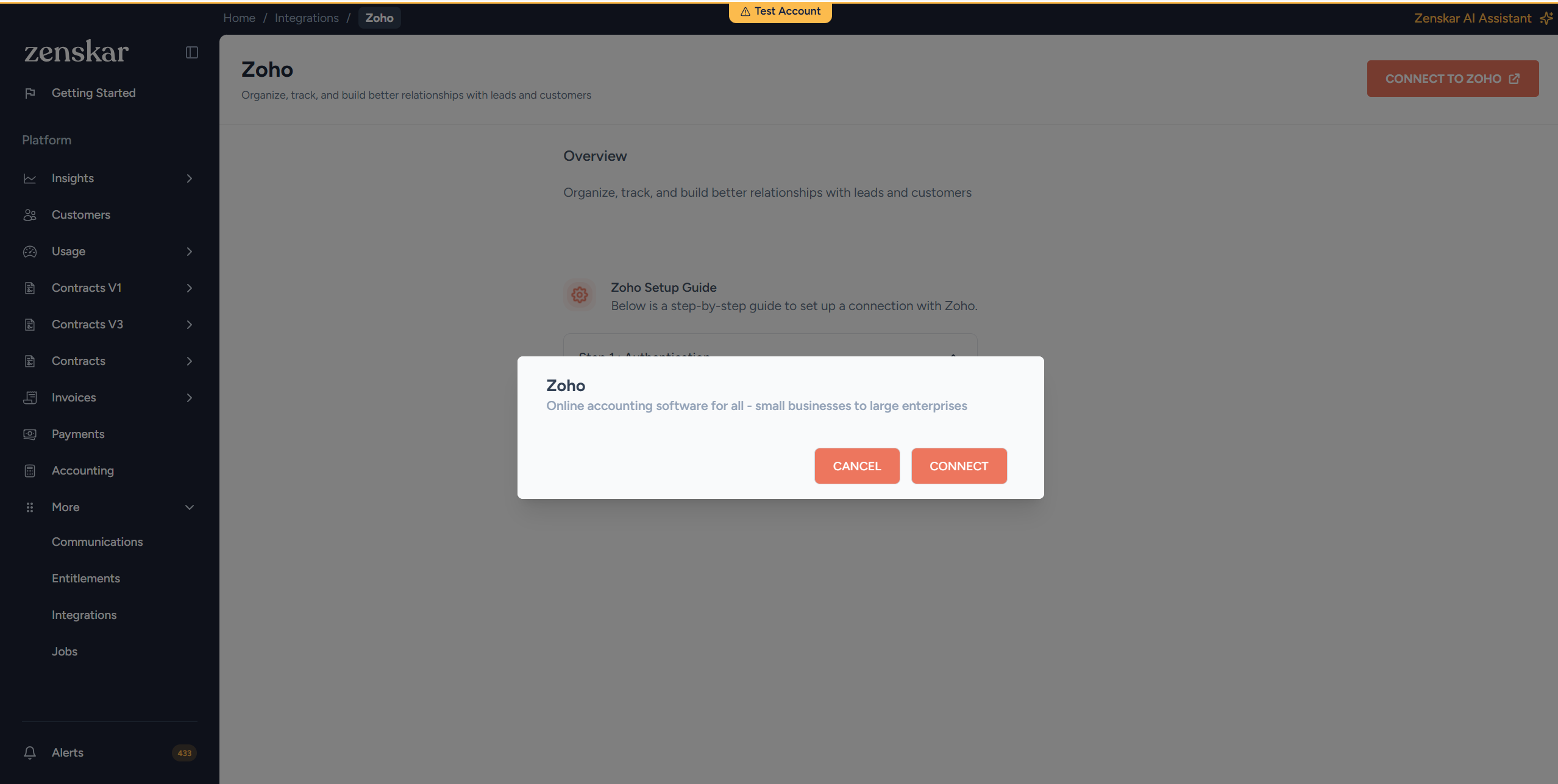
3.Click **Connect to Zoho**, then click **Connect**.
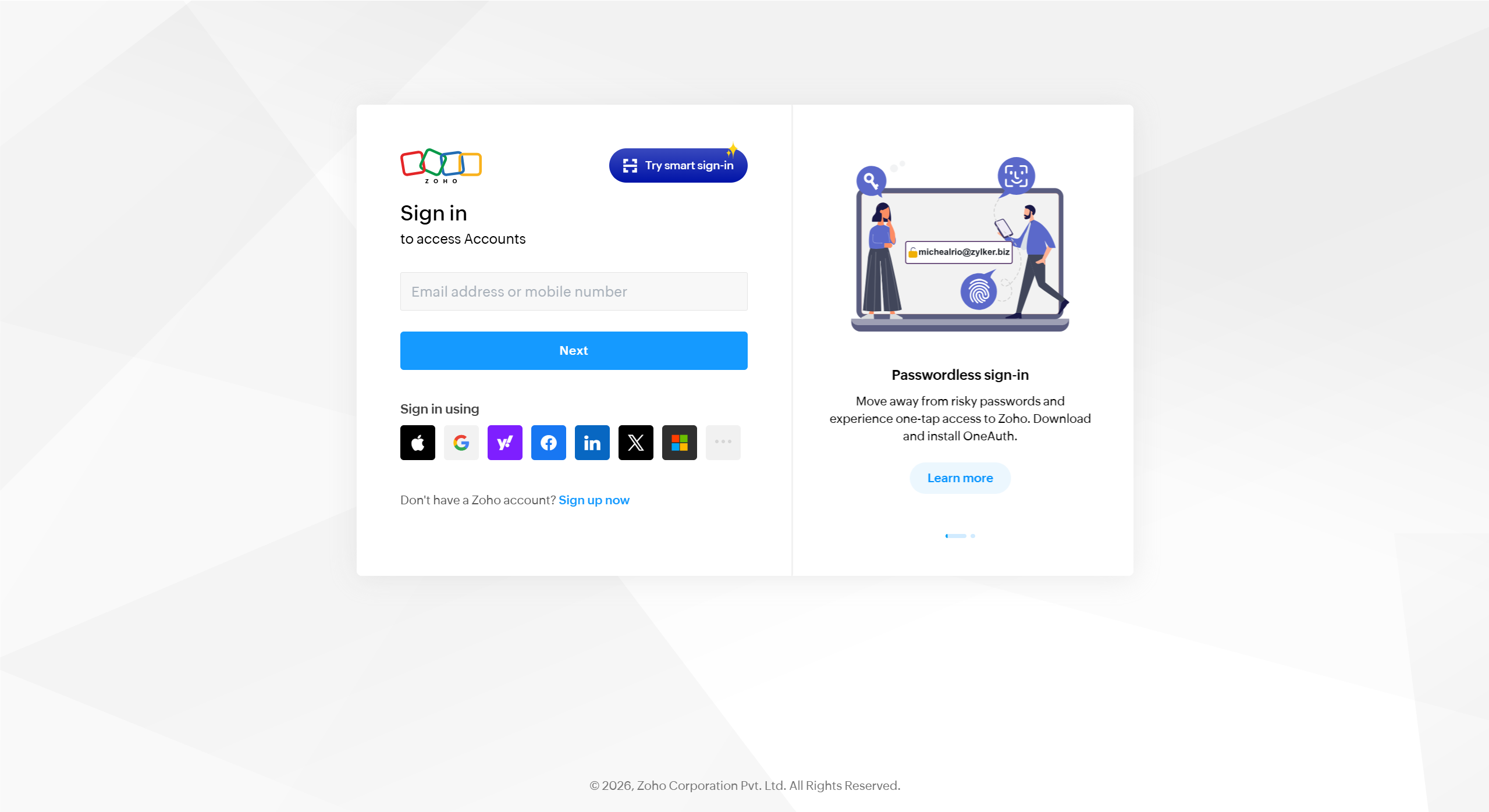
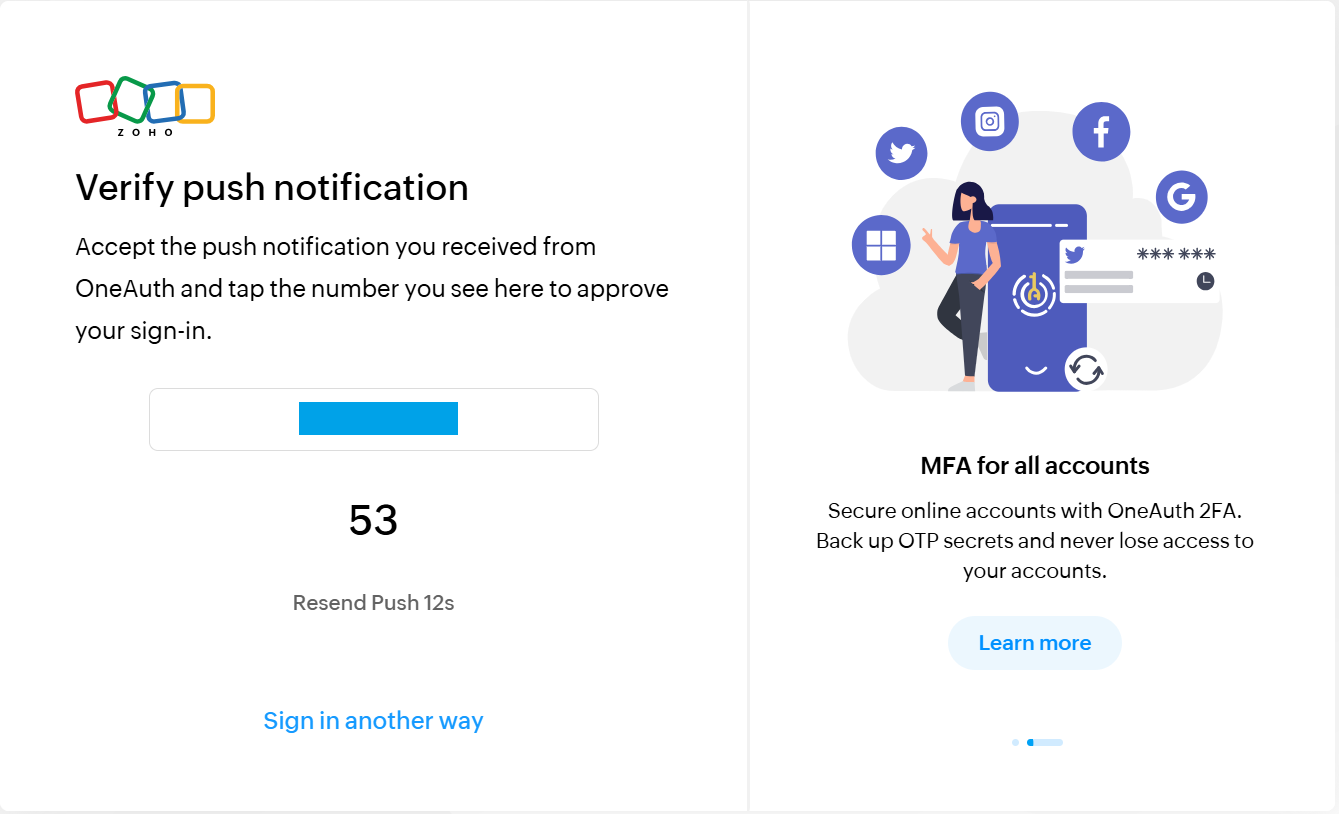
4. Complete the authentication using your company’s Zoho account credentials.
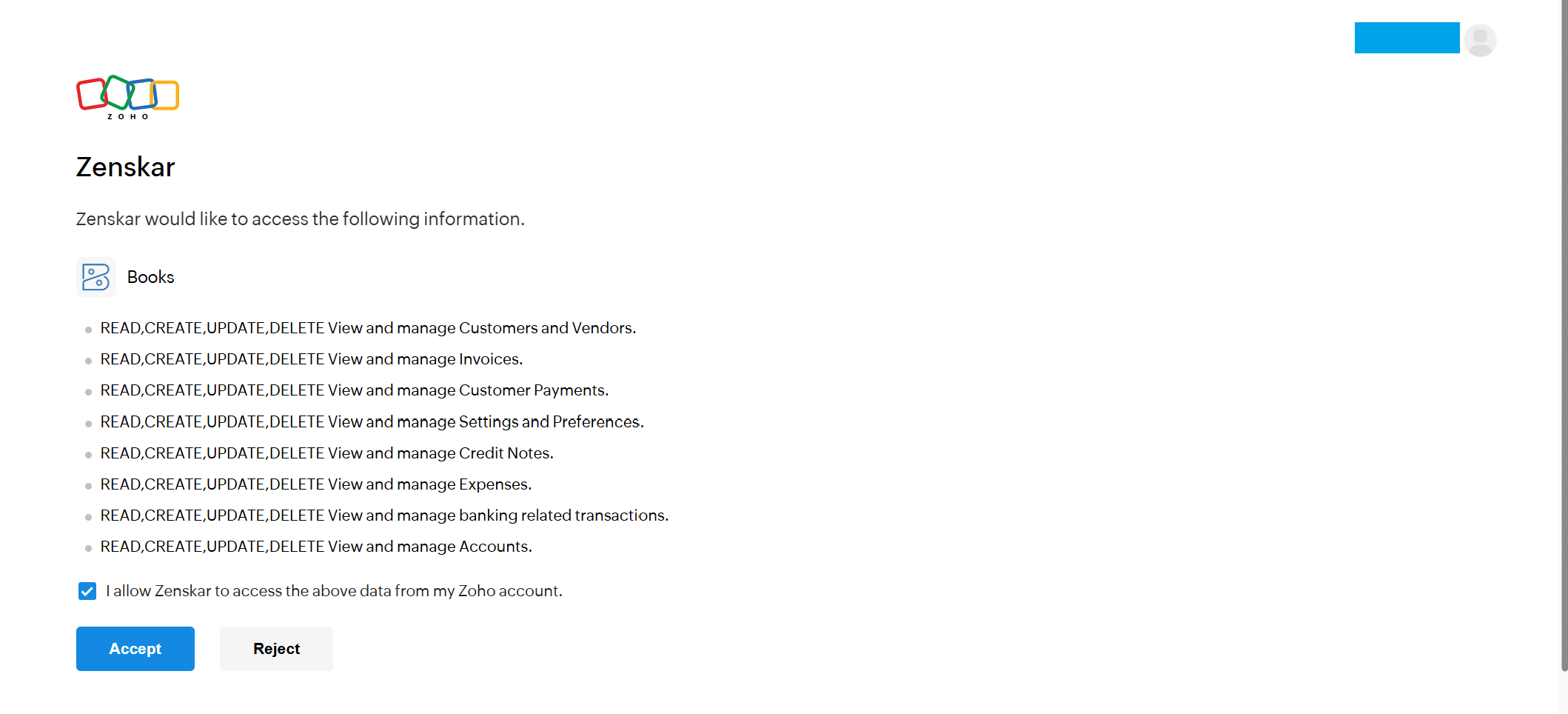
5. You will be redirected to a permission page. Check the box **I allow Zenskar to access the above data from my Zoho account**, and then click **Accept**.
6. Map your Zoho organization entity to the corresponding Zenskar business entity, then enable the modules you want to sync with Zoho. This scopes all synced data (customers, invoices, payments, and credit notes) to a single Zenskar entity.
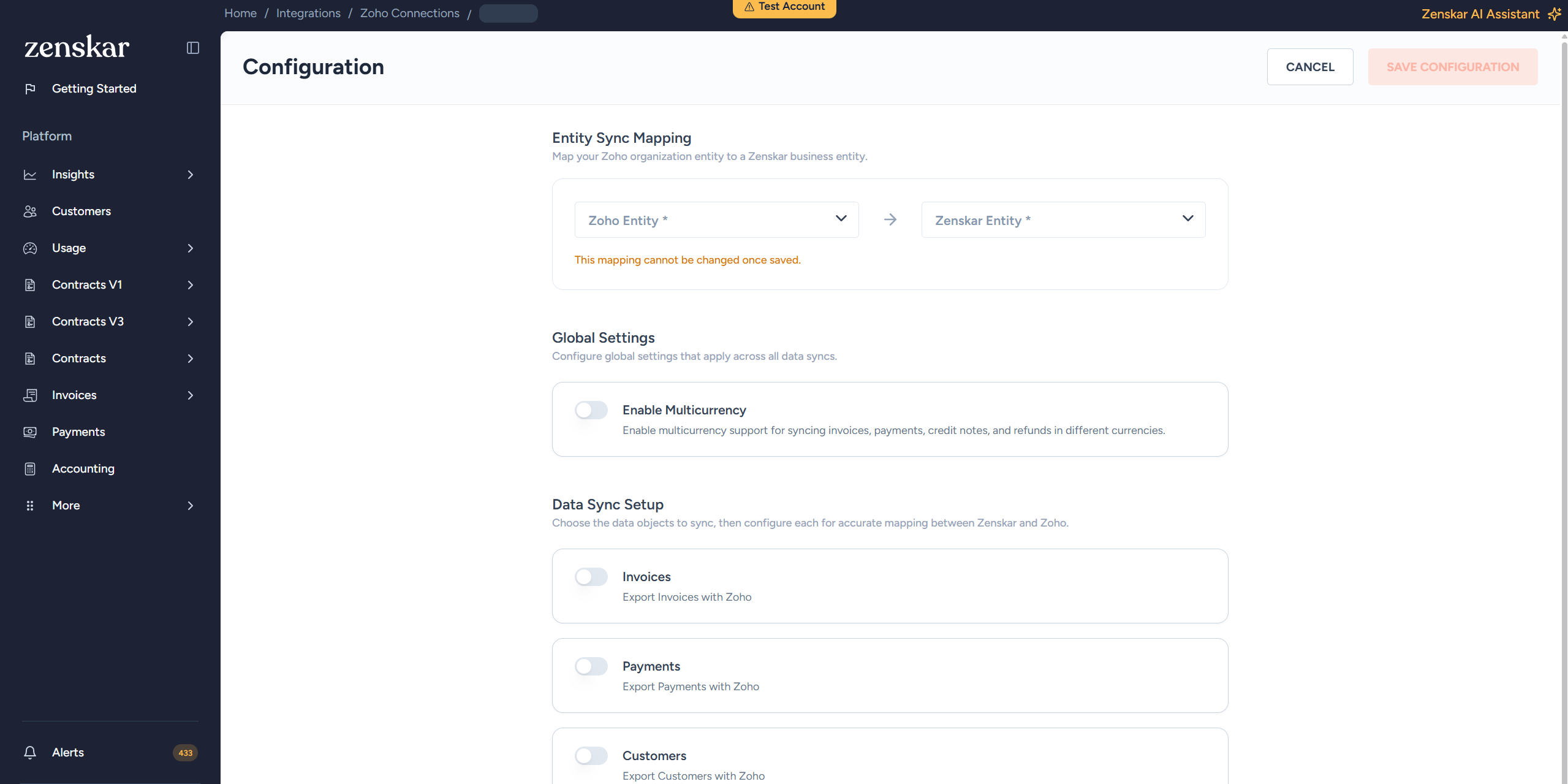
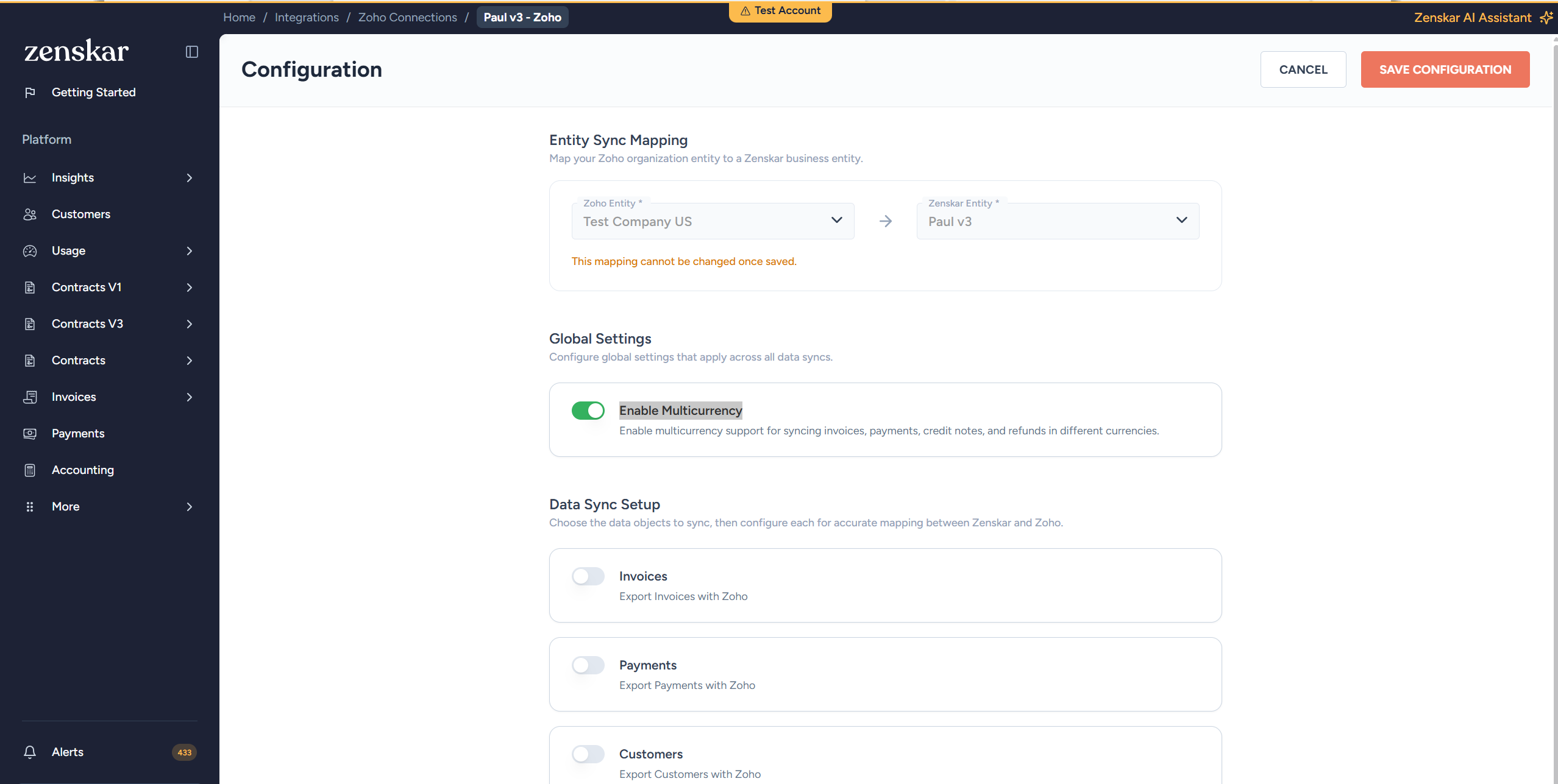
* **Enable Multicurrency**: To sync invoices, payments, and credit notes in multiple currencies, enable the **Multicurrency** toggle in this configuration. Before enabling, ensure that multicurrency is also enabled in your Zoho Books organization's settings (**Settings** → **Preferences** → **Currencies** in Zoho Books).
A mismatch between the Zenskar multicurrency selection and Zoho Books organization setting will cause sync failures for invoices, payments, credit notes, and refunds.
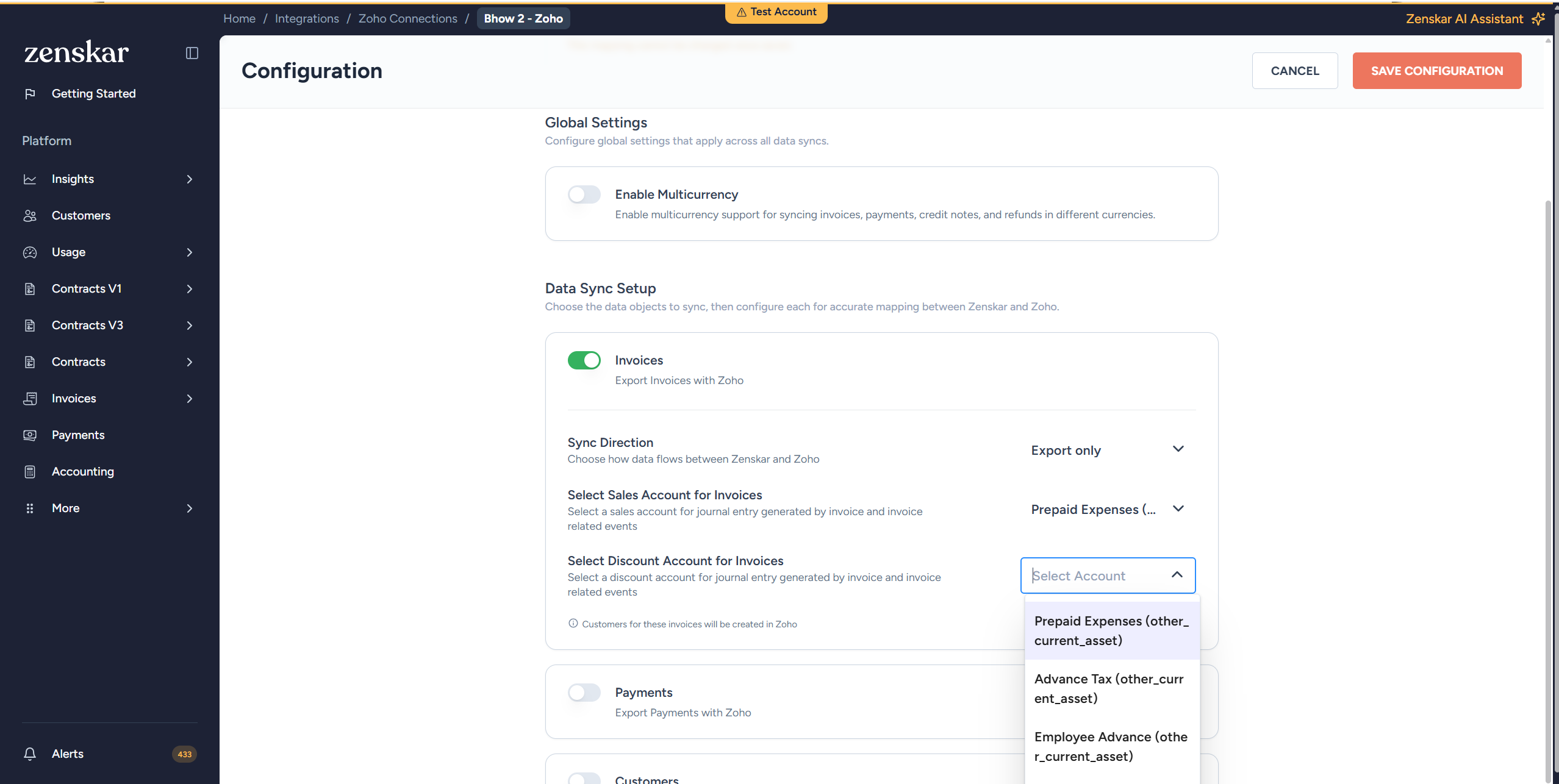
* **Invoices** requires the following additional configuration:
1. Select the **sync direction**.
Exports invoices from Zenskar to Zoho Books with line items, tax details, and due dates.
2. Select the **sales account** for invoices.
The revenue account in Zoho Books where invoice line items will be posted. This is the GL account that gets credited when an invoice is created.
3. Select the **discount account** for invoices.
The GL account in Zoho Books where invoice discount amounts are recorded. If your invoices include discounts, they'll be tracked separately in this account.
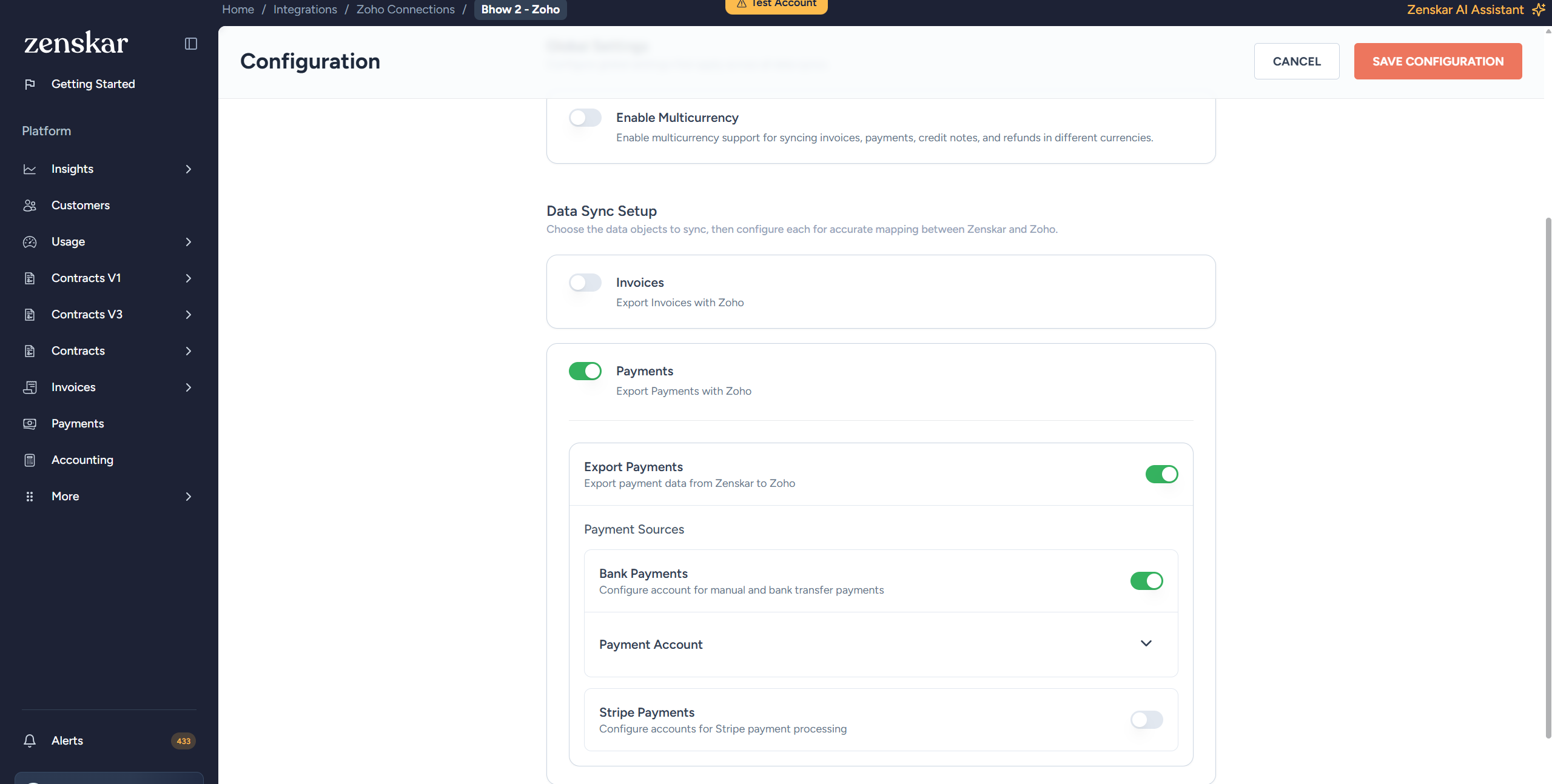
* **Payments** require the following additional configuration:
1. Enable **Export Payments**.
When enabled, payment records from Zenskar are created in Zoho Books and allocated against their corresponding invoices. Gateway fees (e.g., Stripe fees) are recorded as separate expenses.
2. Select the required **payment sources**.
Select which payment origins to sync (e.g., Stripe or manual payments). Each source maps to a specific bank/deposit account in Zoho Books.
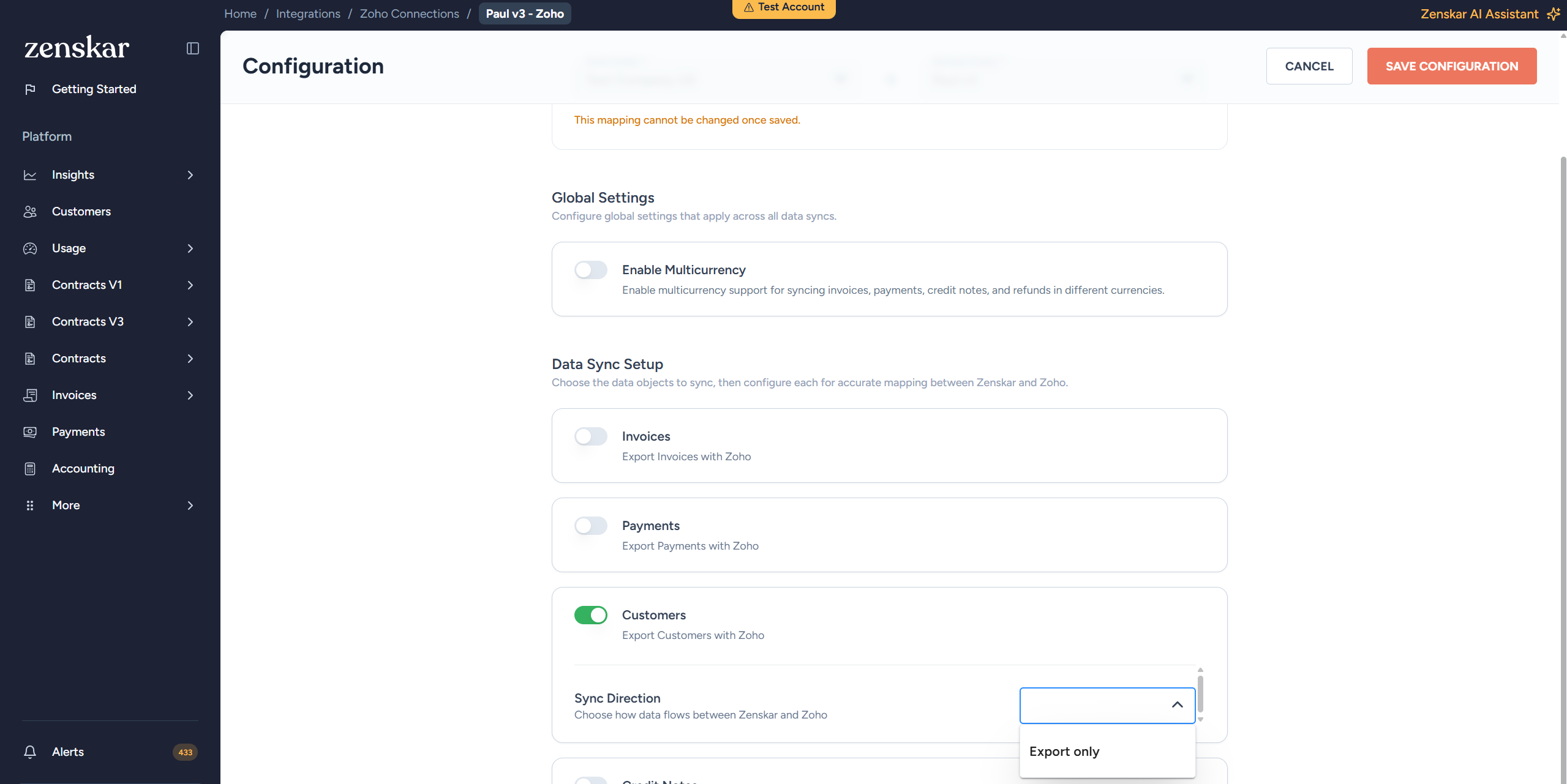
* **Customers** require the following additional configuration:
1. Select the **sync direction**.
Syncs customer name, email, phone, billing and shipping address from Zenskar to Zoho Books. Customers are created as Contacts in Zoho Books. Zenskar remains the source of truth.
2. Under **Duplicate Customer Check**, pick a field from **Match By > Select Field**. Zenskar always matches on this field before exporting a customer, to find an existing record in Zoho Books and avoid creating a duplicate. There's no way to turn matching off, since Zoho's connector always applies a default match field even if you don't pick one. The selection is pre-filled with your saved choice, then Zoho's default match field, then the first available option.
If you select **email** as the match field, deduplication automatically falls back to matching by customer name for any customer without an email address. In that case, also enable **Allow duplicate display names** in Zoho Books (**Preferences > Customers and Vendors**), so customers with the same name can still sync.
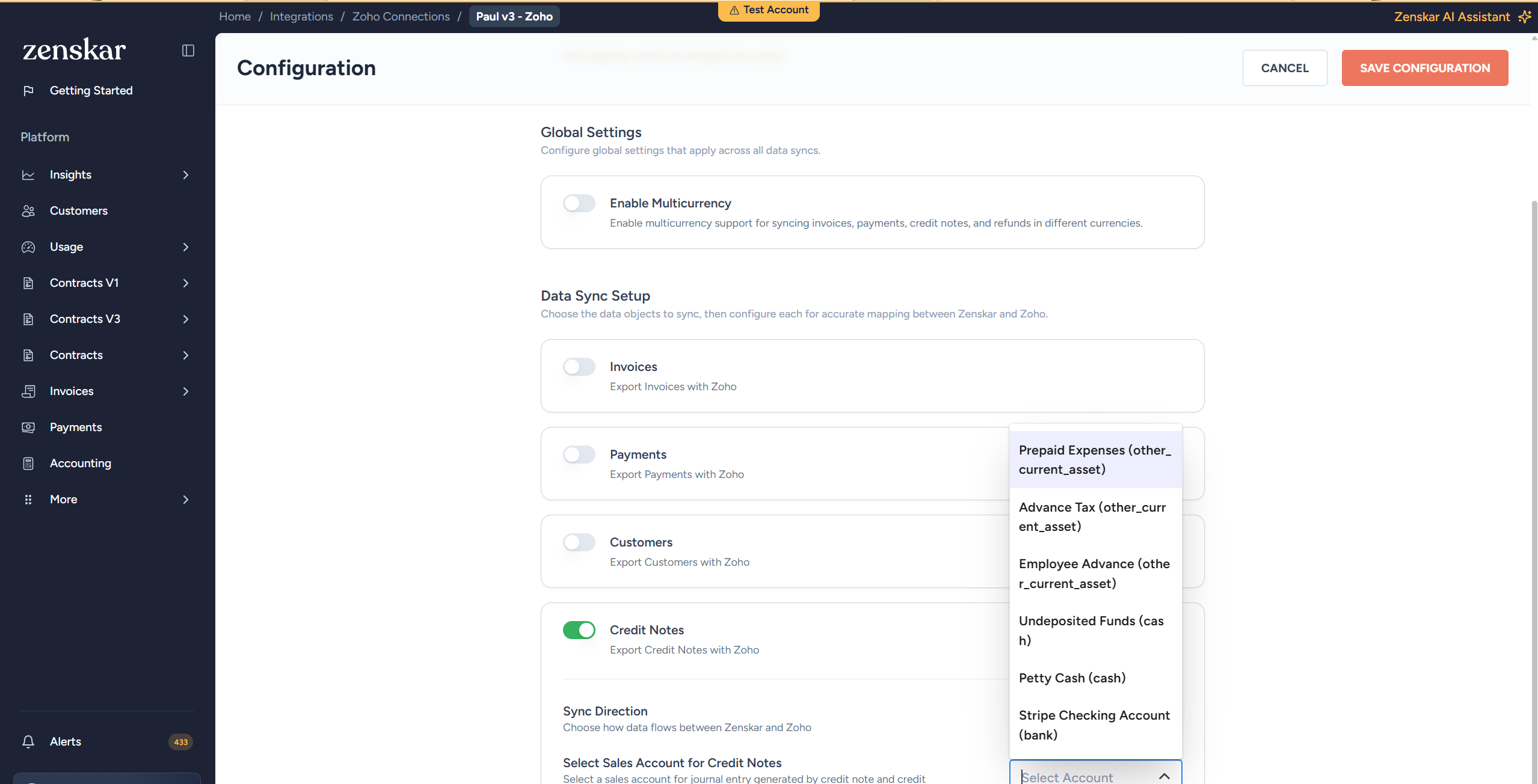
* **Credit Notes** require the following additional configuration:
1. Select the **sync direction**.
Exports credit notes from Zenskar to Zoho Books and allocates them against the original invoice. If tax sync is enabled, tax amounts are handled automatically.
2. Select the **sales account** for credit notes.
The GL account in Zoho Books where credit note amounts are posted, typically a revenue reversal or returns account.
7. Click **Save Configuration** to complete the integration setup.