> ## Documentation Index
> Fetch the complete documentation index at: https://zenskar.com/docs/llms.txt
> Use this file to discover all available pages before exploring further.
# Rillet
Rillet is a revenue recognition ERP. Zenskar exports customers, invoices, and credit notes to Rillet. Rillet payments can sync back into Zenskar, for organizations with payment backsync enabled. A connection binds to exactly one Rillet subsidiary, so an organization with multiple subsidiaries needs one connection per subsidiary.
## Connect Rillet
### Prerequisites
* A Rillet account with API access, and an API key generated for it. Note whether the key is for Rillet's **sandbox** or **production** environment, since each has separate keys.
* A chart of accounts already set up in Rillet. The connector references accounts by their code and never creates them, so these must already exist: a sales or revenue account, a tax account of type **Liability**, and a discount account of type **Income** or **Expense**.
* If the Rillet organization has more than one subsidiary, decide which one this connection maps to.
The subsidiary you map this connection to, together with the Zenskar entity, cannot be changed after you save the configuration. To point the connection at a different subsidiary or entity, delete the connection and create a new one.
### Steps
1. Log in to Rillet to generate an API key. In Rillet, select the organization in the bottom left corner, go to **Organization Settings > API Access**, and click **+ Create API Key**. Copy and save the key, since you cannot view it again after this step.
2. In Zenskar, go to **More > Integrations > ERP**, find the **Rillet** card, and click **Connect**.
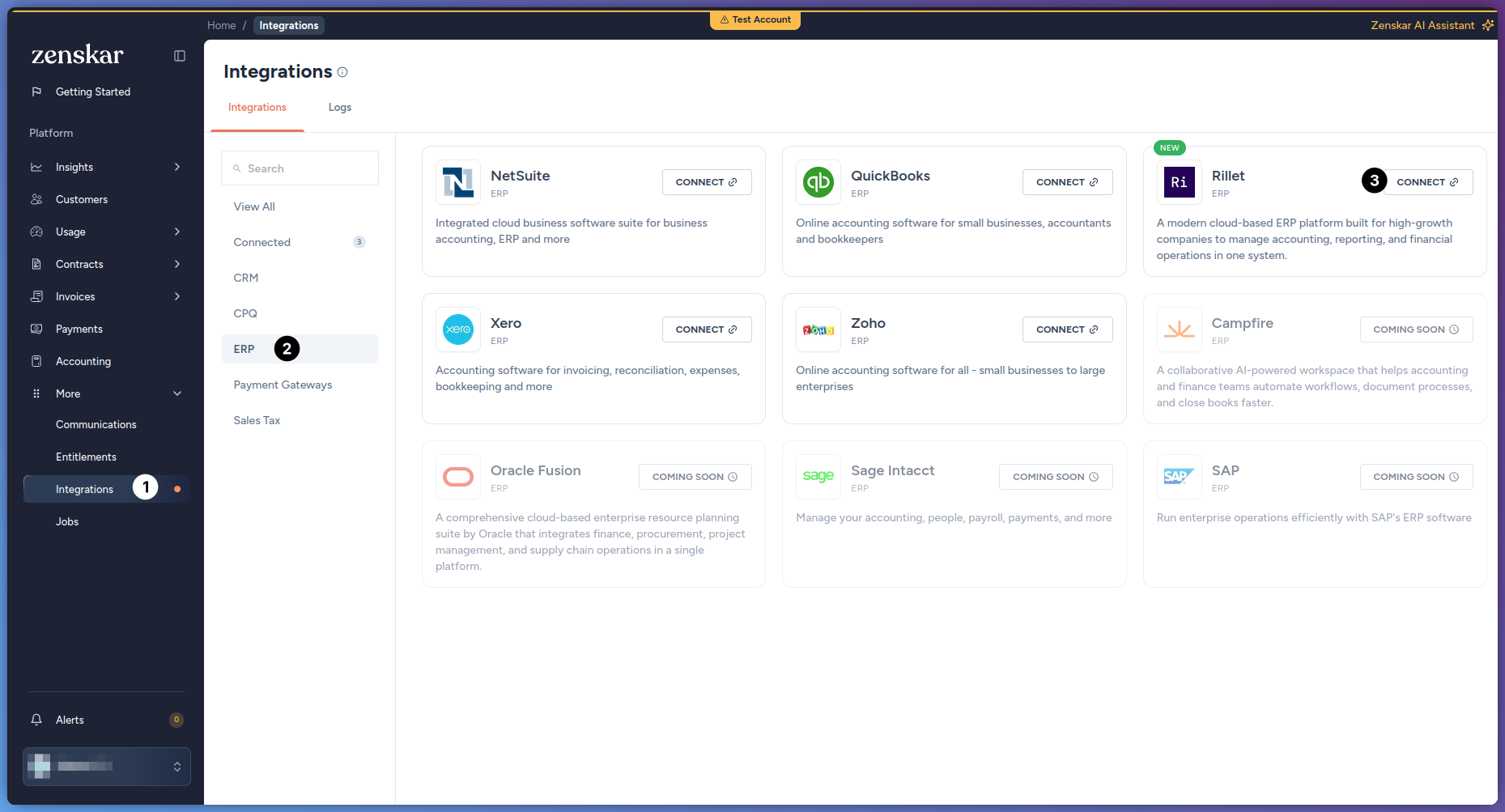
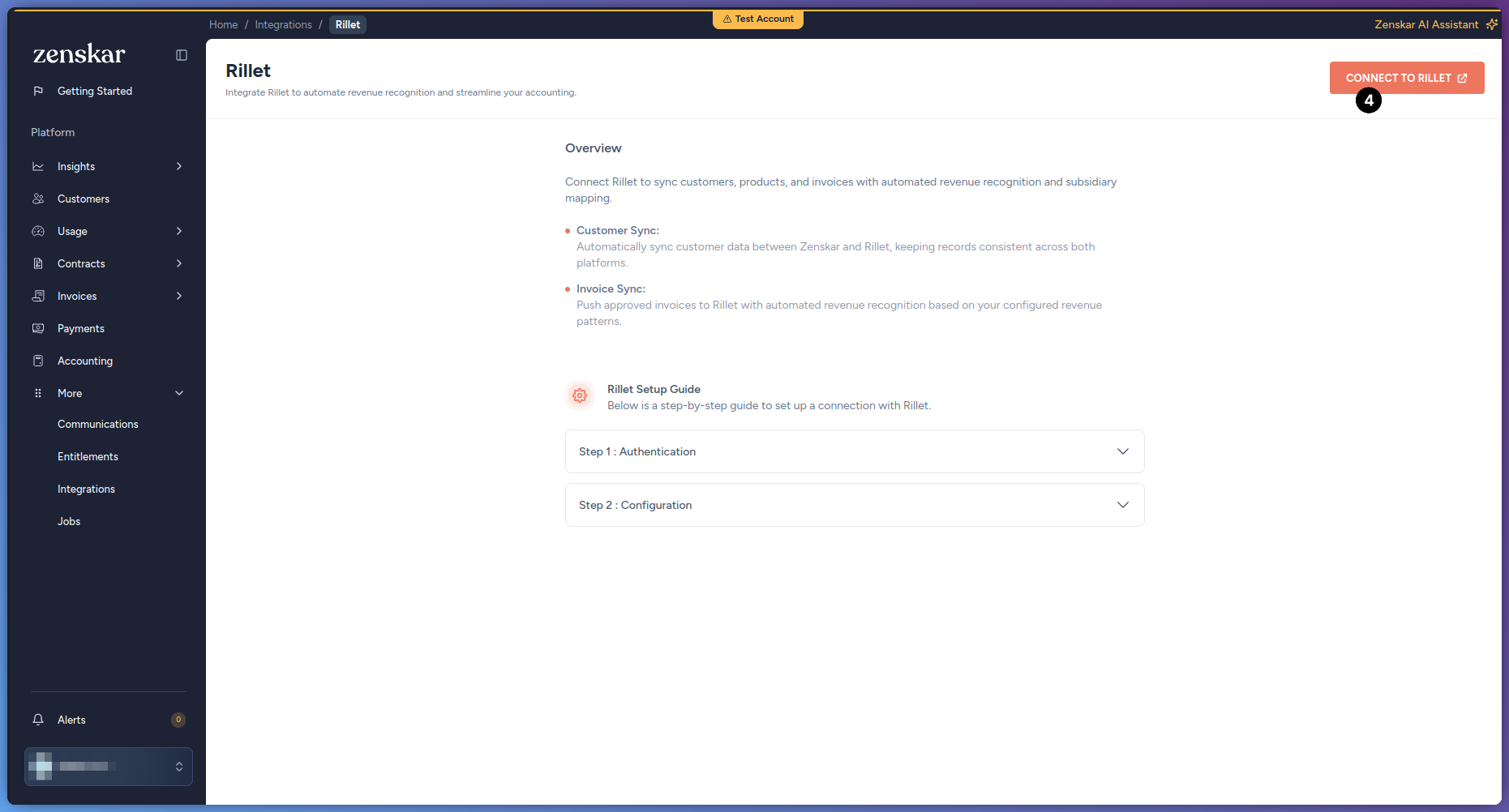
3. On the Rillet page, click **Connect to Rillet**.
4. In the dialog, fill in the following fields, then click **Connect**:
| Field | What to enter |
| :- | :- |
| **Environment** | `sandbox` or `production`, matching the Rillet API key generated in step 1. |
| **API Key** | The Rillet API key generated in step 1. |
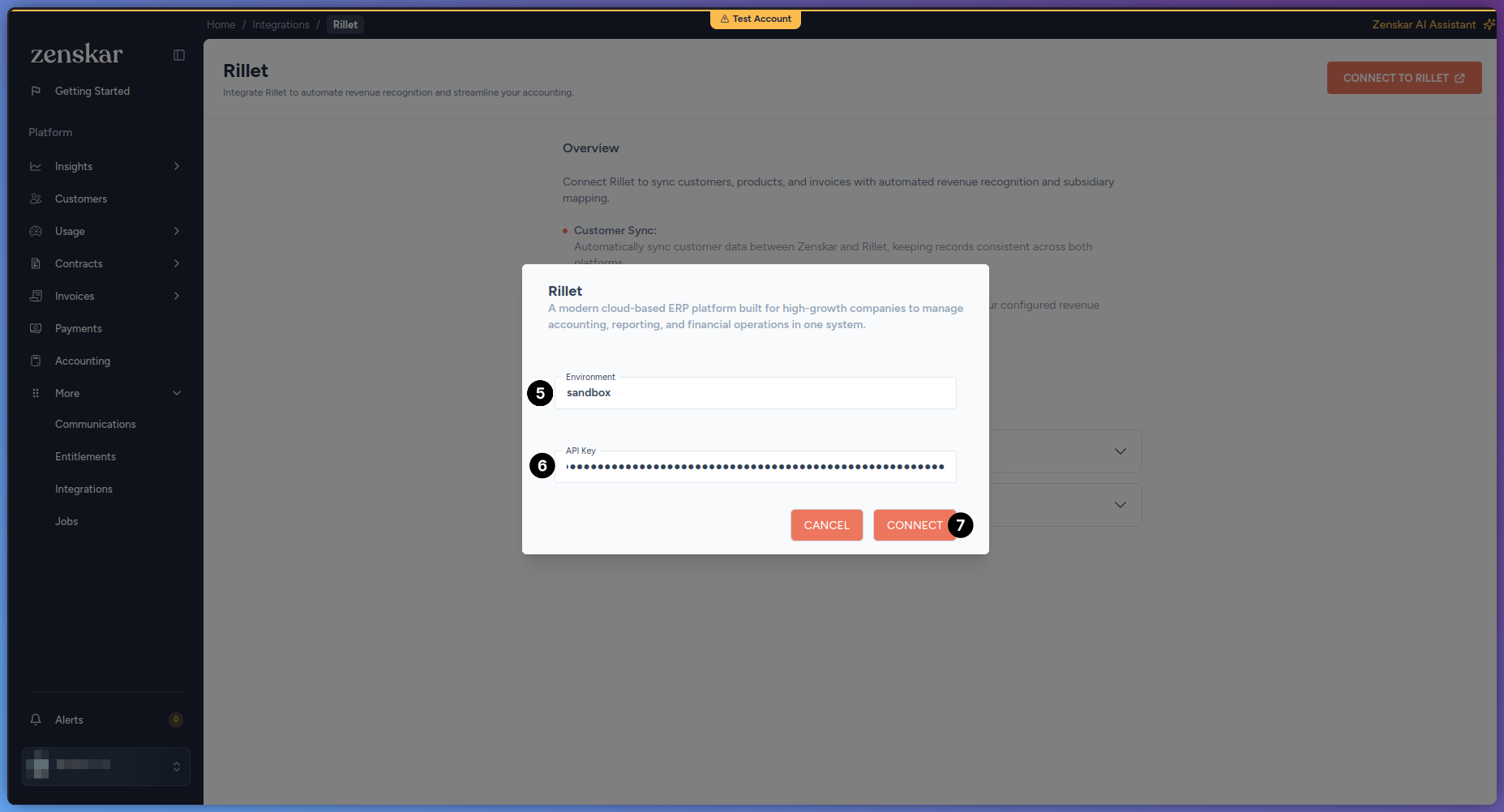
Zenskar validates the key against Rillet immediately. If the key is invalid, or does not match the environment entered, the connection does not save and Zenskar shows an error.
5. Zenskar redirects you to the **Configuration** screen.
## Configure the connection
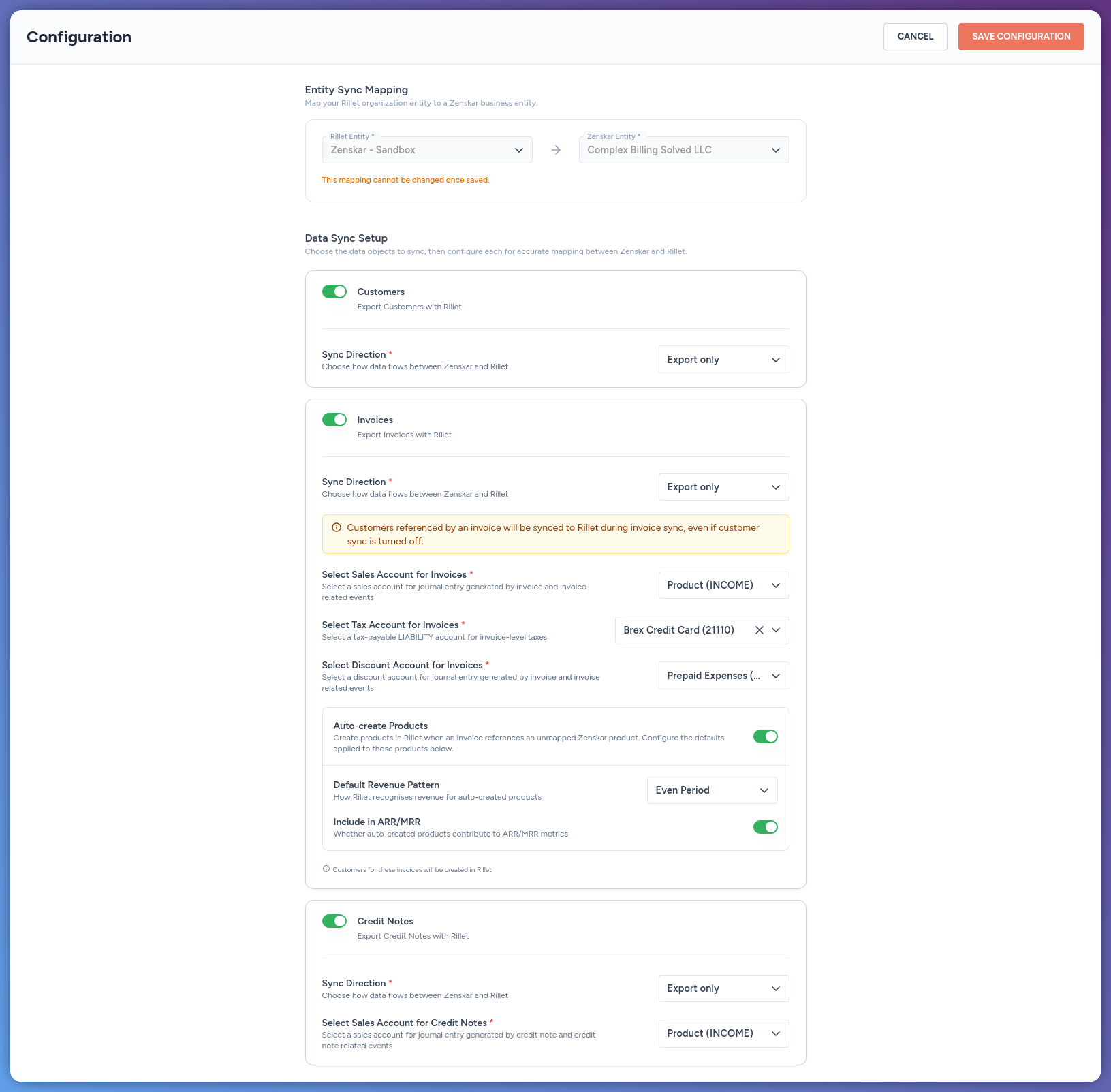
1. Under **Entity Sync Mapping**, map the connection to a Rillet subsidiary and a Zenskar entity:
| Field | What it does |
| :- | :- |
| **Rillet Entity** | The Rillet subsidiary this connection syncs to. Required. |
| **Zenskar Entity** | The Zenskar business entity mapped to that subsidiary. Required. |
2. Under **Data Sync Setup**, enable the modules to sync. Every module is export only, from Zenskar to Rillet:
| Customers | |
| :- | :- |
| Sync direction | Export only |
| What it syncs | Zenskar customers, to Rillet. |
| Invoices | |
| :- | :- |
| Sync direction | Export only |
| What it syncs | Approved Zenskar invoices, to Rillet, for revenue recognition. |
| Credit Notes | |
| :- | :- |
| Sync direction | Export only |
| What it syncs | Zenskar credit notes, to Rillet, as credit memos. |
3. Configure the account mapping and product settings for Invoices and Credit Notes. None of these have a default or recommended value, each account must already exist in Rillet, and Zenskar does not validate the account type until sync time:
| Setting | Applies to | What it does |
| :- | :- | :- |
| **Sales Account for Invoices** | Invoices | Required. Any Rillet account type. |
| **Tax Account for Invoices** | Invoices | Required. Must be a **Liability** account in Rillet. |
| **Discount Account for Invoices** | Invoices | Required. Must be an **Income** or **Expense** account in Rillet. |
| **Sales Account for Credit Notes** | Credit Notes | Required. Any Rillet account type. There is no separate tax or discount account for credit notes. |
| **Auto-create Products** | Invoices | Enabled by default. Creates the product in Rillet automatically when an invoice references a Zenskar product that is not yet mapped. To reuse an existing Rillet product instead, see [Map an existing product](#map-an-existing-product) below. |
| **Default Revenue Pattern** | Invoices | **Even Period** or **Daily**. Defaults to Even Period. Applied to auto-created products. |
| **Include in ARR/MRR** | Invoices | Enabled by default. Whether auto-created products count toward ARR and MRR. |
These account fields apply only to a product Zenskar creates in Rillet. A Zenskar product already mapped to an existing Rillet product keeps that product's own account in Rillet, unaffected by this configuration. To reuse an existing Rillet product instead of creating a new one, see [Map an existing product](#map-an-existing-product) below.
Customers referenced by an invoice sync to Rillet during invoice sync, even if the Customers module is turned off. Credit notes do not create the customer in Rillet, so the customer must already be synced, or the credit note sync fails. The customer's billing country must also be set, since it determines whether Rillet applies VAT or sales tax on the credit memo.
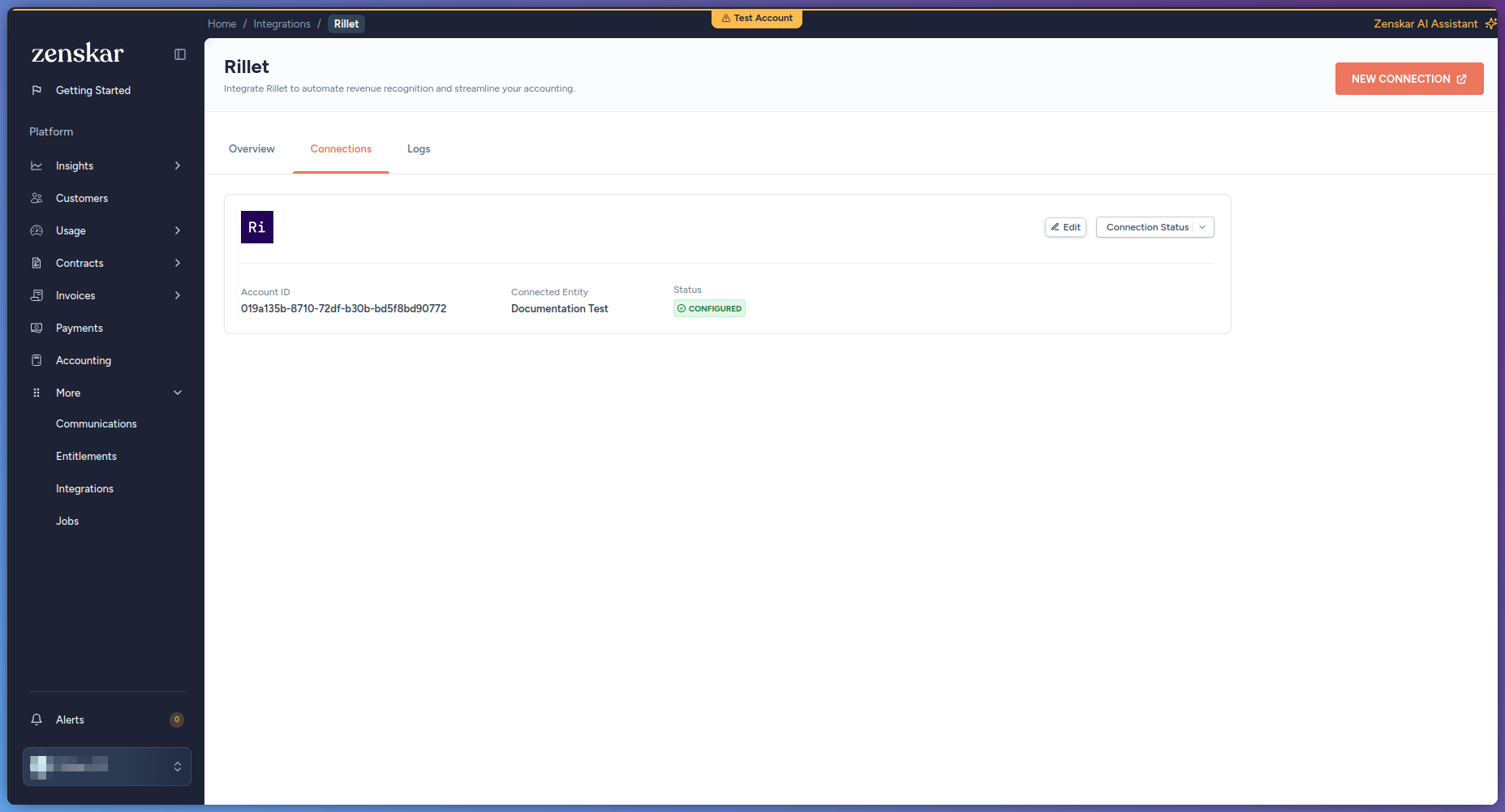
4. Click **Save Configuration**. The connection shows as **Configured** on the Rillet **Connections** tab.
### Map an existing product
If a Zenskar product already exists as a product in Rillet, map them to each other before your first sync. Without this mapping, Auto-create Products creates a new, duplicate product in Rillet instead of reusing the existing one.
1. Go to **Contracts > Products** and open the product.
2. Under **Integrations**, click **Link Product**. If the product already has a mapping to another connector, click **Link Additional Product** instead.
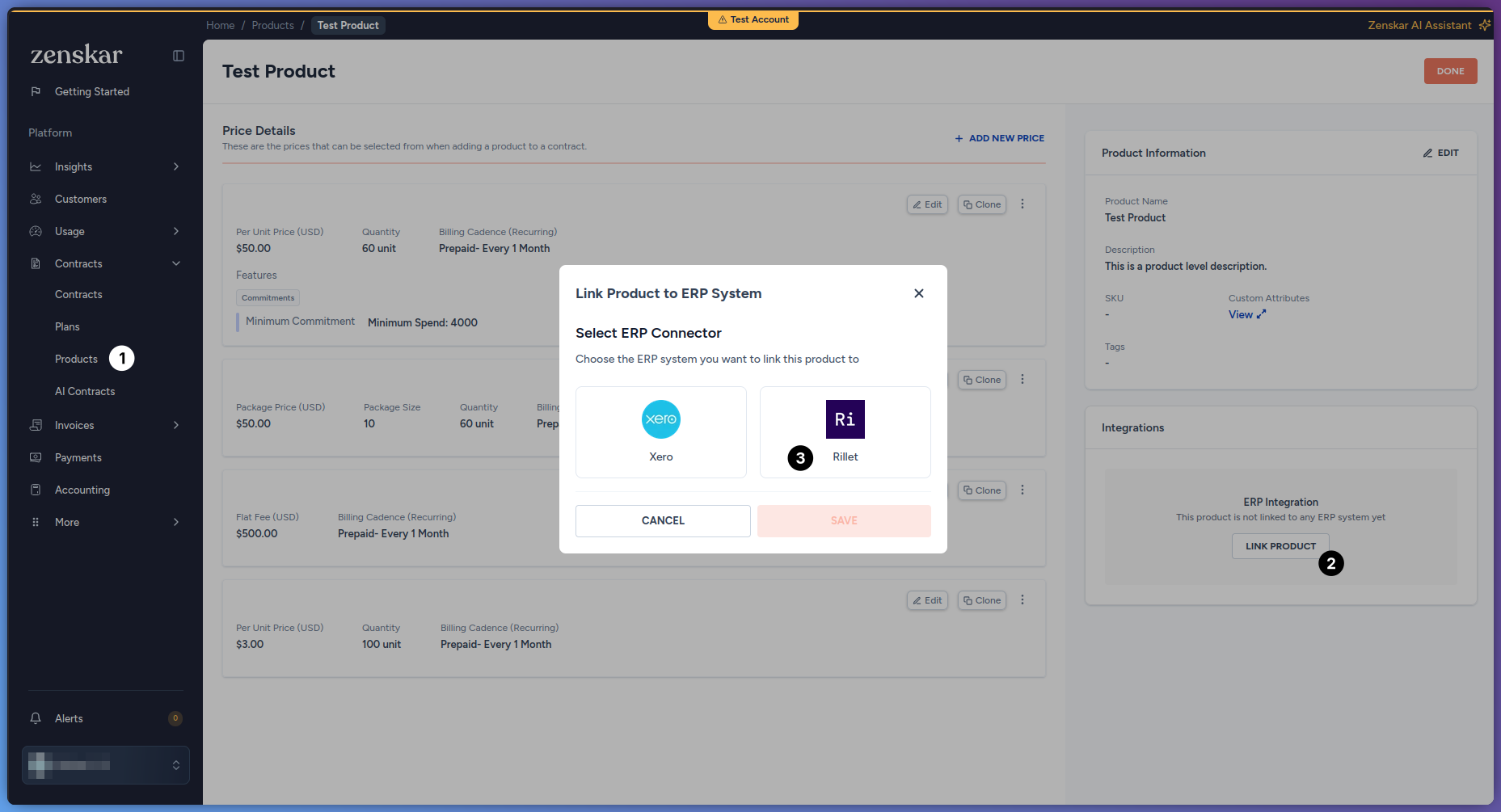
3. Select **Rillet** as the connector, then click **Save** to proceed.
4. Choose the **Rillet Account** this product belongs to, then paste the product's ID under **Product ID in Rillet**. Find this ID on the product's own page in Rillet, in the page URL.
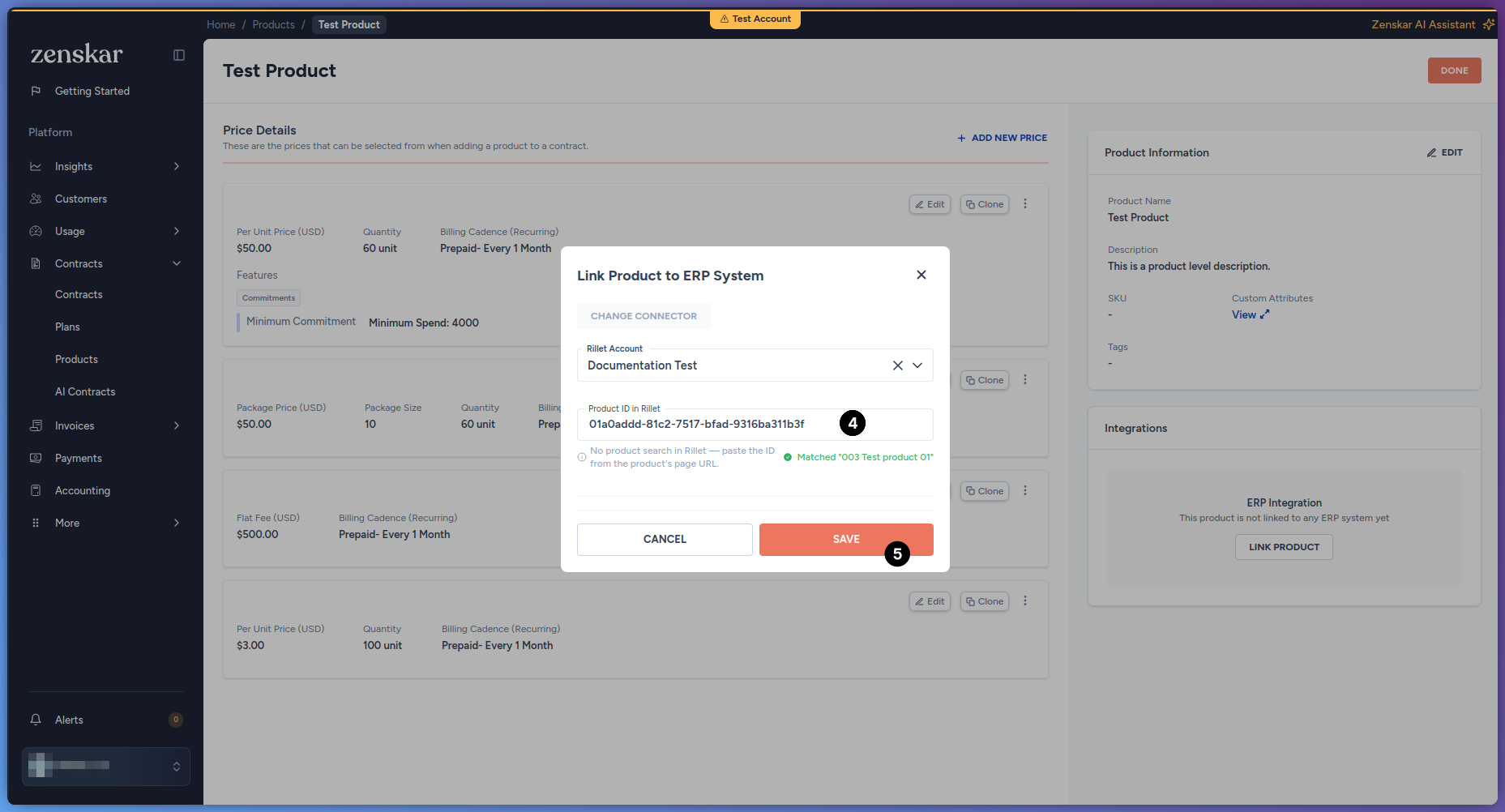
Rillet has no product search by name, so this ID cannot be looked up by typing the product's name. Once you paste a valid ID, Zenskar shows the matched Rillet product's name to confirm you pasted the right one.
5. Save the mapping.
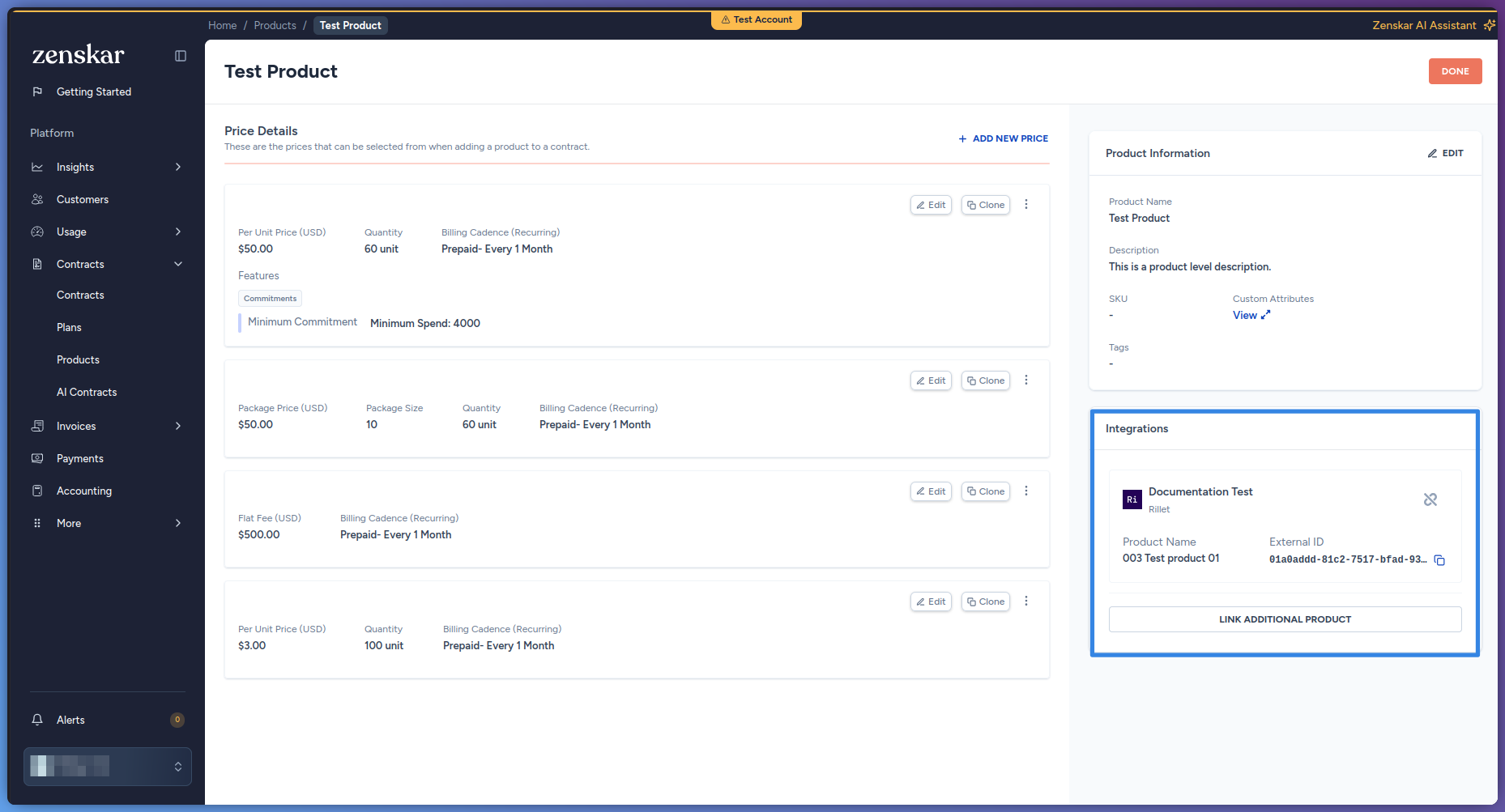
Repeat for each Zenskar product that already exists in Rillet. This mapping is per product; there is no bulk mapping option.
## Features
| Feature | What it does |
| :- | :- |
| **Revenue recognition** | Rillet is a revenue recognition ERP, and this shapes how every invoice syncs. Each invoice line carries a revenue period, taken from the line's own service dates, or the invoice's billing period if the line has none. Each product carries a recognition pattern, Even Period or Daily, and a flag for whether it counts toward ARR and MRR. Rillet builds its revenue schedules from this data natively. Zenskar does not post separate journal entries to Rillet. |
| **Duplicate sync protection** | Re-syncing an invoice or credit note that already synced is blocked. Zenskar never creates a duplicate record in Rillet. |
| **Failed sync rollback** | If an invoice sync fails partway, Zenskar rolls back the invoice it created in Rillet. |
| **Closed period and due date checks** | Rillet rejects posting into a closed accounting period, and rejects a due date earlier than the invoice date. Both surface as sync errors. |
| **Payments** | Export is not supported. Rillet payments can sync back into Zenskar automatically, where enabled. See the note below. |
| **Journal entries** | Not supported. Rillet performs revenue recognition natively, so Zenskar does not post journal entries to it. |
Payment backsync is not yet available to every organization. Contact Zenskar to have it enabled for yours. When enabled, a Rillet webhook triggers the sync whenever a payment changes in Rillet. The invoice must already be synced and mapped to Rillet. The Zenskar invoice must be approved or partially paid. Based on the payment's status in Rillet, Zenskar creates a new payment, voids a previously synced one, or leaves the existing payment unchanged. An amount larger than the remaining invoice balance is recorded as unallocated cash, with an alert, instead of being rejected.
This documentation is built and hosted on [Mintlify](https://mintlify.com), a developer documentation platform.