> ## Documentation Index
> Fetch the complete documentation index at: https://zenskar.com/docs/llms.txt
> Use this file to discover all available pages before exploring further.
# How to create a contract via dashboard
## Steps to create a contract
### Preliminary steps
1. Navigate to the **Contracts** section in the side panel.
2. Select the **Contracts** option to open the **Contracts** page.
3. Click on the **+ ADD NEW CONTRACT** button to open the **Create Contract** form.
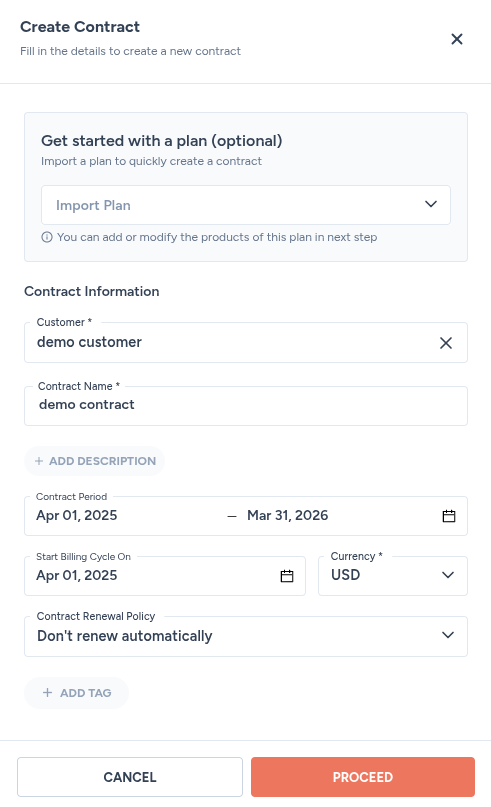
4. Fill in the following details:
| Field | Description |
| :--------------------------------- | :------------------------------------------------------------------------------------------------------------------------------------------------------------------------------ |
| Get started with a plan (optional) | Ignore this option. |
| Customer | Select the customer name. |
| Contract name | Enter a descriptive name for the contract. |
| Contract period | The start and end dates during which the agreed-upon commercial terms, such as pricing, products, and features, are valid. |
| Start billing cycle on | The specific date when the system begins generating invoices for a contract. It controls when the first billing period starts, regardless of the contract's overall start date. |
| Currency | The unit of money the invoice amounts, such as prices, taxes, and totals, are denominated in. |
This form doesn't have a renewal policy field. Every contract is fixed to **Don't renew automatically**. If you want a different renewal behavior, set it as your organization's default under **Settings → Contracts & Invoices**. See [contract renewal: concepts](/docs/20240301/product-modules/contracts/concepts/contract-renewal) for how that works.
5. Click on the **PROCEED** button, and you will be taken to the **Summary** tab of the **Contract Details** page.
***
### Add features
> 🔖 Phase 1: the default phase
>
> A default phase is created for you automatically, spanning the same start and end dates as the contract.
1. Click on the **Configure Features** button.
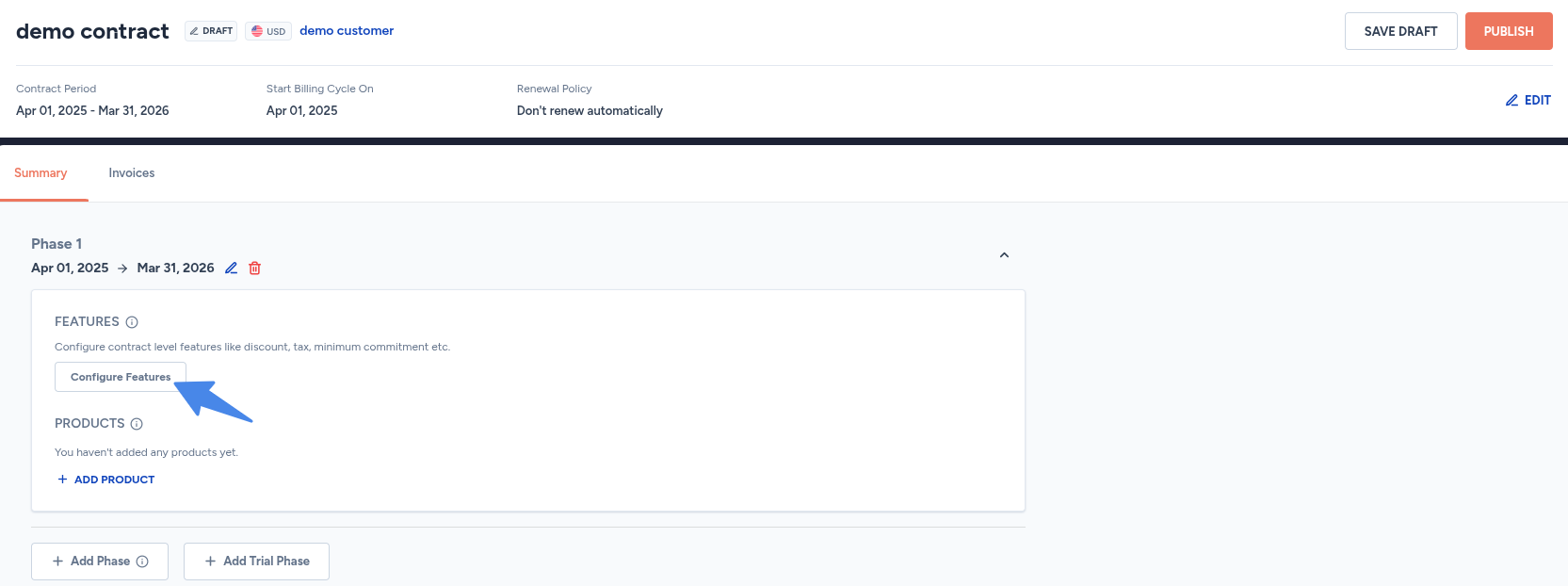
| Feature | Description |
| ------------- | --------------------------------------------------------------------------------------- |
| Discount | Percentage or fixed amount reductions applied to the phase's charges. |
| Tax | Enables tax calculation, either manually or through an integration like Avalara. |
| Commitment | Defines a minimum billing amount for the customer over the phase. |
| Consumptions | Defines how usage draws down against a grant configured on one of the phase's products. |
| Payment terms | Specifies invoice due dates relative to invoice approval or creation. |
| Service fees | An additional fixed or percentage-based fee, typically for support or onboarding. |
Free units and grants aren't configured here. Those are product-level features, set up on the product's own pricing rather than on the phase.
### Add products
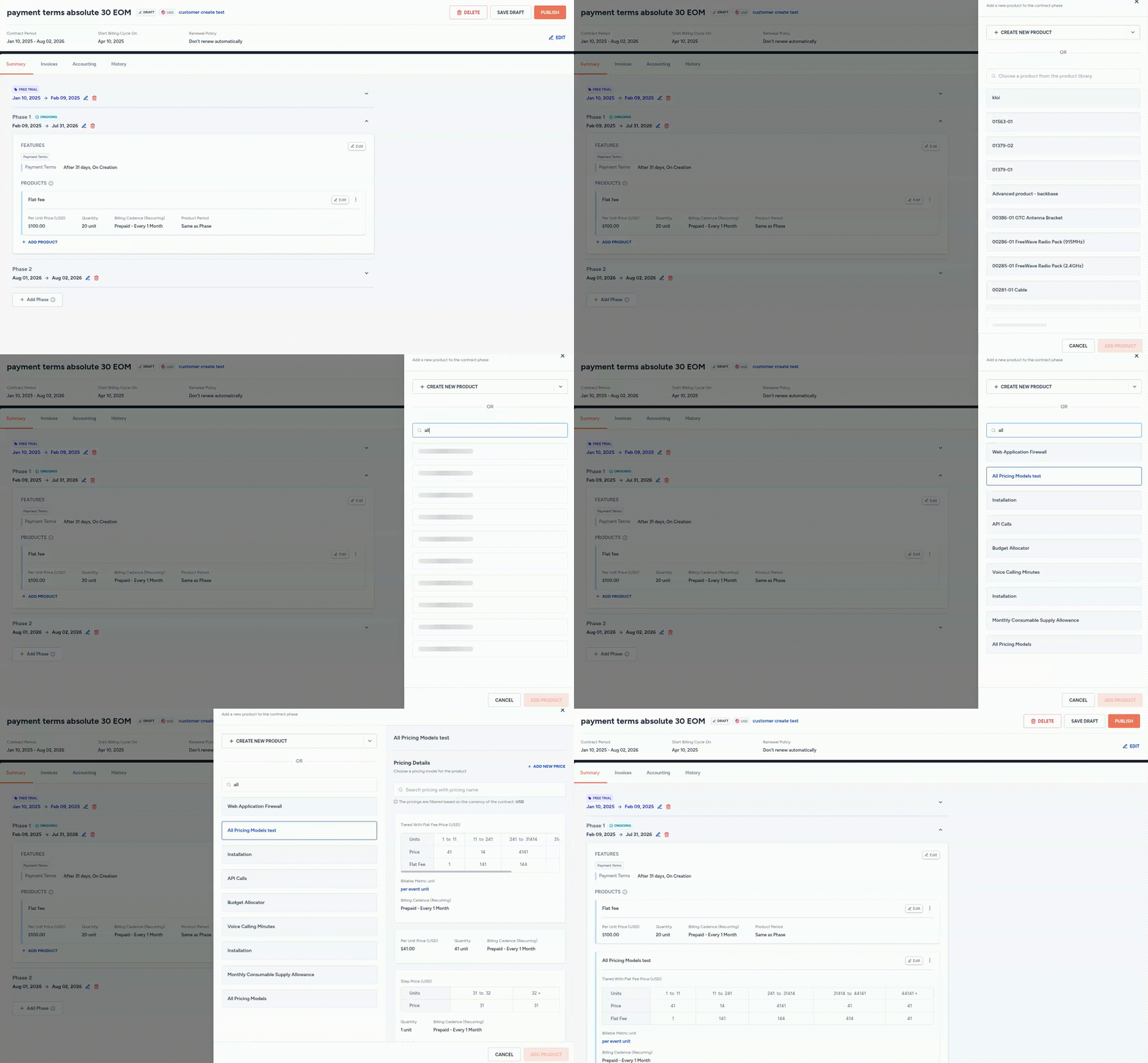
1. Click on the **+ ADD PRODUCT** button.
2. Search for the product name.
3. Select the desired product from the list of products.
4. Select the pricing details.
### Edit contract details
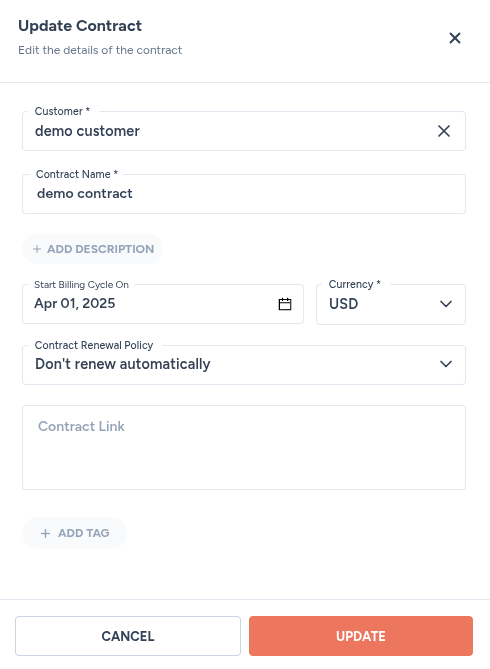
1. In the **Summary** tab of the **Contract Details** page, you can edit the contract details by clicking on the **EDIT** button.
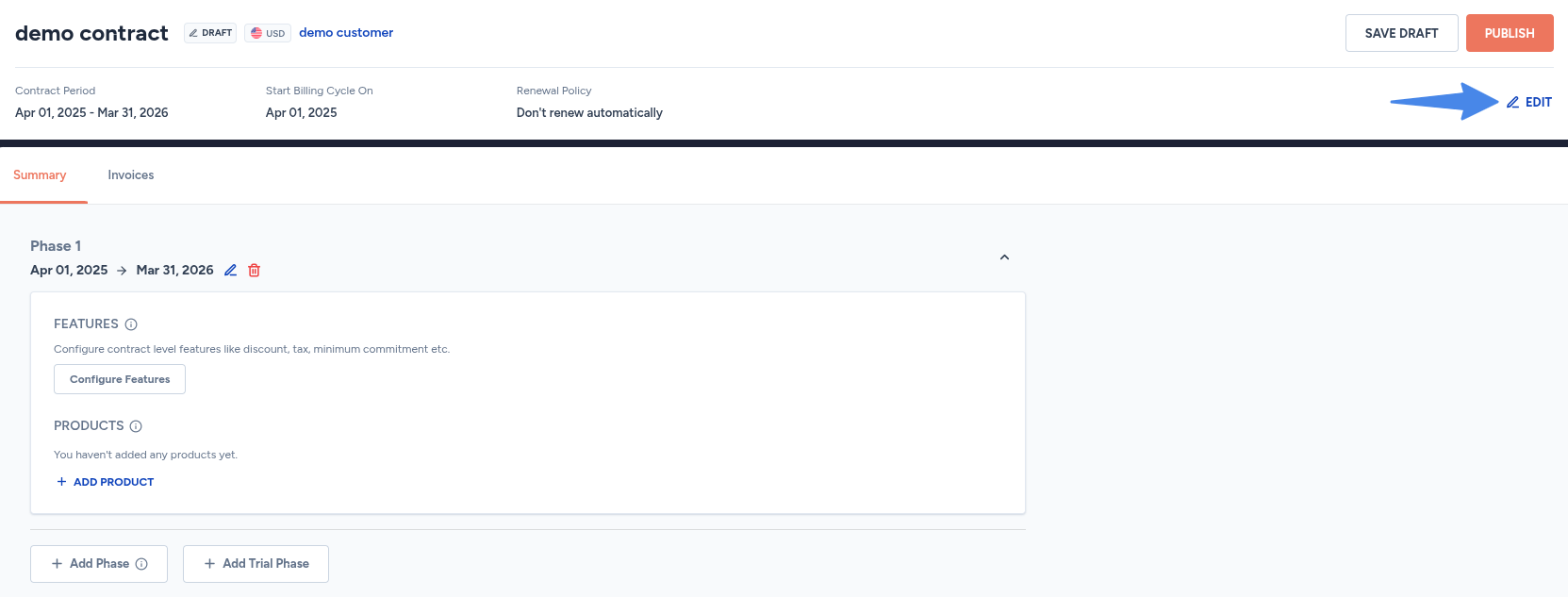
2. Update the required details in the **Update Contract** form.
3. Click on the **UPDATE** button to save the changes.