

Adding a product based on custom tiered pricing in Zenskar
🔖 Important Refer the products documentation to learn more about the concept of products in Zenskar.
Step 1: Create a product based on custom tiered pricing
- Navigate to Contracts > Products, and click on the ADD PRODUCT button.
- Select the Custom Tiered Pricing from the drop-down.
- Select the pricing model. There are two choices available:
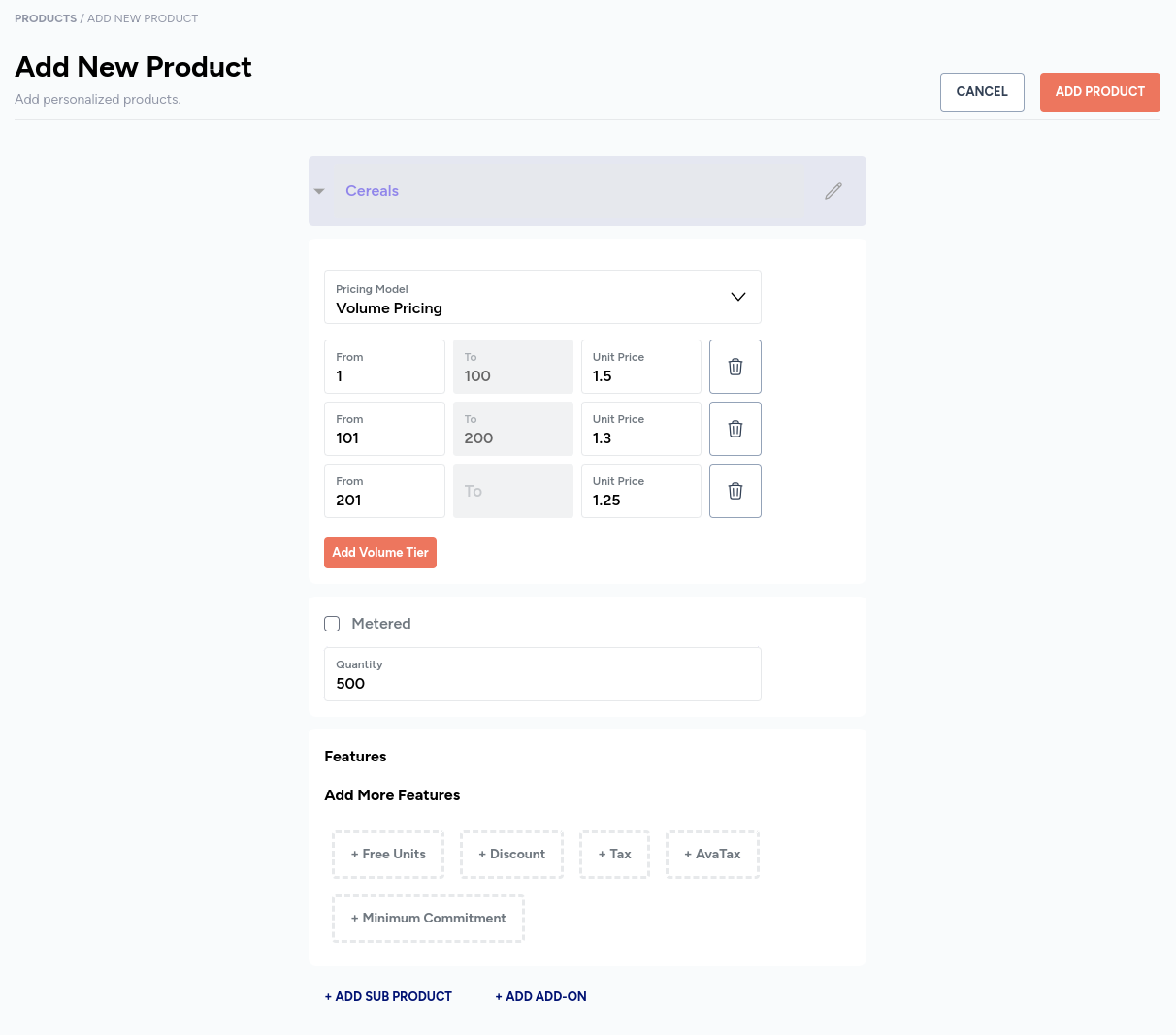
- Volume pricing: custom tiered pricing model based on volume pricing has some additional feature when compared to volume pricing model.
- Tiered pricing: custom tiered pricing model based on tiered pricing has some additional feature when compared to tiered pricing model.
- Add tiers. In each tier the following information must be provided:
- From: start of the range of units of service or product available for purchase in a given tier.
- To: end of the range of units of service or product available for purchase in a given tier.
- Tier type:
- Per unit: in a given tier, select this if you want to charge for your service or product on a per-unit basis.
- Package: in a given tier, select this if you want to charge for your service or product on a package basis.
- Unit price: enter the unit price you would like to charge for each unit of your service or product.
- Flat fee: enter the flat fee you would like to charge for your service or product in a given tier. The flat fee will override any unit price you might have entered.
- Package size(available only for package tier type): maximum number of packages of your service or product available for purchase in a given tier.
- Select or deselect Metered:
- If the service or product is metered, select the appropriate usage aggregate from the drop-down.
- If the service or product is not metered, enter the quantity.
- Fill in all other details, and select all the desired features.
- Save the product.
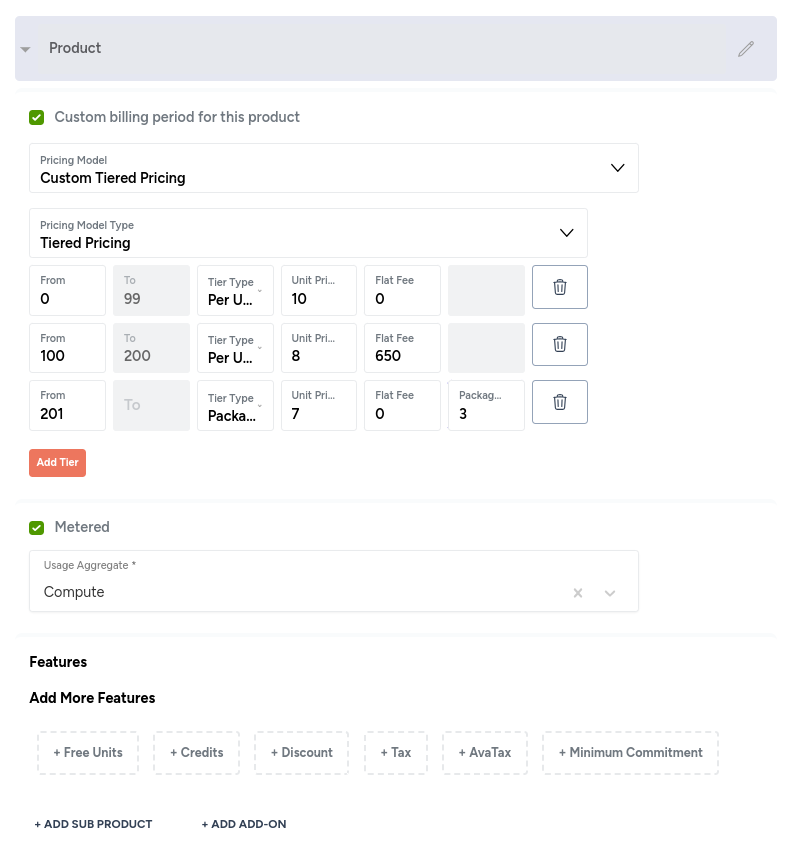
Example: custom tiered pricing based on tiered pricing
📚 Tiered pricing vs custom tiered pricing based on tiered pricingDetails:
- Tiered pricing only supports unit pricing whereas custom tiered pricing supports per-unit and package pricing.
- Custom tiered pricing supports flat fee for a tier. Flat fee is not available in tiered pricing.
- You are selling your service or product at the following rates:
- Owing to the nature of consumption, this is a metered product.
- The usage aggregate named Compute is being used to fetch consumption details for a given billing period.
Example: custom tiered pricing based on volume pricing
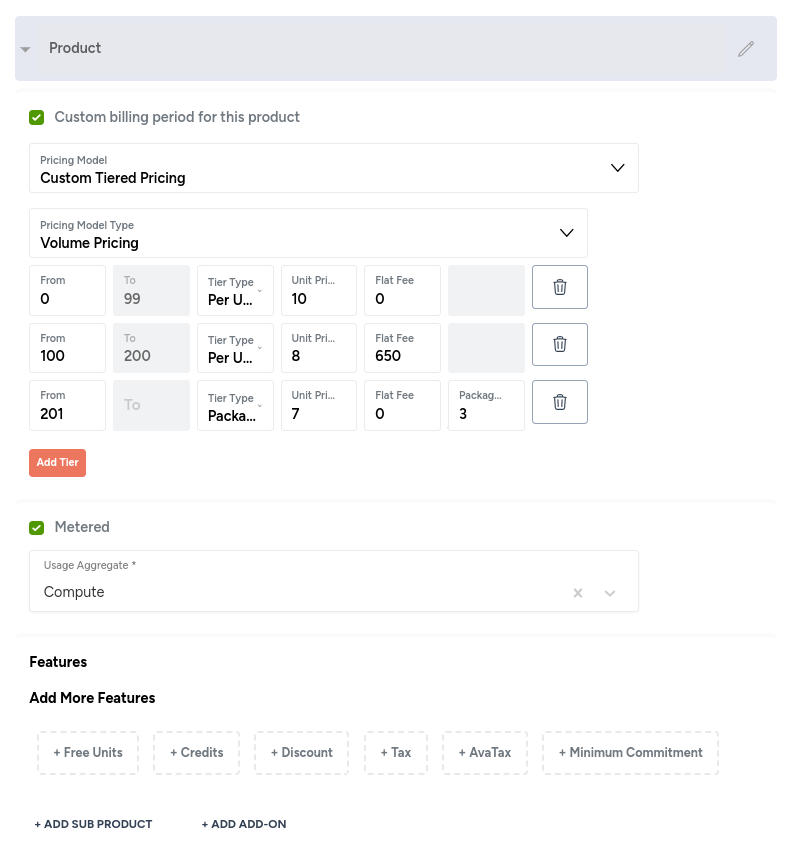
📚 Volume pricing vs custom tiered pricing based on volume pricingDetails:
- Volume pricing only supports unit pricing whereas custom tiered pricing supports per-unit and package pricing.
- Custom tiered pricing supports flat fee for a tier. Flat fee is not available in volume pricing.
- You are selling your service or product at the following rates:
- Owing to the nature of consumption, this is a metered product.
- The usage aggregate named Compute is being used to fetch consumption details for a given billing period.
Step 2
Add product to new contract
- Navigate to Contracts > Contracts, and click on the + ADD NEW CONTRACT button.
- Click on the + ADD NEW PRODUCT button.
- Select the product(s) based on custom tiered pricing for the contract.
Add product to new template
- Navigate to Contracts > Templates, and click on the + ADD NEW TEMPLATE button.
- Click on the + ADD NEW PRODUCT button.
- Select the product(s) based on custom tiered pricing for the template.